LightBurn has established itself as a leading software solution in the laser engraving industry, recommended by both beginners and professionals for its powerful features and user-friendly interface. This comprehensive 2025 review examines LightBurn’s capabilities, ease of use, features, and overall value in today’s market. Whether you’re new to laser engraving or an experienced user, this guide covers everything you need to know about this popular laser engraving and cutting software.
What is LightBurn Software?
LightBurn is a comprehensive software application designed specifically for laser engraving, cutting, and CNC control. It enables users to design, edit, and manage jobs for various laser cutters and engravers efficiently. The software has gained popularity for its intuitive interface and powerful feature set that caters to both hobbyists and professional users.
Key Features of LightBurn
- Wide Compatibility: Works with numerous laser cutter/engraver models and controllers
- Intuitive Interface: User-friendly design for creating vector graphics and raster images
- File Format Support: Import and work with SVG, PNG, JPG, DXF, PDF, and other common file types
- Advanced Text Tools: Powerful text and image engraving capabilities
- Rotary Support: Enables engraving on cylindrical objects
- Camera Alignment: Features to match real-world placement to digital designs
- Comprehensive Settings: Sophisticated job and color management options
- Cross-Platform: Available for Windows 10+, macOS 10.13+, and Linux systems
Related Reading: Workforce Software Eleveo: A Comprehensive Guide
With its flexibility and broad device compatibility, LightBurn has become the go-to software solution for laser engraving and cutting projects. It serves as a complete package that takes users from initial concept to finished project entirely within the software environment.
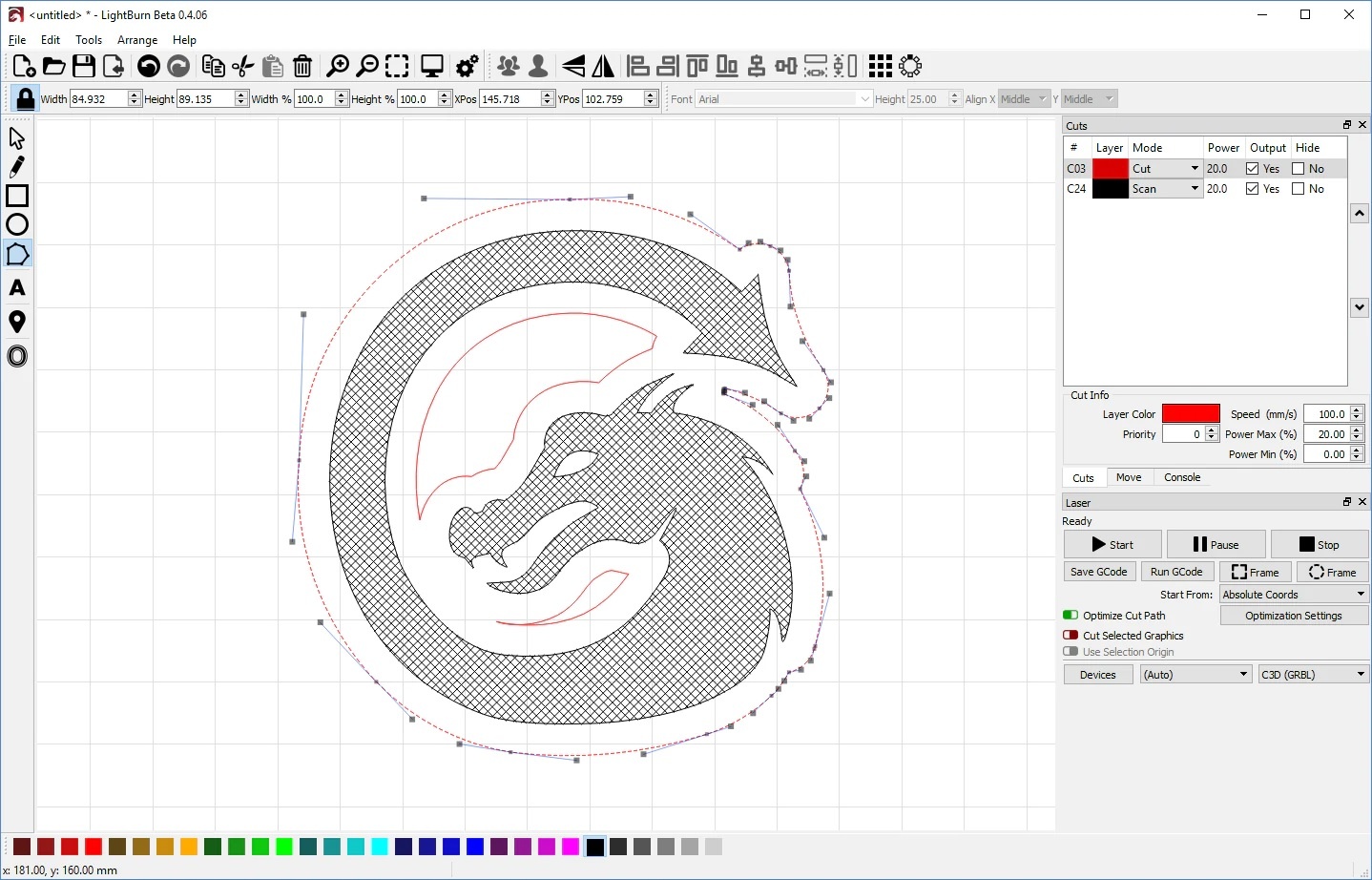
Getting Started with LightBurn in 2025
System Requirements
LightBurn has modest system requirements, making it accessible to most users with modern computers. Here are the current specifications for 2025:
- Operating Systems: Windows 10 or later, macOS 10.13 or later, Linux (Ubuntu 18.04 and 20.04)
- Processor: 64-bit Intel or AMD processor
- Memory: 8GB RAM recommended
- Storage: 1GB free disk space
- Graphics: Dedicated graphics card with OpenGL 3.0 support or later
The software is lightweight and doesn’t require expensive high-end hardware, though integrated graphics chips on CPUs may not provide full OpenGL support.
Installation and Setup Process
Installing LightBurn is straightforward across all supported platforms. Users can download the appropriate version for their operating system from the official LightBurn website. Both free trial and paid licensed versions are available for download.
The installation process follows a standard wizard and typically takes only a few minutes. After installation, users need to configure LightBurn for their specific laser cutter model by:
- Selecting the laser device in Device Settings
- Inputting bed size and laser origin point information
- Choosing from predefined device profiles for popular cutters
- Manually entering parameters for customized machines using technical specifications
Trial and Licensing Options
LightBurn offers a generous 30-day free trial with full functionality—no watermarks or limitations. This allows users to thoroughly test the software before making a purchase decision.
After the trial expires, LightBurn enters view-only mode where existing projects can be opened but not edited or run. To continue using all features, users must purchase a license:
- LightBurn Core: $99 USD for G-Code controllers (common in DIY lasers, 3D printers, and open-frame diode lasers)
- LightBurn Pro: $199 USD for DSP controllers (industrial machines), Galvo controllers (fiber lasers), and all G-Code controllers
- Upgrade from Core to Pro: $100 USD (pay only the difference)
The license is a one-time purchase, though annual renewal ($50) is required after the first year to continue receiving updates and new features.
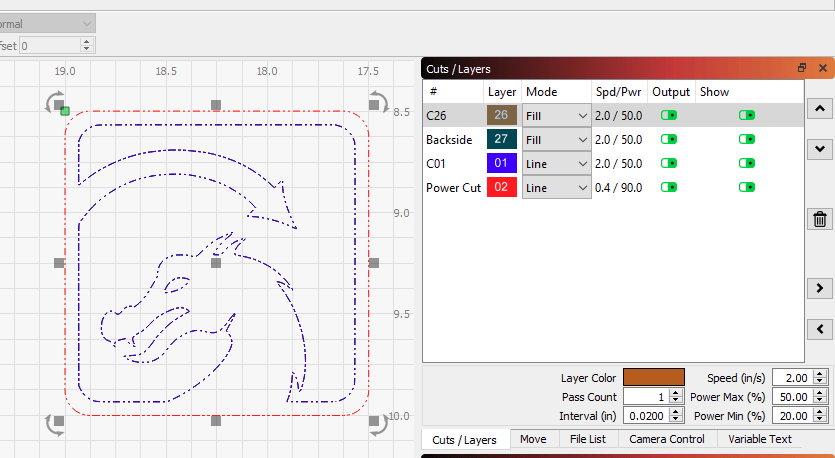
LightBurn 2.0: Latest Features and Updates
The release of LightBurn 2.0 in 2025 brought significant improvements and new features that enhance the user experience and expand capabilities:
Dark Mode
One of the most requested features, Dark Mode allows users to switch to a darker interface that’s easier on the eyes during long work sessions. Users can choose from three application themes or set it to match their operating system’s theme automatically.
New Built-in Shapes
LightBurn 2.0 introduces additional shape creation tools, making it easier to create complex designs directly within the software without needing external graphics programs. The new shapes can be immediately edited after creation using move, size, rotate, or shear handles.
Enhanced Edit Nodes Toolbar
The improved Edit Nodes toolbar provides more precise control over vector paths, making it easier to create and modify complex shapes. This feature is particularly valuable for users who do detailed design work within LightBurn.
Improved Camera Control
The Camera Control window has been reorganized with new tabs and options, including an experimental Camera Calibration process using AprilTags tracking for more precise alignment.
Independent Design and Machine Units
Users can now set different units for design work and machine settings, providing greater flexibility when working with various measurement systems or when switching between projects with different requirements.
Stacked Boolean Operations
Boolean operations (union, difference, intersection) have been consolidated into stacked buttons, saving interface space while maintaining quick access to these essential design tools.
Enhanced Layer Management
The Cuts/Layers window features new icons and improved context menus, making it easier to organize and manage complex projects with multiple layers and settings.
Using LightBurn’s Features and Tools
LightBurn packs a comprehensive set of design, editing, and job management features into its streamlined interface. Here’s an overview of its core capabilities:
Design Capabilities
Vector and Raster Design
LightBurn includes robust tools for both vector and raster design:
- Vector Tools: Create and modify shapes with scale, rotate, skew, and other transformation options
- Shape Presets: Access a variety of useful pre-made shapes for quick design creation
- Raster Editing: Import and edit images with built-in adjustment tools for optimal engraving results
- Text Tools: Complete control over font, size, spacing, alignment, and text fitting within shapes
The software allows users to conceptualize and iterate on designs entirely within LightBurn, eliminating the need to switch between multiple graphics programs.
Arrangement and Transformation
LightBurn makes it easy to organize design elements with:
- Layers and Grouping: Organize complex designs with hierarchical structure
- Alignment Tools: Precisely align multiple objects with various alignment options
- Advanced Transformations: Apply distortion, perspective adjustments, path editing, and boolean operations
- Nudge Controls: Make fine adjustments with keyboard controls
Preview and Simulation
One of LightBurn’s strengths is its realistic preview and simulation features:
- Real-time Preview: See exactly how engraved or cut projects will look
- Material Visualization: Preview designs on different materials and sizes
- Interactive Simulation: Pan, zoom, and simulate the view as if looking at the physical piece
- Immediate Feedback: Preview updates in real-time as settings are adjusted
Settings and Job Management
Optimized settings are crucial for quality laser work, and LightBurn provides comprehensive control:
Raster Settings
- Scan direction and resolution controls
- Overlap and dithering options
- Specialized settings for photorealistic engraving
- Brightness and contrast adjustments
Vector Settings
- Power, speed, and number of passes
- Focal offset and other advanced parameters
- Cut order optimization
- Preset configurations for different materials
Job Organization
- Job Manager panel for tracking saved projects
- Color mapping and device settings storage
- Batch job sequencing capabilities
- Local file management
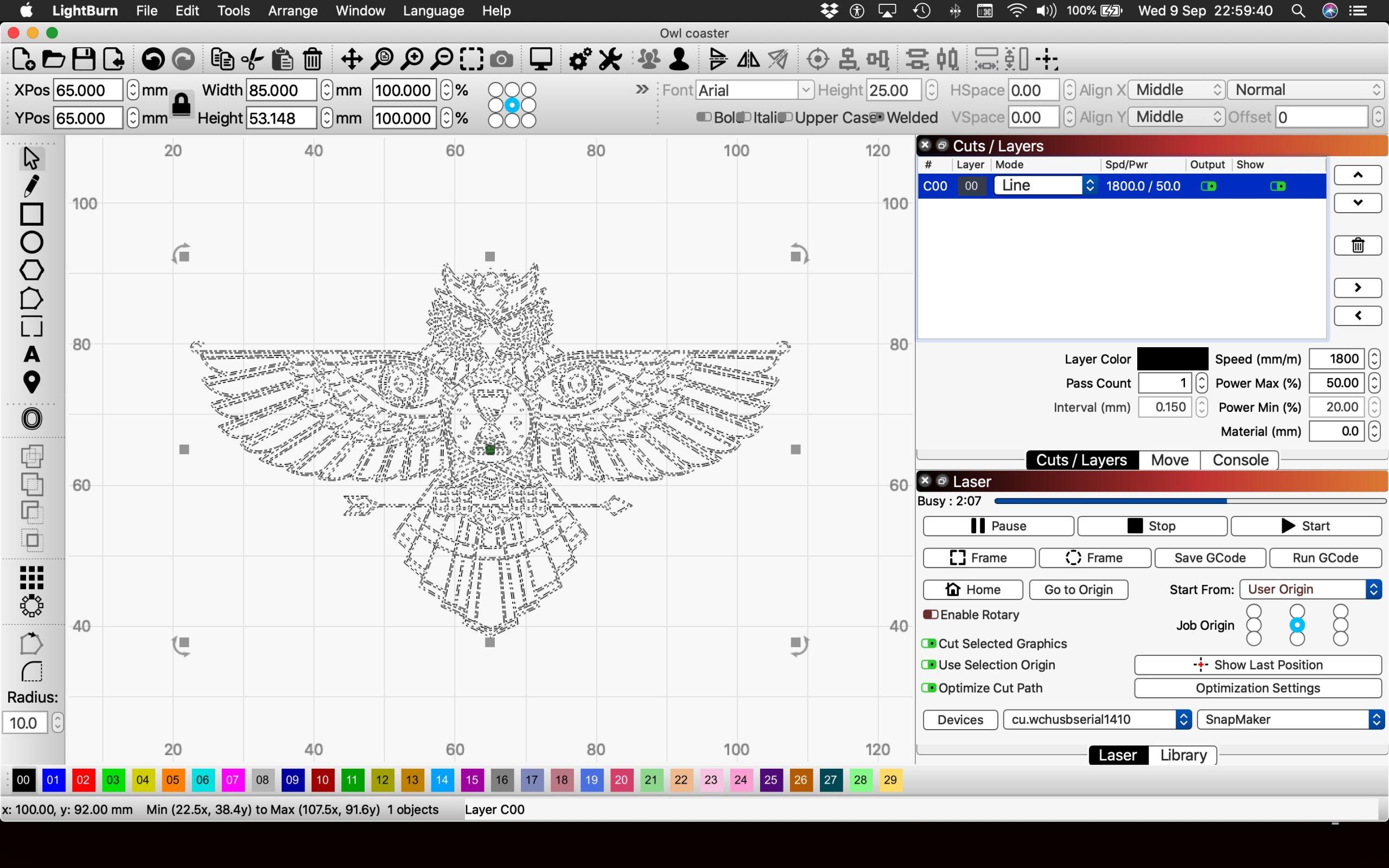
Material Capabilities and Applications
LightBurn’s flexible settings enable it to work with a wide variety of materials for different applications:
Wood Engraving and Cutting
- Decorative designs, lettering, and photo engraving
- Precision cutting up to 1 cm thickness
- Marking wood slabs, bowls, and rounds for segmenting
Leather Applications
- Personalizing wallets, bags, clothing, and accessories
- Creating gradual shading effects
- Cutting clean vector outlines on thick leather
Plastic Processing
- Engraving durable labels, badges, and tags
- Cutting acrylic sheets up to 6mm thick
- Marking curved surfaces like bottles and tumblers
Metal Marking
- Full-color engraving on anodized aluminum
- Marking stainless steel with annealed Cermark
- Shaded engraving on softer metals like brass
Stone and Glass Work
- Engraving granite, marble, and other stones up to 1 cm depth
- Creating custom artwork with lighter marking options
- Full range of glass marking from subtle frosting to deep engraving
- Precise vector cutting through plate glass
LightBurn can handle virtually any material that can be processed with a laser, making it a versatile solution for diverse applications.
Advanced Features for Professional Users
For users requiring extra precision and control, LightBurn provides several advanced capabilities:
Camera Registration
The camera registration feature allows users to:
- Visually align artwork on the laser bed to physical objects
- Match designs with irregularly shaped or sized materials
- Trace existing objects to reproduce their contours in digital designs
This feature is particularly valuable for precision work and when working with materials that aren’t perfectly uniform.
Rotary Attachment Support
With a rotary add-on, LightBurn can engrave cylindrical objects such as:
- Mugs and glasses
- Bottles and containers
- Cylindrical promotional items
- Round wooden pieces
The software includes compensation for the curved surface, ensuring distortion-free designs when wrapped around cylindrical objects.
Scripting and Customization
LightBurn supports Lua scripting for:
- Automating repetitive tasks
- Creating custom functionality
- Accessing design data and UI events
- Extending core features
While not necessary for all users, scripting capabilities provide advanced users with powerful customization options.
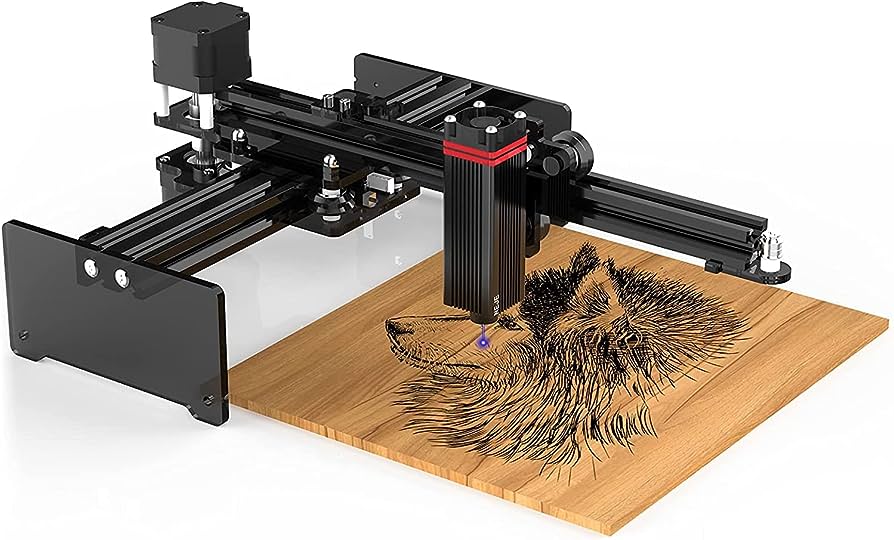
Compatible Laser Controllers and Machines
One of LightBurn’s major strengths is its broad compatibility with different laser cutters and engravers:
G-Code Controllers (LightBurn Core)
- Common in 3D printers and DIY laser machines
- Used in open-frame diode lasers like Ortur, XTool D1, AtomStack, TwoTrees, NEJE Master
- Found in EleksMaker and FoxAlien machines
- Compatible with XCarve, Shapeoko, and 3018 CNC machines
- Works with Cohesion3D LaserBoard, Smoothieboard, and boards running GRBL or Marlin firmware
DSP Controllers (LightBurn Pro)
- Common in industrial-grade CO2 lasers
- Used in machines from Aeon, Thunder, Boss, AP Lazer, and Laguna Tools
- Supports Ruida, Trocen, and TopWisdom controllers
- Typically found in enclosed machines with LCD display panels
Galvo Controllers (LightBurn Pro)
- Used in fiber and CO2 galvo systems
- Supports EzCad2 and EzCad2 Lite software
- Common in high-speed marking and engraving applications
- Used for both metal marking (fiber lasers) and wood marking (CO2 lasers)
New controller support is regularly added with software updates, expanding the range of compatible machines.
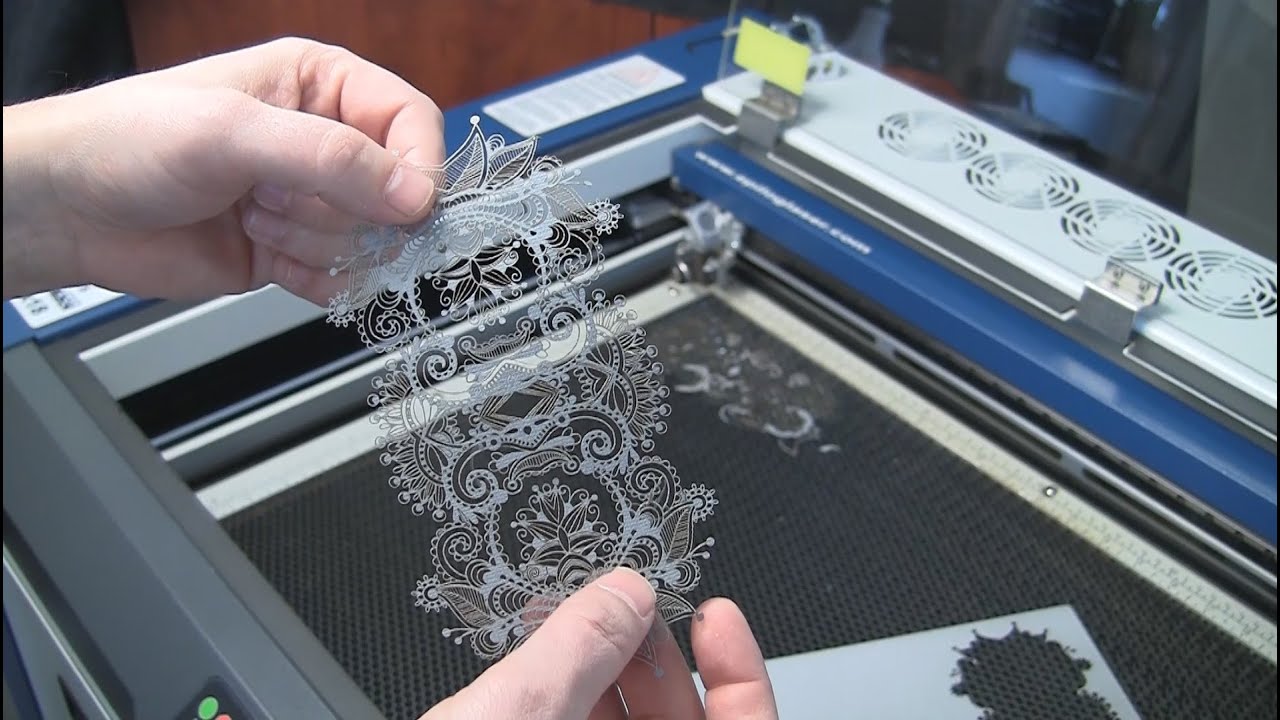
Pros and Cons of LightBurn Software
Advantages
- Intuitive Interface: User-friendly design that’s easy to navigate
- Powerful Feature Set: Comprehensive tools for design, editing, and simulation
- Broad Compatibility: Works with many laser models, including budget-friendly options
- Reasonable Pricing: One-time license cost with optional annual updates
- Excellent Support: Responsive customer service and active user community
- Regular Updates: Continuous improvement with new features and bug fixes
- Cross-Platform: Available for Windows, macOS, and Linux
Limitations
- Desktop Only: Currently, no mobile or web-based versions are available
- Learning Curve: While user-friendly, mastering all features takes time
- Advanced Customization: Scripting requires coding knowledge
- File Format Limitations: Primarily supports SVG, DXF, and image files
- No Native CAD: More focused on artistic design than technical drawings
- Annual Updates: Optional but required for continued access to new features
Overall, LightBurn excels at laser-specific design, previewing, and job setup, with advantages that far outweigh limitations for most users.
Is LightBurn the Right Choice for You?
LightBurn software is an excellent option for most laser engraving and cutting applications. Consider these factors when deciding:
Laser Compatibility
Verify that your laser controller is supported before purchasing. LightBurn works with most G-Code, DSP, and Galvo controllers, but compatibility should be confirmed.
Design Workflow Needs
LightBurn is optimized for graphic design and layout rather than technical CAD work. Assess whether its vector and raster tools meet your specific design requirements.
Learning Investment
While user-friendly, LightBurn has a learning curve. Consider the time you can dedicate to mastering the software’s features.
Budget Considerations
At $99-$199, LightBurn is reasonably priced for most users. However, free alternatives exist for those with extremely limited budgets.
Support Requirements
LightBurn offers excellent documentation, tutorials, and responsive support, which can be crucial for beginners and professionals alike.
For most laser cutting and engraving applications, LightBurn’s specialized tools provide efficiency and results that justify the investment. The free trial allows you to test the software with your specific equipment before committing.
Frequently Asked Questions
What file formats does LightBurn support?
LightBurn imports SVG, PNG, JPG/JPEG, GCode, PDF, DXF, and other standard formats. It exports to SVG, PNG, JPG, GCode, and PDF formats.
Can LightBurn engrave photos?
Yes, LightBurn includes powerful tools for working with bitmap images like photos. Advanced image effects allow conversion to black and white dithered results suitable for shaded engraving.
Does LightBurn work with 3D models or STL files?
LightBurn doesn’t directly support 3D model formats like STL, but workflows exist to convert 3D models to 2D vector designs compatible with LightBurn.
Can LightBurn design parts for 3D printing?
No, LightBurn is specifically designed for laser cutting and engraving. It doesn’t include modeling tools for 3D printing or CNC milling workflows.
Is there a LightBurn mobile app?
Currently, LightBurn is only available as a desktop application for Windows, macOS, and Linux. No mobile or tablet versions are available at this time.
How often does LightBurn release updates?
LightBurn regularly releases updates with new features and improvements. Major version updates (like 2.0) occur less frequently, while minor updates and bug fixes are released more often.
Can I use LightBurn on multiple computers?
A single LightBurn license allows installation on up to three computers for personal use, making it convenient for users with multiple workstations.
Conclusion
LightBurn delivers exceptional power and flexibility for laser cutting and engraving in an accessible, affordable package. With device profiles covering most popular hobbyist and professional laser brands, it provides a complete solution from design to final execution.
The intuitive interface and interactive preview features help users maximize their laser’s capabilities. Continuous improvements from the developers ensure support for new hardware and innovative features.
Whether starting a laser engraving business or creating custom projects, LightBurn deserves strong consideration. The 30-day free trial allows users to experience the software’s capabilities firsthand before making a purchase decision.
For those exploring other software solutions, comparing different laser engraving software options can help determine the best fit for specific needs and budget constraints.
LightBurn stands out as a comprehensive laser engraving solution that balances powerful features with user-friendly design, making it an excellent choice for both beginners and experienced users in the laser engraving community.
You May Also Like
 Best Software
10 Best Inventory Control Software for Small Business in 2026
 Best Software
Top 10 Free & Open Source Inventory Management Software in 2026
 Best Software
12 Best AI Chatbot Software To Increase Your Conversions In 2026
 Best Software
23 Best Free Avatar Creator Sites Online To Create Your Own Avatars
 SaaS
SaaS11 Best VoIP Call Center Solutions for Small Business 2026 (Comparison Guide)
 Best Software
6 Best Software to Record Mouse and Keyboard Actions and Automate Repetitive Tasks
 Best Software
Jira vs Hive: Which Project Management Tool is Right for Your Team?
 Best Software
8 Best Free Registry Cleaners Tools to Clean Junk and Registry on Windows PC
 Best Software