A ping sweep is a network scanning technique used to quickly identify live hosts on a network. It’s one of the most effective network scanning techniques for mapping entire networks, scanning IP address ranges, or checking specific IP addresses. With the right tools, you can discover hundreds of active hosts and open ports on your network efficiently.
In this guide, I’ll walk you through the best tools to perform ping sweeps, share my hands-on experience with each, and help you choose the right solution for your network management needs. Whether you’re a network administrator, security professional, or IT enthusiast, you’ll find practical insights to enhance your network discovery capabilities.
What is Ping Sweep?
A ping sweep, also known as an IP sweep or ICMP sweep, is a network scanning method that discovers hosts by sending Internet Control Message Protocol (ICMP) echo requests (commonly called “pings”). When I perform a ping sweep, I’m sending ICMP packets to multiple IP addresses and waiting for echo responses.
This technique helps me quickly identify which IP addresses are active and which belong to inactive or dead hosts. Network administrators and security engineers use ping sweeps to locate vulnerable devices, scan for open ports, detect rogue systems, and update ARP tables. There are two primary methods: ping scans (using predetermined IP addresses) and ping sweeps (using ranges of IPs).
Benefits of Ping Sweep

Ping sweep is a useful network administration tool that helps me monitor and identify all hosts or IP devices on a given network. This technology directs ping requests to multiple target hosts while gathering and analyzing the replies.
Based on my experience, performing a ping sweep provides several benefits for maintaining stable network operation:
- Quickly identify all active nodes: A ping sweep reveals all active nodes on your network, allowing you to verify if newly added devices are working properly and detect any unauthorized connections.
- Simplify troubleshooting: Since it’s used for network auditing, ping sweep helps narrow down investigation areas by locating dead zones or misconfigured networks. This scanning capability makes the troubleshooting process much faster than manual methods.
- Monitor multiple networks simultaneously: With multi-threaded tools, I can monitor many networks at once, giving me more control over system performance compared to sending manual ping commands one at a time.
- Proactive security measures: Through ping sweep auditing, I gain visibility into my network and potential intrusion points while helping with network maintenance activities like auditing DHCP scopes and identifying duplicate IP addresses.
6 Top Ping Sweep Tools for Network Discovery
Ping sweep is a practical network tool that helps me identify active hosts on a network, troubleshoot issues, and find IP addresses in use. After testing numerous tools over the years, I’ve compiled a list of the most effective solutions for different needs and budgets.
1. SolarWinds IP Address Manager

SolarWinds IP Address Manager is part of SolarWinds’ observability platform, providing IP address management and monitoring capabilities. As someone who has managed large enterprise networks, I’ve found this tool useful for locating unused, duplicate, or overlapping addresses, planning network deployments, and tracking address usage.
This product is now integrated into SolarWinds’ broader observability platform, offering Windows DNS support for DNS audit and health checks, automated DHCP scope monitoring, host name resolution of reverse lookup zones, and discoverable IP address ranges via ping sweeps and ARP scans. It also offers static mapping support for virtual MAC addresses and TTL-based automatic device removal detection with alerting through syslogs.
Key Features:
- Automated IP address scanning and discovery
- DHCP and DNS server monitoring
- Real-time IP address tracking and management
- Advanced alerting and reporting capabilities
- Integration with SolarWinds observability platform
Pros:
- Complete IP address management functionality
- User-friendly interface with intuitive dashboard
- Good reporting and visualization features
- Reliable customer support and regular updates
- Scalable for networks of all sizes
Cons:
- Higher price point compared to some alternatives
- Requires some learning curve for advanced features
- Windows-only deployment
Best For:
- Enterprise environments with complex IP management needs
- Organizations requiring DHCP/DNS integration
- Network teams needing robust reporting and compliance features
2. ManageEngine OpManager

ManageEngine OpManager offers both free and paid editions of their network monitoring solution. I’ve used this tool extensively for detecting availability and performance issues by running ping sweeps across IP address ranges. It allows me to quickly identify devices on the network, troubleshoot connections, and monitor endpoint response times and latency issues.
The application provides an enterprise-grade monitoring platform for tracking the health of both wired and wireless devices. Using its feature-rich dashboard, I can customize the tool according to my specific needs and monitor multiple networks simultaneously. The free edition is particularly useful for small networks and testing purposes.
Key Features:
- Automated network discovery and mapping
- Real-time performance monitoring
- Comprehensive alerting system
- Customizable dashboards and reports
- Remote monitoring and management capabilities
Pros:
- Free edition available for testing and small networks
- Cost-effective solution with good value for money
- Easy to deploy and configure
- Excellent network visualization features
- Strong integration with other ManageEngine products
Cons:
- Some advanced features require additional modules
- Mobile app functionality could be improved
- Resource-intensive on large networks
- Free edition has limitations on device count
Best For:
- Small to medium-sized businesses
- IT teams needing affordable yet complete monitoring
- Organizations already using other ManageEngine products
- Users who want to test with the free edition before purchasing
3. Advanced IP Scanner

Advanced IP Scanner is trusted by 70 million users and remains one of the fastest and most user-friendly ping sweep tools I’ve encountered. This Windows-based application is compatible with Windows 11, 10, 8, and 7, making it perfect for various network management tasks including scanning large networks for active hosts and monitoring personal systems.
I’ve been impressed by its ability to scan an entire network in just seconds, providing useful information such as host names, operating systems, MAC addresses, and port numbers. The tool is completely free and doesn’t require installation, making it ideal for IT technicians who need a portable scanning solution.
Key Features:
- Fast network scanning and host discovery
- Remote access and control capabilities via RDP and Radmin
- MAC address detection and vendor identification
- Port scanning functionality
- Export scan results to CSV
- No installation required (portable)
Pros:
- Completely free with no limitations
- Extremely fast scanning speed
- Simple and intuitive interface
- Lightweight and portable (no installation needed)
- Compatible with all recent Windows versions
- Trusted by 70 million users
Cons:
- Windows-only support
- No built-in reporting capabilities
- Limited customization options
- No automation or scheduling features
Best For:
- Small networks and home users
- Quick network audits and troubleshooting
- IT technicians needing a portable scanning solution
- Users on a tight budget
- Windows environments exclusively
4. Nmap
Nmap (Network Mapper) is currently at version 7.97 and remains the gold standard for free and open-source network discovery and security auditing. I consider it essential for any network professional’s toolkit. While it’s much more than just a ping sweep tool, its host discovery capabilities are exceptional. I’ve used Nmap for everything from basic network inventory to sophisticated security audits.
The tool’s built-in scripting engine (NSE) extends its functionality far beyond simple ping sweeps, allowing for advanced network reconnaissance and vulnerability detection. The website has been recently redesigned with a mobile-friendly layout, making it easier to access documentation and downloads on any device.
Key Features:
- Complete host discovery capabilities
- Advanced port scanning techniques
- OS and service detection
- Scriptable automation with NSE
- Cross-platform support (Windows, Linux, macOS)
- Regular updates with new features and improvements
Pros:
- Completely free and open-source
- Extremely powerful and versatile
- Active community and regular updates (latest version 7.97)
- Excellent documentation and learning resources
- Can be automated for large-scale operations
- Mobile-friendly website design
Cons:
- Steep learning curve for beginners
- Command-line interface can be intimidating
- Requires technical knowledge to use effectively
- No official GUI (though Zenmap is available)
Best For:
- Security professionals and penetration testers
- Network administrators needing advanced scanning capabilities
- Users comfortable with command-line tools
- Organizations requiring customizable scanning solutions
- Cross-platform environments
5. SoftPerfect Network Scanner

SoftPerfect Network Scanner is a fast, flexible, and advanced tool that I’ve found particularly useful for medium-sized networks. This multipurpose network administration tool is available for Windows, macOS, and Linux, making it one of the few cross-platform options in this category. It can ping computers, scan ports, discover shared folders, and retrieve information about network devices via WMI, SNMP, HTTP, SSH, and PowerShell.
The tool supports both IPv4 and IPv6 discovery, detects hardware MAC-addresses even across routers, and can be run from a USB flash drive without installation. Its modern interface makes it accessible to beginners while offering enough depth for advanced users.
Key Features:
- Simultaneous ping scanning of multiple hosts
- Full IPv4 and IPv6 support
- Port scanning with customizable ranges
- Network resource discovery (shared folders, printers)
- Remote access detection via WMI, SNMP, HTTP, SSH, PowerShell
- Integration with Nmap for advanced features
- Cross-platform support (Windows, macOS, Linux)
Pros:
- Free for personal use
- Cross-platform compatibility
- Intuitive user interface
- Fast scanning performance
- Good balance of features and usability
- Lightweight and resource-efficient
- Portable (no installation required)

Cons:
- Commercial license required for business use
- Limited automation capabilities
- No built-in scheduling features
- Fewer advanced features compared to enterprise solutions
Best For:
- Small to medium business networks
- IT consultants managing multiple client networks
- Users needing a balance of power and simplicity
- Network inventory and documentation projects
- Cross-platform environments
6. PingInfoView
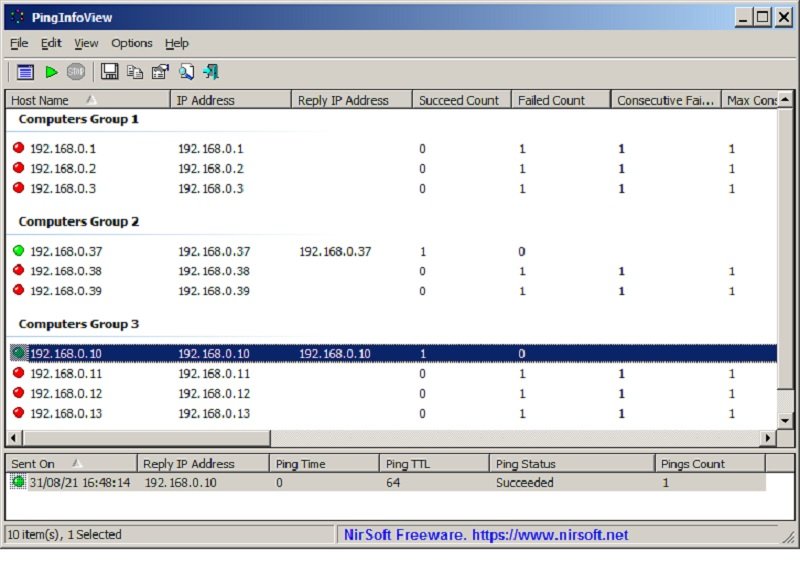
PingInfoView by NirSoft is currently at version 3.20 and remains my go-to utility for quick network checks. This small utility allows you to easily ping multiple host names and IP addresses and view the results in a single table. While it lacks the advanced features of enterprise solutions, its simplicity and speed make it perfect for quick diagnostics.
The latest version (3.20) includes new features like a black background option and the ability to mark odd/even rows for better readability. It supports both ICMP pings and TCP pings, works on all Windows versions from 2000 to 11, and allows you to save ping results into text/html/xml files or copy them to the clipboard.
Key Features:
- Simple ping monitoring of multiple hosts
- Support for both ICMP and TCP pings
- Customizable ping intervals and timeout settings
- Sound alerts for host status changes
- Export results to various formats (text, HTML, XML)
- Portable application (no installation required)
- IPv6 support (added in recent versions)
Pros:
- Completely free
- Extremely lightweight and fast
- Simple and straightforward interface
- Portable and doesn’t require installation
- Low resource usage
- Regular updates (latest version 3.20)
- Works on all Windows versions
Cons:
- Very basic functionality
- No advanced scanning features
- Limited reporting capabilities
- Windows-only support
- No automation or scheduling options
Best For:
- Quick network health checks
- Monitoring critical servers and devices
- Users needing a simple, no-frills ping tool
- IT support technicians doing basic diagnostics
- Windows environments exclusively
How to Perform a Ping Sweep
Performing a ping sweep is a key part of network security and management. Based on my experience, this network scanning method helps you locate all active IP addresses on your network quickly and efficiently.
Step 1: Choose a Tool
Selecting the right tool is essential for an effective ping sweep. Based on your technical expertise and network requirements, you might choose from the options I’ve discussed above. The most important factor is the tool’s ability to reach as many devices as possible and accurately identify their IP addresses.
Step 2: Enter the IP Range
Once you’ve chosen your tool, you’ll need to specify the IP range you want to scan. This typically falls within your own network or the network of interest. The best way to determine this range is by checking with your system administrator or ISP.
For most tools, you’ll enter the range using CIDR notation (e.g., 192.168.1.0/24) or a range format (e.g., 192.168.1.1-192.168.1.254). Some tools also support subnet mask specifications.
Step 3: Run the Sweep
With your IP range specified, it’s time to run the sweep. Most tools will have a “Start” or “Scan” button that initiates the process. The tool will then send ICMP packets to each IP address in your specified range and compile a list of responding hosts.
If an address doesn’t respond to the ping sweep, it could mean there’s no host at that address, or a firewall is blocking ICMP requests. These non-responsive addresses can be targeted for further investigation using alternative scanning methods.
Troubleshooting Common Issues
When troubleshooting network issues, a ping sweep tool can be extremely helpful. It can help you locate problems with both local and wide-area networks. Let me share some common issues I’ve encountered and how to resolve them.
Firewalls Blocking the Ping Sweep
The most common issue I face is firewalls blocking ping sweeps. Many organizations configure firewalls to deny ICMP requests from external sources because identifying network hosts is a primary step for attackers. If you’re not getting responses, this is likely the cause.
To bypass firewalls, I often use port scans to verify which hosts are alive. Tools like Nmap or Zenmap can scan specific ports that might be open even when ICMP is blocked. Additionally, you might need to configure firewall rules to allow ICMP traffic if you’re performing legitimate network administration tasks.
Network Devices Not Responding to Ping Requests
If you’re trying to ping an IP address but getting no response, the device might be configured not to respond to ping requests. Network administrators often disable ICMP Echo-requests for security reasons. The device might also have other security settings blocking ICMP or denying access from your IP.
Another possibility is that the device doesn’t have an IP address assigned. A ping sweep can help identify these issues by scanning a range of addresses and determining which are alive versus inactive. For deeper analysis, you might need to use tools that perform OS fingerprinting or port forwarding checks, but always ensure you have proper authorization before conducting such scans.
Misconfigured IP Addresses
Misconfigured IP addresses can cause various networking issues and device malfunctions. These problems often stem from DHCP issues, DNS server settings, or incorrect static IP entries. I’ve found that ping sweeps are excellent for identifying these configuration problems across an entire network.
A ping sweep compares each IP in a range to its designated gateway device. When devices respond properly, it usually indicates a working network link. However, if no response is received, it’s likely due to a misconfigured client system or addressing problem. Modern tools can also perform ARP scans that verify address presence, detect duplicate entries, and flag addresses outside the subnet range.
Conclusion
Ping sweep is a useful tool for network troubleshooting and management. It’s an important part of network inventory management and security auditing. With the right tool, you can efficiently query ranges of IP addresses to identify active hosts on your network.
Based on my experience, whether you’re managing a small home network or a large enterprise infrastructure, having a reliable ping sweep tool in your toolkit is essential. The tools I’ve discussed offer various levels of functionality, from simple utilities to complete network management solutions.
Remember to always use these tools responsibly and ensure you have proper authorization before scanning any network. When used correctly, ping sweeps can significantly improve your network management capabilities and security posture.
Frequently Asked Questions
What is a ping sweep?
A ping sweep is a network scanning technique that sends ICMP packets to multiple IP addresses to identify live hosts on a network. It’s an efficient way to discover which devices are active and responsive on your network infrastructure.
Why is a ping sweep helpful?
A ping sweep is helpful because it provides a quick and efficient way to scan networks and identify active devices. It saves time and effort compared to manually checking each IP address individually, making it essential for network inventory and troubleshooting.
What are the best tools to ping IP addresses?
Based on my experience, the best tools include SolarWinds IP Address Manager, ManageEngine OpManager, Advanced IP Scanner, Nmap, SoftPerfect Network Scanner, and PingInfoView. Each offers different features and capabilities suited for various network sizes and requirements.
How do I perform a ping sweep?
To perform a ping sweep, select a tool that meets your needs, specify the IP range you want to scan, and initiate the scan. The tool will send ICMP packets to each address and report which ones respond, giving you a list of active hosts on your network.
Can ping sweeps cause harm to devices?
No, ping sweeps don’t cause harm to devices. They’re non-intrusive network scans that only identify live hosts. However, it’s important to obtain proper authorization before performing ping sweeps on networks you don’t own or manage.
Can businesses benefit from using ping sweeps?
Absolutely! Businesses benefit significantly from ping sweeps. They help network administrators identify unauthorized devices, locate downed equipment, address vulnerabilities, and maintain accurate network inventories. This proactive approach to network management improves security and operational efficiency.
You May Also Like
 VPN
VPNCloudflare WARP as a Free VPN Alternative: Review After Months of Daily Use
 Proxies
10 Best Public DNS Servers for Faster Browsing and Lower Gaming Latency in 2026
 Proxies
Residential Proxies vs. ISP Proxies: What Actually Sets Them Apart
 Proxies
REST APIs Explained: Everything You Need to Know to Build and Use Them
 Proxies
Is CroxyProxy Safe to Use for YouTube? Privacy, Security, and Risks
 Proxies
Top 10 Free Proxy Websites in 2026: My Complete Testing Guide
 Proxies
What Are Residential Proxies: Use Cases and Best Providers in 2026
 Best Software
10 Best Free LAN Speed Test Software For Testing Your Network Speed
 WordPress