Is CapCut Safe for Kids? CapCut, a popular video editing app, offers both fun and risks for kids and teens. It’s safe with the right parental controls and privacy settings. But, it’s important to know its details to keep digital experiences safe. Made by ByteDance, the same company as TikTok, CapCut is a favorite among young creators. It has an easy-to-use interface, lots of cool effects, music, and filters. This article looks into whether CapCut is safe for kids, its features, risks, and how to keep young users safe in 2025 and beyond.
Understanding CapCut’s Appeal to Young Users
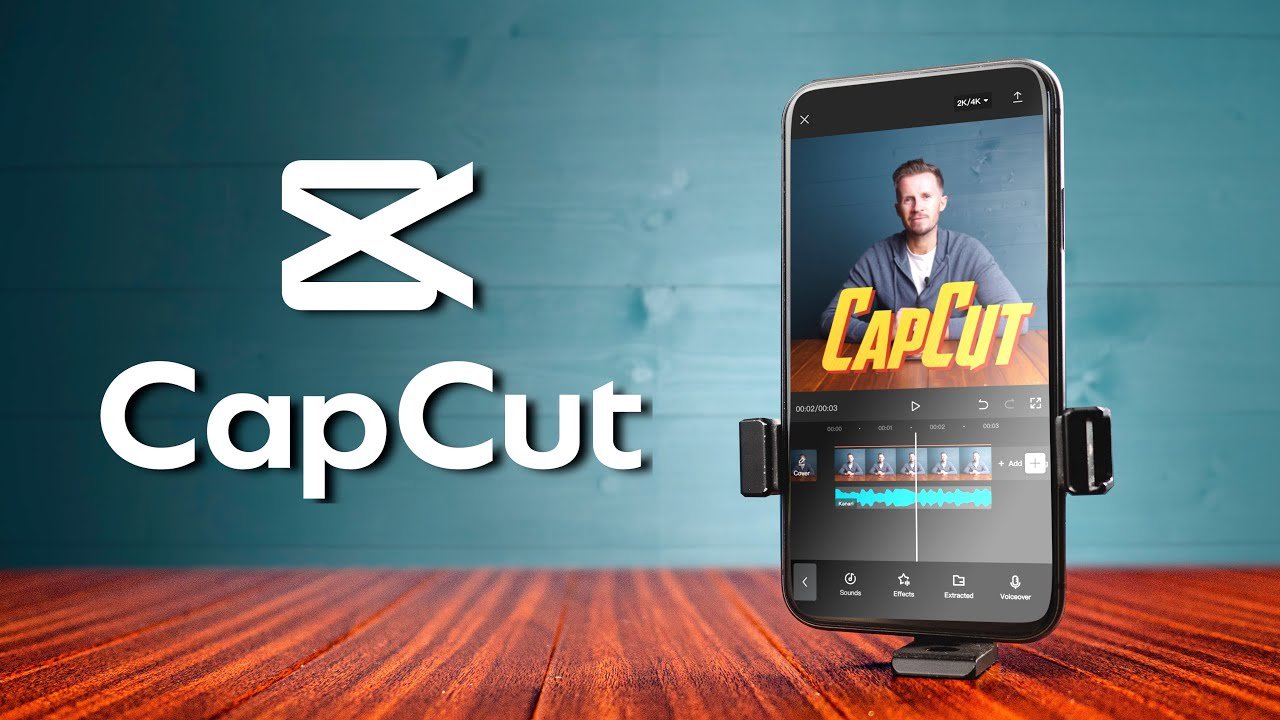
CapCut is a free app for editing videos on iOS, Android, and desktops. It’s loved by young people because it’s easy to use and makes videos look professional. It has lots of templates, effects, and music, and works well with social media like TikTok.
Recent data shows video apps like CapCut are very popular among 13-17 year olds. CapCut has over 500 million downloads worldwide. This makes it a big part of today’s youth, helping them be creative, follow trends, and learn about digital stuff.
But, its popularity means we need to look closely at its safety, like who can see their videos and who they can talk to online.

CapCut’s Safety Features: A Closer Look
CapCut isn’t just for kids, but it has some safety features. These need parents to be involved to work well. The main safety features are:
- Privacy Settings: Users can make their profiles private. This stops people from seeing their videos and talking to them without permission. It’s a key step in keeping safe from unwanted contact and controlling who sees their videos.
- Content Moderation: CapCut has rules against bad content. It uses reports and teams to check and remove content. But, how fast and well it does this can vary.
- Age Restrictions: CapCut says users must be 13 or older. But, checking this is easy to get around, so younger kids might use it too.
- Reporting Tools: Users can report bad content or accounts. This helps keep the community safe.
- Absence of Direct Messaging: CapCut doesn’t have direct messaging. This means kids can’t get messages from strangers, which is a big worry for parents.
These features help keep users safe, but they’re not perfect. Parents need to set up these features and watch closely to keep their kids safe.
Potential Risks of CapCut for Young Users
CapCut is fun, but it also has risks. These come from the content made by users and its connection to social media. Parents should know about these dangers:
- Exposure to Inappropriate Content: CapCut has many templates and sounds that might not be right for kids. Even with rules, some bad stuff might get through. This is because of how privacy settings work.
- Privacy Concerns and Data Collection: Kids’ videos on CapCut can show too much about them. This includes what they look like and where they are. CapCut collects data, but parents should check the privacy policy to know what’s happening with it.
- Cyberbullying and Negative Interactions: CapCut doesn’t have direct messages, but comments can be mean. A 2022 study showed that many teens get bullied online, which is a big worry.
- Appearance Filters and Self-Esteem: CapCut’s filters can change how kids look, which might not be good for their self-image. It’s important to talk about this with kids.
- Excessive Screen Time: Making and watching videos can be too much for kids. It can hurt their schoolwork, exercise, and sleep. Doctors say kids shouldn’t watch too much TV or screens.
Parents need to watch what their kids do online, talk to them about it, and set rules for the internet.
CapCut Age Restrictions and Their Effectiveness

CapCut says kids must be 13 or older to use it, which is good for kids’ privacy. But, it’s hard to keep kids from lying about their age. This means parents can’t just trust the app to keep their kids safe.
A 2023 study found many kids under 13 get into apps they shouldn’t be in by lying about their age. CapCut might kick out accounts that are too young, but it’s not enough. So, parents need to watch their kids and teach them about the internet.
Empowering Parents: Effective Controls and Monitoring
CapCut doesn’t have many ways for parents to control what their kids do. But, parents can use the app’s settings, tools on devices, and talk to their kids to keep them safe. Here are some things parents can do:
In-App Settings:
- Set Accounts to Private: This is very important. Go to the app’s settings and make your child’s account private. This way, only people you approve can see their videos.
- Disable Comments: Turn off comments on your child’s videos to stop mean comments. You can do this in the video settings or privacy settings.
- Review Content Regularly: Check what your child is using in their videos. Talk to them about what they’re making and watching. This helps make sure it’s okay for them.
Device-Level Parental Controls:
- iOS Screen Time: For Apple devices, use “Screen Time” to limit CapCut use, schedule downtime, and block content. It also lets parents see app activity.
- Android Family Link: Google’s Family Link does similar things for Android devices. It helps manage app use, set screen limits, and approve downloads.
- Third-Party Monitoring Apps: Apps like Bark or Qustodio can track app use, block bad content, and alert parents. They work on devices with CapCut.
Proactive Parental Engagement:
- Open Communication: Make sure your child feels safe talking about their online life. Talk about safety, privacy, and being a good digital citizen often.
- Educate on Digital Footprint: Teach kids about the lasting nature of online content. Warn them not to share personal info in videos or profiles.
- Set Clear Boundaries: Make rules for screen time, content, and online interactions. Let your child help make these rules.
- Model Safe Behavior: Show your kids how to use tech safely. They learn from what you do.
- Encourage Reporting: Teach your child to report bad content or bullying. They can tell you or use CapCut’s reporting tools.
Watching your child closely, talking openly, and setting rules helps keep them safe online. It makes their CapCut experience better.
Benefits of CapCut When Used Safely
CapCut is great for kids and teens when used right. It helps them grow creatively and technically:
- Fosters Creativity and Storytelling: CapCut lets kids tell stories and learn video editing. It boosts their imagination and creativity.
- Develops Technical and Digital Literacy Skills: Using CapCut teaches kids about tech. They learn skills that are important in today’s world.
- Encourages Self-Expression and Identity Exploration: Making videos lets kids share who they are. It’s a fun way to express themselves and figure out their identity.
- Builds Confidence and Accomplishment: Making a good video can make kids feel proud. The positive feedback they get can really motivate them.
- Supports Collaboration and Social Connection: CapCut helps kids work together and make friends. It’s a great way to learn teamwork and connect with others.
Groups like the National Education Association see the value of tools like CapCut. They help kids solve problems and be creative. With the right precautions, parents can help their kids get these benefits.
CapCut vs. Other Video Editing Apps for Kids
It’s important for parents to know how CapCut compares to other apps. CapCut has great editing tools but might not have as many safety features as apps made for kids.
| App | Age Rating | Parental Controls | Key Features | Risks |
|---|---|---|---|---|
| CapCut | 13+ | Limited | Templates, music, effects, social sharing | Inappropriate content, privacy, screen time |
| iMovie | 4+ | None (device-level) | Professional editing, no social features | Minimal, but no kid-specific mode |
| YouTube Kids | 4+ | Strong | Curated kid-safe content, basic editing | Limited creative features |
| KineMaster | 13+ | Limited | Advanced editing, social sharing | Similar to CapCut, privacy risks |
| DaVinci Resolve | 13+ | None | Professional-grade editing, complex | Steep learning curve, no social features |
Comparison Insight: CapCut and KineMaster offer advanced editing but have risks due to social sharing. iMovie is safer for kids because it doesn’t have social features. YouTube Kids focuses on safety over editing. DaVinci Resolve is great for teens but lacks safety features.
Parents should choose iMovie or YouTube Kids for kids under 13. CapCut is better for teens with parental guidance.
Teaching Safe CapCut Usage: A Parent’s Guide
Teaching kids about digital safety is key. Parents can help by:
- Explaining Privacy Settings: Talk to your child about CapCut’s privacy settings. Explain why keeping their account private is important.
- Discussing Content Boundaries: Talk about what’s okay and not okay online. Teach them to think critically and avoid sharing personal info.
- Setting and Enforcing Boundaries: Make rules for CapCut use, like time limits and what’s allowed. Stick to these rules.
- Modeling Responsible Behavior: Show how to use tech wisely. Your actions teach your child more than words.
- Encouraging Reporting and Seeking Help: Teach your child to report bad content or interactions. Let them know they can always talk to you without fear.
A study by the American Psychological Association shows kids who talk about online safety with parents are less likely to take risks online. Talking openly helps build trust and teaches kids to stay safe online.
FAQ: Addressing Common CapCut Safety Questions
Is CapCut safe for kids under 13?
No, CapCut is not recommended for children under 13. It’s easy for kids to lie about their age, and CapCut doesn’t have strong parental controls. For younger kids, YouTube Kids or iMovie are safer choices.
Can kids encounter strangers on CapCut?
Yes, kids can meet strangers on CapCut, mainly through public videos and comments if their accounts are not private. CapCut doesn’t have a direct messaging feature. But, public accounts let anyone view and comment on a child’s videos. This can lead to unwanted interactions. Making accounts private and turning off comments can help avoid this.
Does CapCut collect personal data from kids?
Yes, CapCut gathers different types of user data, like device info, how it’s used, and possibly location data. As a ByteDance product, its data collection is detailed in its privacy policy. Even though COPPA tries to protect kids under 13, parents should check the privacy policy. They should also adjust their child’s device and app settings to limit data sharing and protect privacy.
Are there parental controls in CapCut?
CapCut has some built-in parental controls, mainly focused on privacy settings (private accounts) and comment disabling. It doesn’t have a ‘kids’ mode or advanced content filtering like YouTube Kids. Parents need to use these in-app settings, device controls (like iOS Screen Time, Android Family Link), and third-party apps to manage their child’s use and keep them safe.
What are the main risks of CapCut for kids?
The main risks for kids on CapCut include seeing bad content, privacy issues with data collection and sharing, cyberbullying through comments, harm to self-esteem from appearance filters, and too much screen time. These risks mean parents need to be involved and teach their kids about safety online.
Conclusion
CapCut can be safe and fun for kids and teens with careful parental supervision, the right privacy settings, and talking openly. Its creative tools help with digital skills, self-expression, and learning. But, there are risks with user content, privacy, and online interactions. Parents should set accounts to private, watch content, use device controls, and talk about online safety.
By doing these things, parents can help their kids use CapCut safely and responsibly. Regular talks and ongoing learning are key to navigating the digital world safely.
You May Also Like
 Cyber Security
Can Ransomware Infect iCloud? What Mac and iPhone Users Need to Know
 Data Security & Privacy
Is a Password Manager Safe? How to Use One Securely
 WordPress
12 Best Cheap SSL Certificate Providers To Secure Your Website
 Data Security & Privacy
Is Password Protection the Same as Encryption? Differences in Data Security
 Data Security & Privacy
What Is End-to-End Encryption? Your Complete Guide to Secure Communication
 Data Security & Privacy
What Is a Cloud Security Scanner for AWS, Azure, and Google Cloud?
 Cyber Security
Is Temu Legit or a Scam? The Complete Truth You Need to Know
 VPN
VPNHow to Block Ads on FirstRowSports: A Step-by-Step Guide
 Proxies