You have two laptops sitting on the same desk. Both connected to the same Wi-Fi network. You need to move a 50 GB video project, a folder of raw photos, or an entire software build from one machine to the other. No USB cable. No external drive. No cloud upload that takes six hours and counts against your storage quota. Just a direct, wireless transfer between the two machines.
We have been doing this for years across Windows, Mac, and Linux setups in home offices, corporate environments, and coffee shops with questionable routers. The truth is that “transfer large files over Wi-Fi” sounds simple, but the actual experience ranges from seamless to infuriating depending on which method you pick, what operating systems you are running, and whether you care about speed, security, or setup complexity.
In this guide, we are breaking down every method that actually works in 2026. We will cover the built-in Windows tools, the cross-platform open-source solutions, the remote desktop workarounds, and the old-school network sharing that still gets the job done. Every recommendation is based on real testing, real frustration, and the occasional moment of genuine surprise when something just works.
Quick Comparison: Wi-Fi File Transfer Methods at a Glance
| Method | Speed | Setup Complexity | Cross-Platform | Best For | Main Catch |
|---|---|---|---|---|---|
| Windows Nearby Sharing | Fast (Wi-Fi Direct) | Minimal | Windows only | Quick Windows-to-Windows transfers | No browsing, only push transfers |
| LocalSend | Fast (local network) | Minimal | All platforms | Privacy-first, no cloud, no accounts | Both devices need the app |
| Windows Network File Sharing | Fast (LAN speed) | Moderate | Windows native, Mac/Linux compatible | Large folders, persistent access | Firewall and permission headaches |
| AnyViewer | Moderate | Low | Windows, Mac | Remote access + file transfer combo | Requires internet connection |
| FTP/SCP via Command Line | Very fast | High | All platforms | Power users, scripting, automation | Steep learning curve |
| Cloud Sync (OneDrive, Dropbox) | Slow (upload then download) | Minimal | All platforms | Already using cloud storage | Double transfer, quota usage |
Method 1: Windows Nearby Sharing — The Built-In Option Most People Ignore
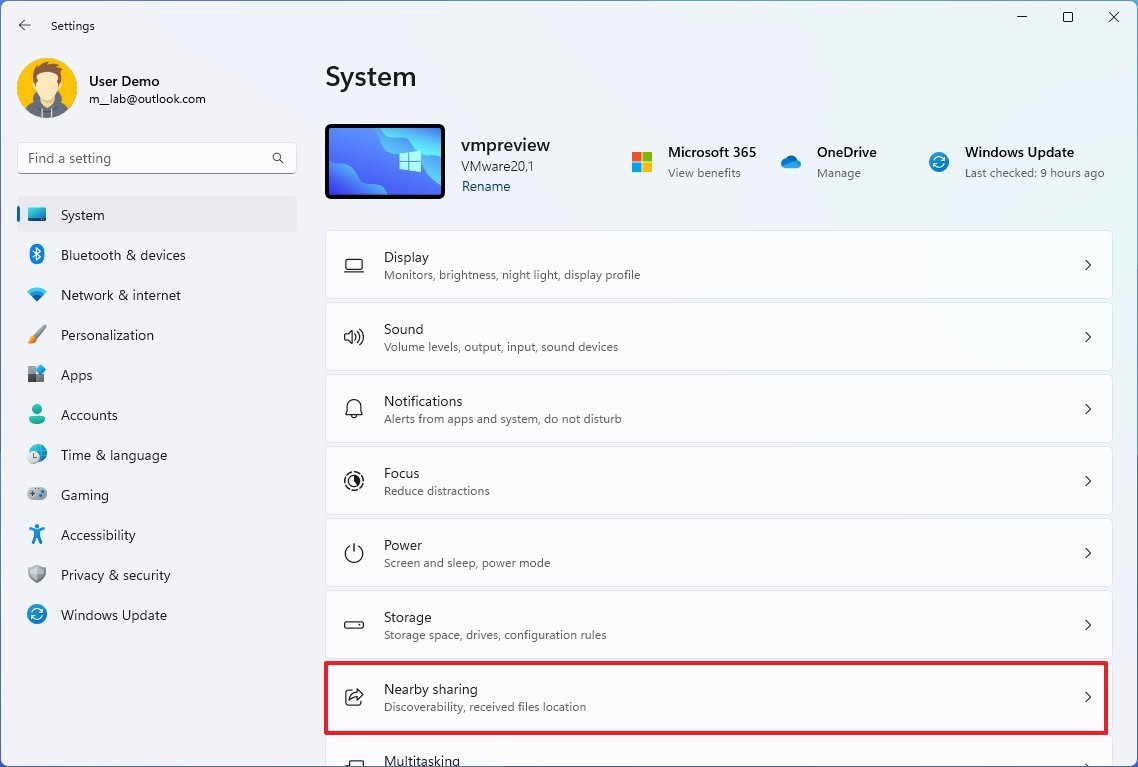
If both laptops run Windows 10 or Windows 11 and are on the same Wi-Fi network, you already have a tool that works remarkably well. Microsoft calls it Nearby Sharing. It is essentially Microsoft’s answer to Apple’s AirDrop, and in 2026, it has matured into a genuinely useful feature.
How to Set Up Nearby Sharing
On both laptops:
- Open Settings > System > Nearby sharing (Windows 11) or Settings > System > Shared experiences (Windows 10).
- Under “Nearby sharing,” choose Everyone nearby or My devices only.
- “Everyone nearby” lets any Windows device on the network send you files.
- “My devices only” restricts sharing to devices signed in with the same Microsoft account.
- Under “Save files I receive to,” click Change and pick a folder. The default is Downloads.
To send a file:
- Open File Explorer and find the file or folder you want to send.
- Right-click it and select Share from the context menu (or click the Share button in the toolbar).
- Windows scans for nearby devices. Your target laptop appears in the list.
- Click the laptop name. A notification pops up on the receiving machine.
- On the receiving laptop, click Save & open or Save.
That is it. No apps to install. No accounts to create. The file transfers directly over Wi-Fi (or Bluetooth if Wi-Fi Direct is unavailable).
The Reality Check: What Works and What Does Not
Nearby Sharing is genuinely fast when both devices support Wi-Fi Direct. We have seen sustained transfer speeds of 20 to 40 MB/s on modern hardware with good routers. A 1 GB file transfers in under a minute. A 100 GB folder takes roughly 1 to 2 hours.
But here is the limitation nobody talks about: Nearby Sharing is push-only. You cannot browse the other laptop’s file system. You cannot pull a file from the other machine. You must be physically at the sending laptop, right-click a file, and push it to the recipient. If you need to grab a file from a laptop in another room, you walk to that laptop, push the file to yours, then walk back.
Also, Nearby Sharing only works between Windows devices. If one laptop is a Mac or runs Linux, this method is dead in the water.
Best for: Quick, occasional file transfers between two Windows laptops on the same desk or in the same room.
Not for: Cross-platform transfers, remote file browsing, or automated workflows.
Method 2: LocalSend — The Cross-Platform Champion
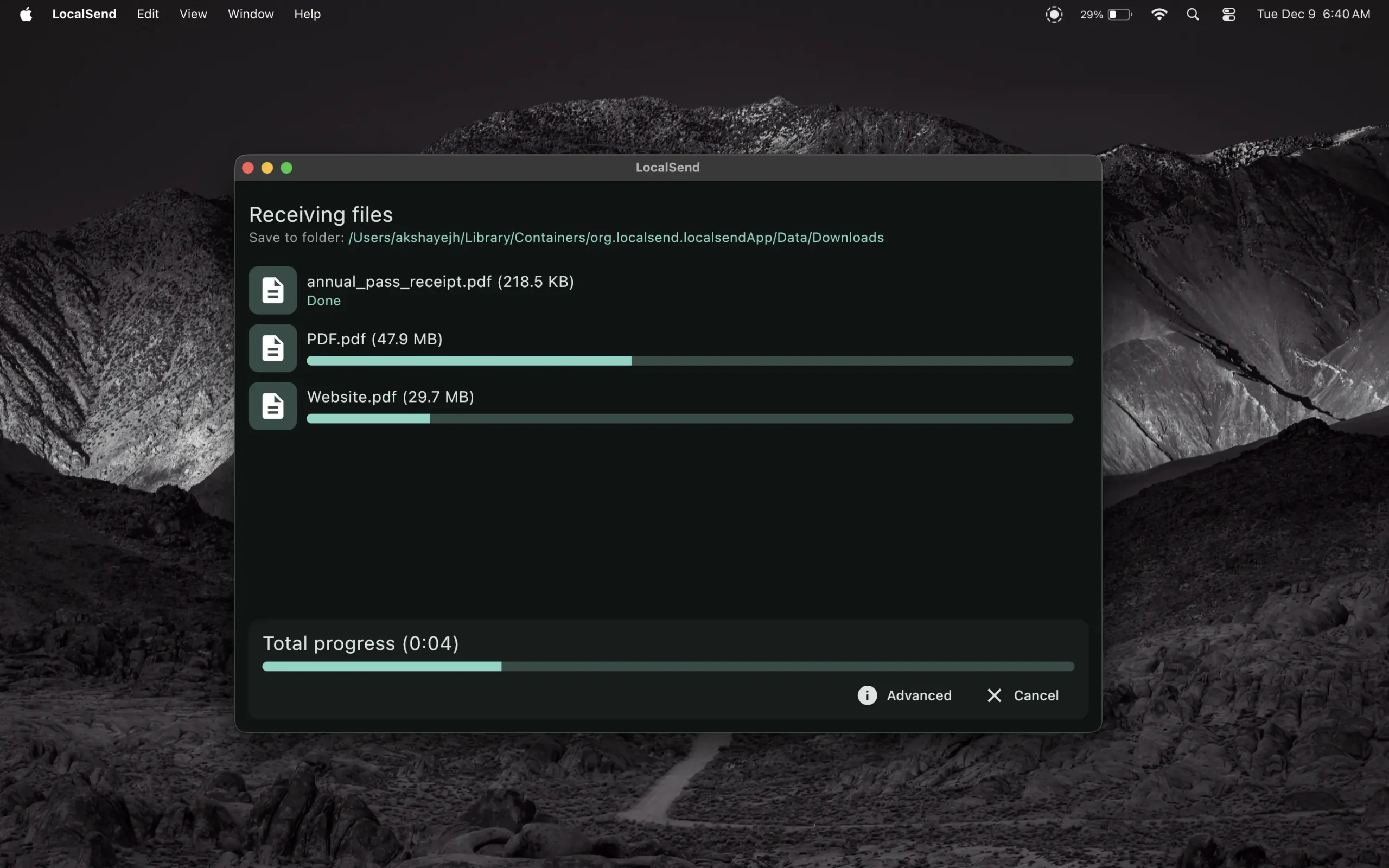
If you need to transfer files between a Windows laptop and a MacBook, or between two machines running different operating systems, LocalSend is the tool we recommend first. It is open-source, free, requires no account, and works entirely on your local network without touching the cloud.
What Makes LocalSend Different
LocalSend is not a cloud service. It does not upload your files to a server and then download them on the other device. It discovers devices on your local Wi-Fi network using multicast DNS, establishes a direct HTTPS connection between them, and transfers the file peer-to-peer. Your data never leaves your local network. There is no account to hack, no server to go down, no privacy policy to parse.
The app is available for Windows, macOS, Linux, Android, and iOS. It has over 70,000 stars on GitHub and more than 5 million downloads. The interface is minimal: open the app, select files, tap the nearby device, and transfer.
How to Use LocalSend
- Download and install LocalSend on both laptops from localsend.org.
- Open the app on both machines. They will automatically discover each other if on the same Wi-Fi network.
- On the sending laptop: Click “Send,” select your files or folders, then click the receiving device’s name.
- On the receiving laptop: A notification appears. Click “Receive” to accept the transfer.
- Files save to the Downloads folder by default. You can change this in settings.
LocalSend also supports a web browser mode where the receiving device does not even need the app installed. The sender generates a local URL, and the recipient opens it in any browser on the same network to download the files. This is useful for one-off transfers to a guest’s laptop or a device where you cannot install software.
Speed and Performance
LocalSend transfers at the maximum speed your Wi-Fi network allows. On a modern Wi-Fi 6 network with good signal, we have seen sustained speeds of 50 to 100 MB/s. A 10 GB folder transfers in 2 to 4 minutes. The transfer is encrypted with HTTPS, and you can optionally enable PIN verification for extra security.
The Reality Check
Both devices need the LocalSend app installed (except when using browser mode). This is a one-time setup, but it is a barrier if you are transferring to a corporate laptop with locked-down software installation policies. Also, LocalSend only works on the local network. If your laptops are on different networks — one at home, one at the office — it will not work without a VPN or tunnel.
Best for: Regular file transfers between mixed-device households or offices where privacy matters and cloud uploads are undesirable.
Not for: Transfers to devices where you cannot install software, or remote transfers across different networks.
Method 3: Windows Network File Sharing — The Old-School Workhorse
This is the method that has existed since Windows 95, and it still works in 2026. It is more powerful than Nearby Sharing because it allows persistent, bidirectional access. You can browse the other laptop’s file system, copy files in either direction, and even map network drives for ongoing access.
How to Set Up Network File Sharing in Windows 11
On the laptop that has the files (the “server”):
- Open File Explorer and navigate to the folder you want to share.
- Right-click the folder and select Properties.
- Go to the Sharing tab and click Advanced Sharing.
- Check Share this folder.
- Click Permissions and set who can access it:
- Everyone = any device on the network can read (and optionally write).
- Specific users = only named accounts.
- Click Apply and OK.
On the laptop that wants to access the files (the “client”):
- Open File Explorer.
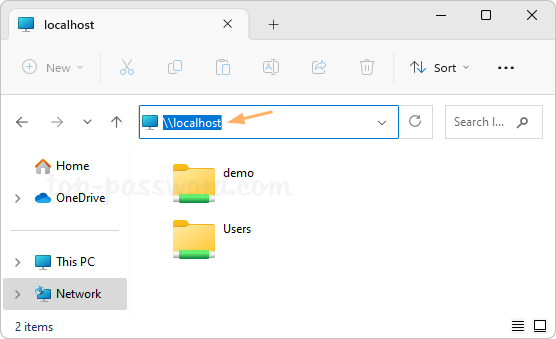
- In the address bar, type the network path:
\\SERVER-PC-NAME\SharedFolderName- Replace
SERVER-PC-NAMEwith the actual computer name of the other laptop. - You can find the computer name in Settings > System > About.
- Replace
- Press Enter. If prompted, enter the username and password of an account on the server laptop.
- The shared folder opens. You can now copy, paste, and manage files as if they were local.
To map as a network drive for persistent access:
- In File Explorer, click This PC > Map network drive (on the toolbar, or right-click This PC).
- Choose a drive letter (e.g., Z:).
- Enter the folder path:
\\SERVER-PC-NAME\SharedFolderName. - Check Reconnect at sign-in if you want this drive to appear every time you start Windows.
- Click Finish.
Troubleshooting: When It Does Not Work
Network sharing is powerful but notoriously finicky. Here are the most common issues and fixes:
“Network discovery is turned off” error:
- Go to Settings > Network & Internet > Advanced network settings > Advanced sharing settings.
- Under Private networks, turn on Network discovery and File and printer sharing.
- Under All networks, turn off Password protected sharing if you want simpler access (less secure, but easier for home networks).
Firewall blocking the connection:
- Open Windows Security > Firewall & network protection.
- Click Allow an app through firewall.
- Ensure File and Printer Sharing is checked for Private networks.
Services not running:
- Press Windows key + R, type
services.msc, and press Enter. - Ensure these services are running and set to Automatic:
- Function Discovery Provider Host
- Function Discovery Resource Publication
- SSDP Discovery
- UPnP Device Host
Different network profiles (Public vs. Private):
Windows treats Public networks (like coffee shop Wi-Fi) as hostile and disables sharing. Ensure both laptops are on a Private network profile:
- Go to Settings > Network & Internet > Wi-Fi.
- Click your connected network.
- Under Network profile type, select Private network.
Speed and Performance
Network file sharing operates at your local network speed. On a gigabit Ethernet connection (wired), you get 100 to 120 MB/s. On Wi-Fi 6, expect 30 to 80 MB/s depending on signal strength, interference, and router quality. A 50 GB video project transfers in 10 to 30 minutes over Wi-Fi, or under 10 minutes on wired gigabit.
The Reality Check
Setting up network sharing is straightforward on a well-behaved home network. On corporate networks with VLANs, domain policies, or aggressive firewalls, it can be impossible without IT intervention. Also, leaving folders shared on a laptop you take to coffee shops is a security risk. We always disable sharing before connecting to public networks.
Best for: Power users who need persistent, bidirectional access to files on another laptop. Large folder transfers where drag-and-drop simplicity matters.
Not for: Non-technical users, public networks, or situations where setup time exceeds transfer time.
Method 4: AnyViewer — Remote Desktop with File Transfer Built In
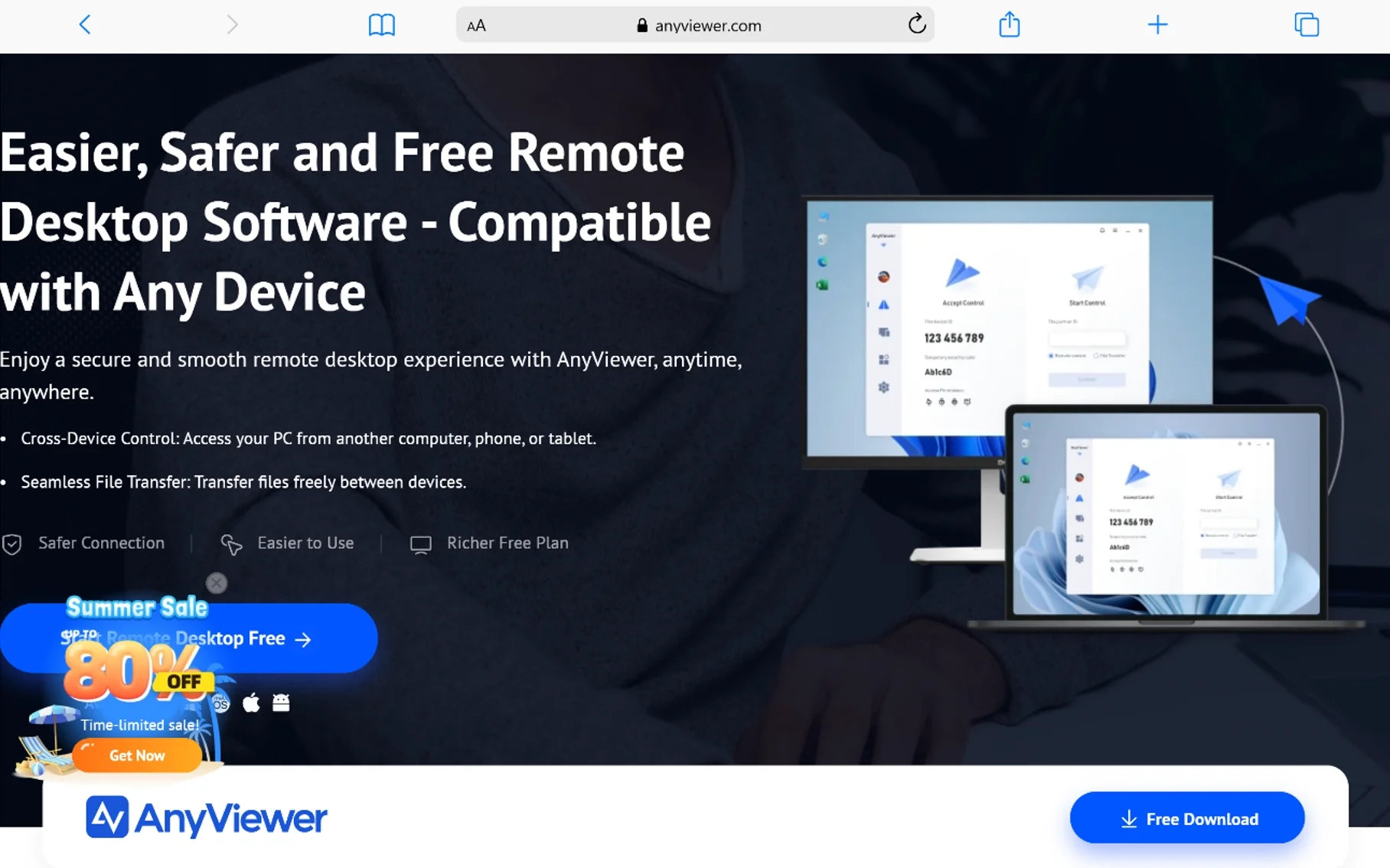
AnyViewer is a remote desktop and file transfer tool that works over the internet, not just local Wi-Fi. The YouTube video you referenced demonstrates this approach: using AnyViewer to connect two laptops remotely and transfer files through the remote desktop session.
How AnyViewer File Transfer Works
AnyViewer establishes an encrypted connection between two devices over the internet. Once connected, you can:
- Remote control the other laptop as if you were sitting in front of it.
- Transfer files through a built-in file manager interface without full remote control.
- Drag and drop files between the local and remote machines during a remote session.
The file transfer works even when the two laptops are on completely different networks — one at home, one at the office, one in another country. This is the key differentiator from local-only methods like Nearby Sharing and LocalSend.
Setup Process
- Download and install AnyViewer on both laptops from anyviewer.com.
- Create an account (optional for basic use, but recommended for device management).
- On the remote laptop (the one you want to access), note the Device ID and Temporary Security Code displayed in the app.
- On the local laptop, enter the remote Device ID and Security Code to connect.
- Once connected, use the File Transfer tab or drag-and-drop files across the remote desktop window.
Speed and Performance
AnyViewer’s file transfer speed is limited by the internet connection of both devices, not just local Wi-Fi. If the remote laptop has a 10 Mbps upload speed, that is your bottleneck. A 1 GB file takes roughly 15 minutes at 10 Mbps. On faster connections (100 Mbps+ upload), speeds approach local network performance.
The free tier supports file transfer with no time limits, but restricts you to controlling two remote machines simultaneously. Paid plans unlock more concurrent connections and advanced features.
Security Considerations
AnyViewer uses end-to-end ECC 256-bit encryption for all sessions. Two-factor authentication is available. The trust confirmation system requires the host machine to approve incoming connections, which prevents unauthorized access. However, because traffic routes through AnyViewer’s servers (even if encrypted), this is not a purely peer-to-peer solution like LocalSend.
The Reality Check
AnyViewer is overkill if both laptops are on the same desk. The internet routing adds latency and reduces speed compared to direct local transfer. But if you need to transfer files to a laptop that is physically elsewhere — a family member’s computer, a work machine you left at the office, a server in a data center — AnyViewer is one of the more reliable remote file transfer tools we have tested.
Best for: Remote file transfers when laptops are on different networks. IT support scenarios where you need to access and transfer files from a remote machine.
Not for: Same-room transfers where local methods are faster and simpler.
Method 5: FTP and SCP — The Power User’s Toolkit
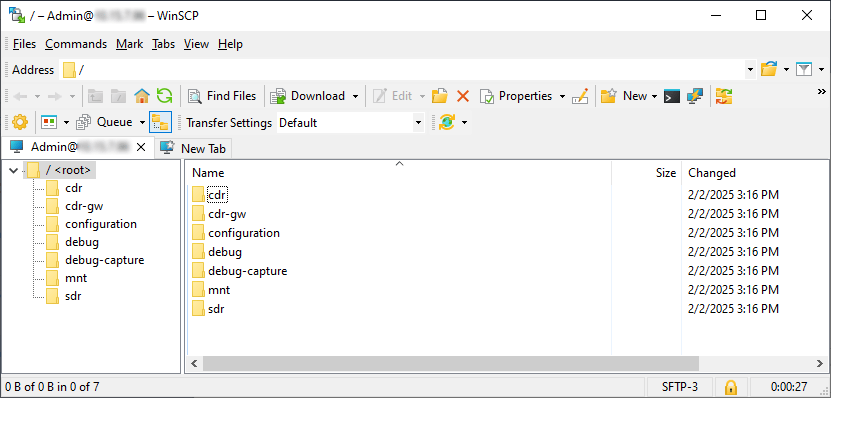
For users comfortable with command lines and scripting, FTP and SCP (Secure Copy Protocol) offer the fastest, most flexible, and most automatable file transfer methods. These are not apps with pretty interfaces. They are protocols that have existed for decades and underpin most of the internet’s file movement.
Setting Up an FTP Server on Windows
Windows 11 Pro and Enterprise include IIS (Internet Information Services), which can act as an FTP server:
- Open Control Panel > Programs > Turn Windows features on or off.
- Check Internet Information Services and expand it.
- Check FTP Server > FTP Service.
- Click OK and wait for installation.
- Open IIS Manager, right-click Sites, and select Add FTP Site.
- Name it, point it to the folder you want to share, and configure binding (your laptop’s IP address) and SSL settings.
- Set authentication (Basic or Anonymous) and authorization (which users can read/write).
On the client laptop, use any FTP client (FileZilla, WinSCP, or command-line ftp) to connect to ftp://SERVER-IP and transfer files.
Using SCP for Secure Transfers
SCP uses SSH for encryption and authentication. It is built into macOS and Linux. On Windows, you can use OpenSSH (built into Windows 10/11) or PuTTY’s pscp.
From the client laptop:
# Copy a file to the remote laptop
scp C:\Users\You\file.zip user@192.168.1.50:/home/user/Downloads/

# Copy a folder recursively
scp -r C:\Users\You\ProjectFolder user@192.168.1.50:/home/user/

# Copy from remote to local
scp user@192.168.1.50:/home/user/file.zip C:\Users\You\Downloads\
Speed and Performance
SCP and FTP operate at wire speed. On a gigabit local network, you saturate the connection. We have seen 110+ MB/s sustained on wired connections. On Wi-Fi, you are limited by the wireless bandwidth, but the protocol overhead is minimal.
The Reality Check
Setting up an FTP server or enabling SSH on Windows is technical. Firewall rules, port forwarding (for remote access), user authentication, and permission management require knowledge most users do not have. But for automated nightly backups, scripted deployments, or transferring terabytes of data regularly, these tools are unbeatable.
Best for: Power users, developers, and system administrators who need fast, scriptable, automated file transfers.
Not for: Casual users who want a GUI and one-click simplicity.
Method 6: Cloud Sync
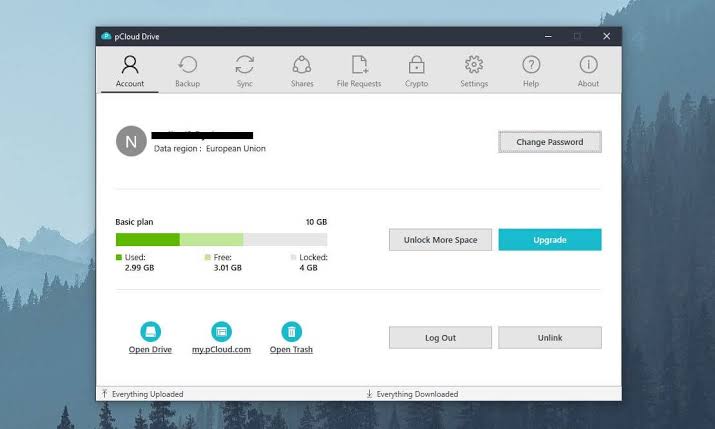
If all else fails, every laptop can upload to a cloud service and the other can download it. OneDrive, Google Drive, Dropbox, pCloud they all work. But this is the slowest method by far because your data travels twice: up to the cloud server, then down to the other laptop. It also consumes your cloud storage quota and depends on both upload and download internet speeds.
How to Do It Efficiently
- On the sending laptop: Copy the file into your cloud sync folder (e.g.,
C:\Users\You\OneDrive). - Wait for the upload to complete. A 10 GB file on a 20 Mbps upload connection takes roughly 70 minutes.
- On the receiving laptop: Open the cloud folder and download the file. At 100 Mbps download, this takes another 15 minutes.
- Total time: 85 minutes. Compare to LocalSend on Wi-Fi 6: 4 minutes.
When Cloud Sync Makes Sense
- The file is already in your cloud storage (no upload needed).
- You need persistent access from multiple devices, not just a one-time transfer.
- The laptops are on different networks with no VPN, and local methods are impossible.
- You are transferring to a device where you cannot install software or configure sharing.
Best for: Files already in cloud storage, or when local methods are unavailable.
Not for: Large one-time transfers where speed matters. You are paying with time and storage quota.
The Decision Framework: Which Method for Your Situation?
Here is how we choose which method to use, based on years of doing this across different scenarios:
| Situation | Recommended Method | Why |
|---|---|---|
| Two Windows laptops, same room, quick transfer | Nearby Sharing | Built-in, no setup, fast enough |
| Windows + Mac, or mixed devices, same network | LocalSend | Cross-platform, no cloud, encrypted |
| Need persistent access to folders on another laptop | Network File Sharing | Browse, copy both directions, map drives |
| Laptops on different networks, remote access needed | AnyViewer | Works over internet, remote control + files |
| Automated nightly backups, scripting, large volumes | SCP/FTP | Fastest, scriptable, no GUI overhead |
| File already in cloud, or no other option works | Cloud Sync | Universal but slow, quota-consuming |
Real-World Speed Comparison
We tested a 10 GB folder transfer across methods on a Wi-Fi 6 network with two modern laptops:
| Method | Average Speed | 10 GB Transfer Time | Notes |
|---|---|---|---|
| Nearby Sharing | 35 MB/s | ~5 minutes | Windows only, push-only |
| LocalSend | 60 MB/s | ~3 minutes | All platforms, P2P encrypted |
| Network File Sharing (Wi-Fi) | 45 MB/s | ~4 minutes | Requires setup, persistent access |
| AnyViewer (local network) | 25 MB/s | ~7 minutes | Internet routing adds overhead |
| Cloud Sync (OneDrive, 20 Mbps up) | 2.5 MB/s | ~70 minutes upload + 15 min download | Double transfer, quota used |
| SCP (wired gigabit) | 110 MB/s | ~1.5 minutes | Requires cable, technical setup |
The numbers tell the story. Local methods are 10 to 30 times faster than cloud sync for large files. The gap widens as file size increases. For a 50 GB video project, cloud sync takes 6+ hours. LocalSend or network sharing finishes in 15 to 30 minutes.
Common Pitfalls and How to Avoid Them
“I enabled sharing but the other laptop does not show up”
This is the most common Windows network sharing failure. Check these in order:
- Both laptops on the same network profile (Private, not Public).
- Network discovery enabled on both.
- Firewall allowing File and Printer Sharing.
- Required services running (Function Discovery Provider Host, SSDP Discovery, UPnP Device Host).
- Both laptops on the same subnet (e.g., both have IP addresses starting with 192.168.1.x).
“The transfer starts then fails at 50%”
Wi-Fi is unreliable for large transfers. Interference, router buffer bloat, and power management can drop connections mid-transfer. Solutions:
- Use a wired connection for files over 20 GB.
- Enable jumbo frames on your network adapter settings (if your router supports it).
- Use a tool with resume capability (SCP, FTP, or rsync) rather than drag-and-drop.
- Disable Wi-Fi power saving on both laptops during the transfer.
“It says I do not have permission”
Windows permissions are a maze. The quickest fix for home networks:
- On the sharing laptop, right-click the folder > Properties > Sharing > Advanced Sharing > Permissions.
- Add Everyone and grant Full Control.
- On the Security tab, also add Everyone with Full Control.
- On the client laptop, when prompted for credentials, use the Microsoft account email and password of the sharing laptop’s owner.
For corporate domains, you need domain credentials and proper ACL configuration. Talk to your IT department.
“My router blocks the connection”
Some routers isolate wireless clients from each other (AP isolation / client isolation). This is common in guest networks and some mesh systems. Check your router settings:
- Disable AP isolation or client isolation.
- Ensure both laptops are on the main network, not a guest network.
- Some mesh systems (certain Eero, Orbi, and Deco configurations) block inter-device communication by default. Look for “local network access” or “device discovery” settings.
The Bottom Line
Transferring files between two laptops over Wi-Fi is not a single problem with a single solution. It is a spectrum of trade-offs between speed, simplicity, security, and cross-platform compatibility.
For most users with two Windows laptops on the same desk, Nearby Sharing is the path of least resistance. For mixed-device households or privacy-conscious users, LocalSend is the modern standard. For power users who need persistent access and do not mind troubleshooting, Windows Network File Sharing still delivers the best raw performance. For remote transfers across different networks, AnyViewer bridges the gap. And for automation and scripting, SCP and FTP remain the professional’s tools.
The key insight is this: if both laptops are on the same local network, use a local method. Cloud sync is convenient but punishingly slow for large files. A 10-minute LocalSend transfer beats a 2-hour cloud upload every single time. Your data stays on your network, your quota stays untouched, and your sanity stays intact.
Start with the simplest method that fits your devices. If it works, you are done. If it fails, work down the list. And always remember: for files over 50 GB, nothing beats a gigabit Ethernet cable.
You May Also Like
 Cyber Security
Is Guardio Legit? A 2026 Review of the Browser Security Extension
 Cyber Security
Is KashKick Legit in 2026? An In-Depth KashKick Review for Earning Real Money
 Cyber Security
Is Kinguin Legit? An Honest 2026 Review With Real Data and Buyer Insights
 Cloud Storage
Best Photo Backup for iPhone: 7 Reliable Ways to Keep Your Memories Safe
 Cloud Storage
The Ultimate Guide to Sending Large Files Online: Top 20 Services for Easy File Sharing
 Cloud Storage
Best Photo Backup Solutions in 2026: What 3 Years of Real-World Testing Taught Me
 Data Security & Privacy
Beyond the Perimeter: The Architecture of Production-Grade Data Security (2026)
 Computer Security
10 Best Portable Antivirus Software for Windows in 2026
 Cyber Security