I have been backing up photos from my phone and laptop for over a decade. I have tried the free tiers, the lifetime deals, the enterprise-grade tools, and the ones that promise the moon but deliver headaches. Three years ago, I settled on pCloud as my primary photo storage solution, and I have not looked back since. In this guide, I am sharing exactly what I have learned from hands-on testing across seven different services, why pCloud earned my trust, and where each alternative fits in the landscape.
This is not a spec-sheet comparison. This is what happens when you actually use these tools day in and day out, backing up thousands of photos, sharing files with clients, and praying your vacation memories do not vanish into the cloud.
Quick Comparison: Best Photo Backup Solutions at a Glance
| Service | Free Tier | Paid Starting Price | Standout Feature | Best For |
|---|---|---|---|---|
| pCloud | 10 GB (up to 20 GB with referrals) | $199 lifetime (2 TB) | Lifetime ownership, Swiss privacy law | Long-term photo storage, privacy-focused users |
| Google Photos | 15 GB (shared with Gmail/Drive) | $1.99/mo (100 GB) | AI-powered search, editing, memories | Google ecosystem users, AI photo management |
| NordLocker | 3 GB | $2.99/mo (500 GB) | Zero-knowledge encryption by default | Security-first users, encrypted file storage |
| IDrive | 10 GB | $69.65/yr first year (5 TB) | Unlimited devices, disk image backup | Multi-device households, full system backup |
| iCloud | 5 GB | $0.99/mo (50 GB) | Seamless Apple ecosystem integration | iPhone/iPad users, Apple-only households |
| Dropbox | 2 GB | $9.99/mo (2 TB) | 300,000+ app integrations, reliable sync | Teams, collaborative workflows |
| My Cloud (Western Digital) | N/A (hardware required) | ~$150-$400 one-time (NAS device) | Local storage, no subscription fees | Privacy purists, local backup enthusiasts |
1. pCloud: The Only Photo Backup Service I Actually Trust Long-Term

Log in to pCloud on the website (laptop)
I have been using pCloud for three years straight. Not as a test account. As my actual photo backup for everything — phone snapshots, DSLR raw files, drone footage, screenshots, the works. Here is what three years of daily use looks like.
How pCloud Became My Default
I signed up for pCloud in 2023 after getting fed up with Google Photos compressing my images and iCloud’s tiny free tier. The hook was the lifetime deal. Pay once, own your storage forever. No monthly subscription creeping up on my credit card statement. I started with the 2 TB Premium Plus lifetime plan at $399, and I have never regretted it.
The automatic camera upload was the first thing I tested. I enabled it on my iPhone, connected to Wi-Fi, and took a photo. Within seconds, the image appeared in my pCloud Photos folder on the web interface. No manual sync. No “tap to upload.” It just worked. Three years later, that behavior has not changed. Every photo I take gets backed up automatically. Every video. Every burst shot. I have lost count of how many times that has saved me from accidentally deleting something important.
pCloud Plans and Pricing (2026)
pCloud offers something no other major provider does: a true lifetime ownership model. Here is the breakdown as of mid-2026:
Individual Plans:
| Plan | Storage | Annual Price | Lifetime Price | Per-TB Cost (Lifetime) |
|---|---|---|---|---|
| Free | 10 GB | Free | N/A | N/A |
| Premium | 500 GB | $49.99/yr | $199 one-time | ~$398/TB |
| Premium Plus | 2 TB | $99.99/yr | $399 one-time | ~$200/TB |
| Custom | 10 TB | N/A | $1,190 one-time | ~$119/TB |
Family Plans (up to 5 users):
| Plan | Storage | Lifetime Price |
|---|---|---|
| Family | 2 TB | $595 one-time |
| Family | 10 TB | $1,499 one-time |
The math on the lifetime deal is simple. At $399 for 2 TB, you break even against the annual plan in roughly 4 years. After that, every year is free. I am already past my break-even point. The next decade of photo storage costs me nothing.
pCloud also runs seasonal promotions. During their 2026 Dragon Boat Festival sale, lifetime plans were discounted up to 71% off, with the 2 TB plan dropping to around $199 and the 10 TB plan to roughly $749. If you catch one of these sales, the value proposition becomes even more compelling.
Key Features That Matter for Photo Backup
pCloud Drive
Automatic Camera Upload: This is the feature I rely on most. Enable it once in the pCloud mobile app, and every photo and video you capture gets uploaded automatically when you are on Wi-Fi (or cellular, if you allow it). In three years, I have never had a sync failure. Not once. The app runs in the background, respects battery optimization settings, and handles large video files without choking.
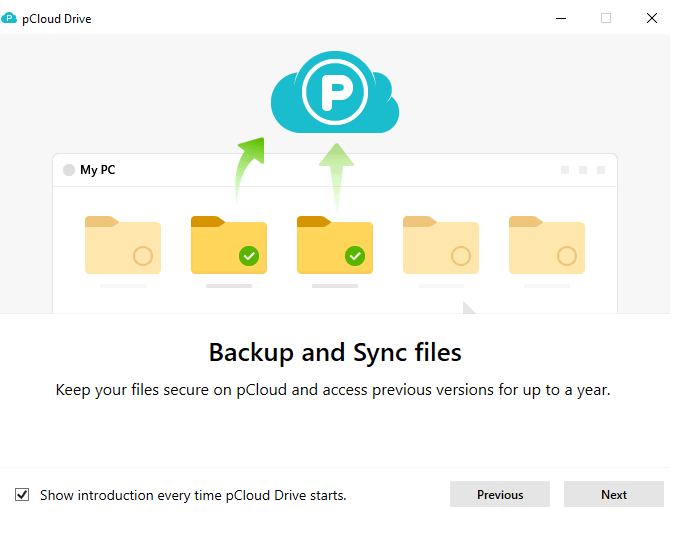
Virtual Drive (pCloud Drive): On Windows and Mac, pCloud mounts as a virtual drive letter (P: on Windows). This means your cloud files appear as local files without consuming local storage. You can browse your entire photo library in File Explorer or Finder, open images in Photoshop, and edit them directly. The files stream on demand. For photographers working with large raw files, this is a game-changer. You do not need to keep 500 GB of photos on your laptop.
No File Size Limits: I have uploaded 4 GB ProRes video files without issues. pCloud does not cap individual file sizes, which matters when you are dealing with high-resolution video or uncompressed image sequences.
Built-in Media Players: pCloud includes an audio player and video player in both the web interface and mobile apps. The video player supports playback speed adjustments and format conversions. For quick previewing of backed-up footage without downloading, this saves time.
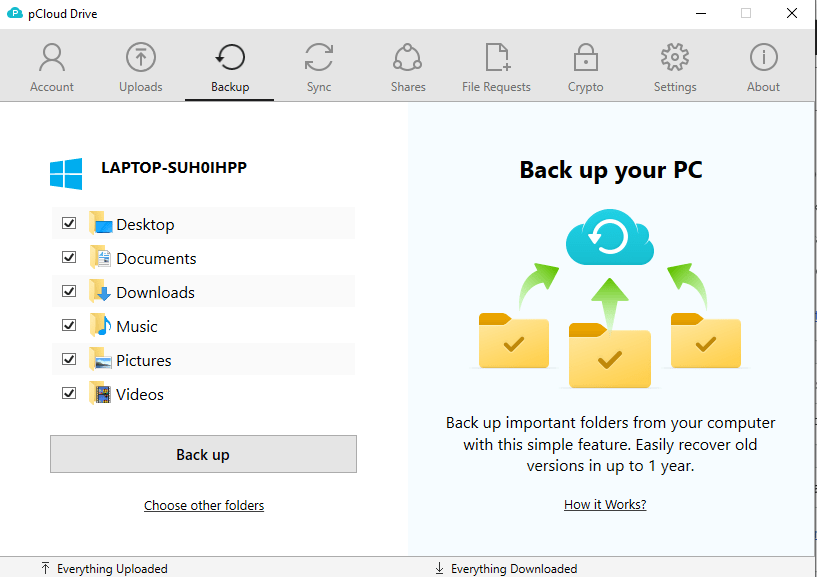
File Versioning and Rewind: Paid plans include 30 days of file history (extendable to 1 year with an add-on). If you accidentally overwrite a photo or delete a folder, you can rewind to a previous state. I have used this twice. Both times, it worked flawlessly.
Share Large Files for Free: pCloud’s sharing links support files of any size. I regularly send 2 GB video files to clients via a simple link. You can add password protection, set expiration dates, and restrict downloads to specific email addresses. The free tier includes this, which is rare.
Data Region Choice: pCloud lets you choose between US and EU data centers. For GDPR compliance and data sovereignty, this matters. I selected the EU region because my work involves European clients, and having my data physically located within the EU simplifies compliance conversations.
Security and Privacy: Why pCloud Wins
pCloud is headquartered in Switzerland, which means your data falls under Swiss privacy law — some of the strongest in the world. The company holds ISO 9001:2008 and ISO 27001:2013 certifications, is GDPR compliant, and maintains SSAE 18 SOC 2 Type II and SSAE 16 SOC 2 Type II compliance.
For users who want maximum privacy, pCloud offers an optional Crypto Folder add-on. This is zero-knowledge encryption, where even pCloud cannot access your files. The encryption key stays on your device. Without it, the data is unreadable. I purchased this add-on for sensitive client work. The trade-off is that files in the Crypto Folder cannot be previewed or streamed — you must download and decrypt them locally.
Important security note: In October 2024, researchers from ETH Zürich reported vulnerabilities in pCloud’s optional encryption implementation, including attacks that could break file confidentiality and inject new files. pCloud did not respond to the coordinated disclosure as of the report date. While this affects only the optional Crypto Folder (not standard storage), it is a factor to weigh if zero-knowledge encryption is your primary reason for choosing pCloud. For standard photo backup with TLS/SSL and server-side AES-256 encryption, pCloud remains secure.
pCloud Pros and Cons
Pros:
- Lifetime ownership eliminates recurring subscription costs
- Automatic camera upload works reliably across iOS and Android
- Virtual Drive lets you access cloud files as local files without consuming disk space
- No file size limits on uploads
- Choose between US and EU data centers
- 10 GB free tier with referral bonuses up to 20 GB
- Built-in media players for quick previewing
- Strong Swiss privacy protections
- File versioning and rewind functionality
- Large file sharing without size restrictions
Cons:The
- Optional Crypto Folder had reported security vulnerabilities in 2024
- No built-in photo editing tools (unlike Google Photos)
- Interface can feel dated compared to newer competitors
- No real-time collaboration features
- Customer support is email-only on lower tiers
Who Should Use pCloud
pCloud is ideal for photographers, videographers, and anyone who wants to own their cloud storage rather than rent it indefinitely. If you take a lot of photos, value privacy, and want a “set it and forget it” backup solution that works across all your devices, pCloud is hard to beat. The lifetime deal pays for itself in under five years, and after that, you are storing photos for free.
2. Google Photos: The AI-Powered Giant with a Compression Catch

Google Photos is the default photo backup for most Android users and a significant portion of iPhone users too. I used it for several years before switching to pCloud, and there are things I genuinely miss about it. But some deal-breakers pushed me away.
What Google Photos Does Better Than Anyone
AI Search: Type “Bali 2023” and Google Photos surfaces exactly the right images. It recognizes faces, objects, locations, and even text within photos. This is not just search. It is sorcery. I have found photos I forgot I took by describing the scene from memory. No other service comes close.
Memories and Notifications: Google Photos surfaces memories from years ago, creates auto-generated albums, and sends notifications like “On this day 3 years ago.” It sounds gimmicky until you get a notification showing a photo of a loved one who has passed, taken on the exact same date years earlier. That emotional connection is real, and Google Photos delivers it better than any competitor.
Built-in Photo Editor: Google Photos includes a surprisingly capable editor with auto-enhance, portrait lighting, color pop, and AI-powered Magic Eraser (on Pixel devices). For quick edits without opening Lightroom, it is genuinely useful.
Google Maps Integration: Photos are geotagged and viewable on a map. You can browse your entire photo history by location, zooming into countries, cities, and even specific landmarks. For travel photography, this is addictive.
Speed: Google Photos uploads and syncs faster than any competitor I have tested. On a gigabit connection, a 1,000-photo batch uploads in minutes. The infrastructure behind Google is unmatched.
Google Photos Pricing (2026)
Google Photos shares storage with Gmail and Google Drive under a single quota. Here is the breakdown:
| Plan | Storage | Monthly Price | Annual Price | Best For |
|---|---|---|---|---|
| Free | 15 GB (shared) | Free | Free | Light users, testing |
| Basic | 100 GB | $1.99 | $19.99 | Single device users |
| Standard | 200 GB | $2.99 | $29.99 | Moderate photo libraries |
| Premium | 2 TB | $9.99 | $99.99 | Power users, families |
| AI Premium | 2 TB + Gemini | $19.99 | N/A | AI-heavy users |
The 15 GB free tier sounds generous until you realize it is shared across Gmail, Drive, and Photos. If you have a 10-year-old Gmail account with 8 GB of emails, you have 7 GB left for everything else. Most users hit the limit within months of enabling automatic photo backup.
The Compression Problem
Here is the deal-breaker that pushed me to pCloud. Google Photos offers two upload modes:
Storage Saver (formerly High Quality): Photos are compressed to 16 MP. Videos are downgraded from 4K to 1080p. This mode was marketed as “free unlimited storage” until June 2021, when Google killed that offer. Now it counts against your quota, but the compression still happens.
Original Quality: Photos and videos are uploaded at full resolution. No compression. But they consume significantly more storage space. A single 48 MP smartphone photo can be 15-25 MB. A minute of 4K video is 300-500 MB. Your 2 TB plan fills up fast.
For casual snapshots, Storage Saver is fine. For photographers who need every pixel intact — for printing, for client delivery, for archival purposes — the compression is unacceptable. I noticed visible quality loss on large prints from Storage Saver images. That was the moment I started looking for alternatives.
Google Photos Pros and Cons
Pros:
- Best-in-class AI search and organization
- Excellent built-in photo editor
- Memories and “On this day” notifications
- Google Maps integration for location-based browsing
- Fastest upload and sync speeds in the industry
- Native apps for iOS and Android with seamless auto-backup
- 15 GB free tier (shared with Gmail/Drive)
Cons:
- Storage Saver compresses photos to 16 MP and videos to 1080p
- Original Quality consumes storage rapidly
- No lifetime plan option — perpetual subscription required
- Privacy concerns with Google’s data collection practices
- Free tier fills quickly with modern photo and video file sizes
- No data region selection (all data stored in Google’s global infrastructure)
Who Should Use Google Photos
Google Photos is perfect for casual photographers who value AI-powered organization and editing over absolute image fidelity. If you primarily view photos on screens, rarely print larger than 8×10, and live inside the Google ecosystem, the compression trade-off may not bother you. The AI search alone justifies the subscription for users with massive, unorganized photo libraries.
3. NordLocker: When Encryption Is Non-Negotiable
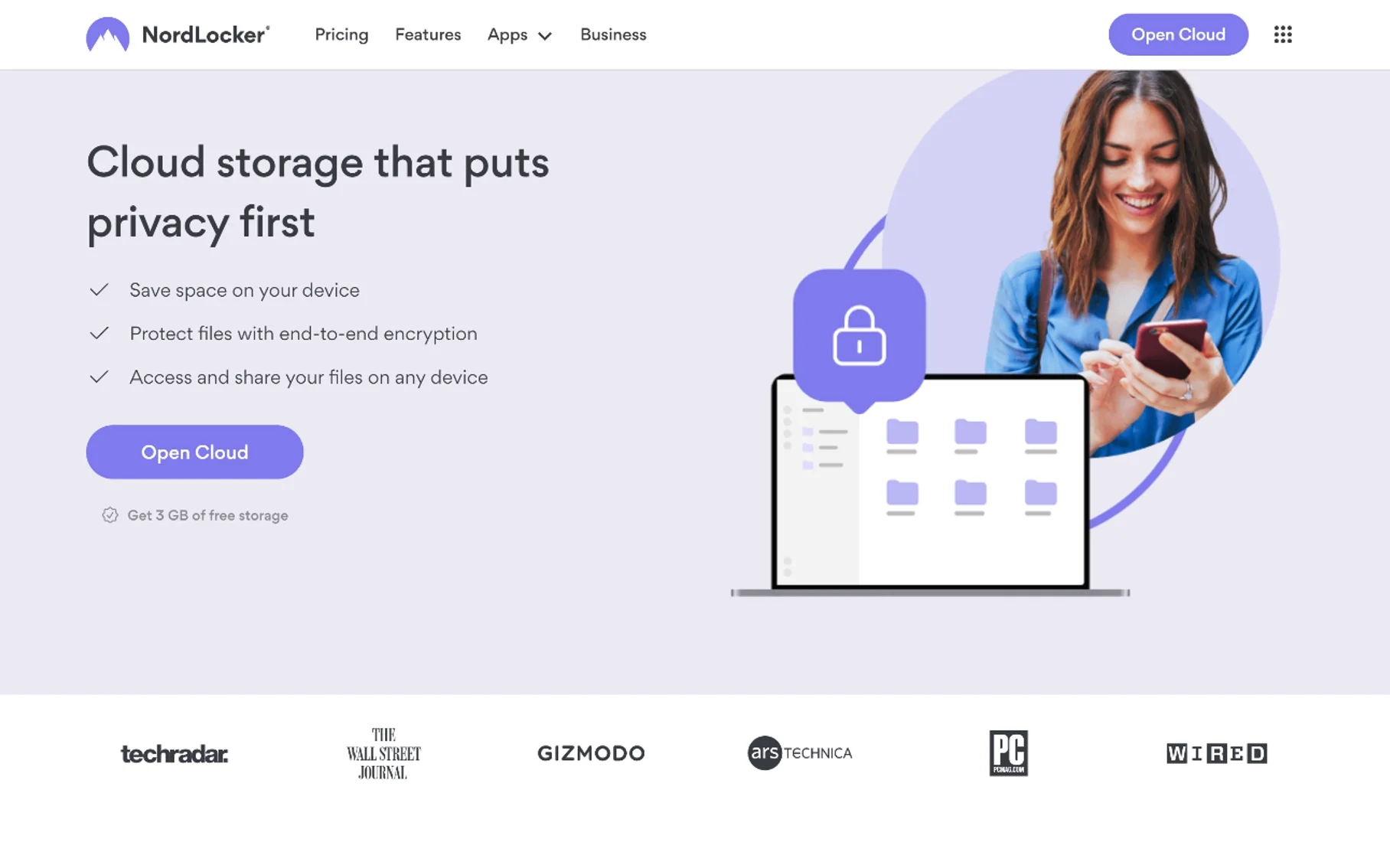
NordLocker is the file encryption and storage arm of Nord Security, the company behind NordVPN. It is not primarily a photo backup service, but for users who prioritize security above all else, it deserves consideration.
What Makes NordLocker Different
NordLocker uses zero-knowledge encryption by default. Every file is encrypted on your device before upload. NordLocker never sees your encryption keys, your file contents, or your metadata. Not even their employees can access your data. This is the gold standard for privacy.
The interface is clean and intuitive. You create “lockers” — encrypted containers — and drag files into them. Photos, videos, documents, anything. Each locker is independently encrypted. You can share lockers with other NordLocker users via encrypted links.
NordLocker Pricing (2026)
| Plan | Storage | Monthly Price | Annual Price | Features |
|---|---|---|---|---|
| Free | 3 GB | Free | Free | Basic encryption, 1 locker |
| Premium | 500 GB | $2.99 | $35.88 | Unlimited lockers, sync across devices |
| Premium | 2 TB | $9.99 | $119.88 | Same as above, more storage |
The 3 GB free tier is enough to test the service but not for serious photo backup. The Premium plan at $2.99/month for 500 GB is competitively priced for the encryption level offered.
NordLocker Pros and Cons
Pros:
- Zero-knowledge encryption by default (not an add-on)
- Clean, intuitive interface
- Encrypted file sharing with other users
- Cross-platform support (Windows, Mac, iOS, Android)
- Competitive pricing for encrypted storage
Cons:
- Not purpose-built for photo management (no AI search, no auto-albums)
- No automatic camera upload on mobile (manual upload only)
- Smaller free tier than competitors
- No built-in photo viewer or editor
- Slower sync speeds due to client-side encryption overhead
Who Should Use NordLocker
NordLocker is for users who store sensitive photos — medical imaging, legal documents, proprietary work — and need absolute privacy. If you are a journalist, lawyer, medical professional, or anyone handling confidential visual material, NordLocker’s zero-knowledge model is worth the trade-offs in convenience. For casual family photo backup, the lack of automatic upload and photo management features makes it a poor fit.
4. IDrive: The Multi-Device Backup Workhorse
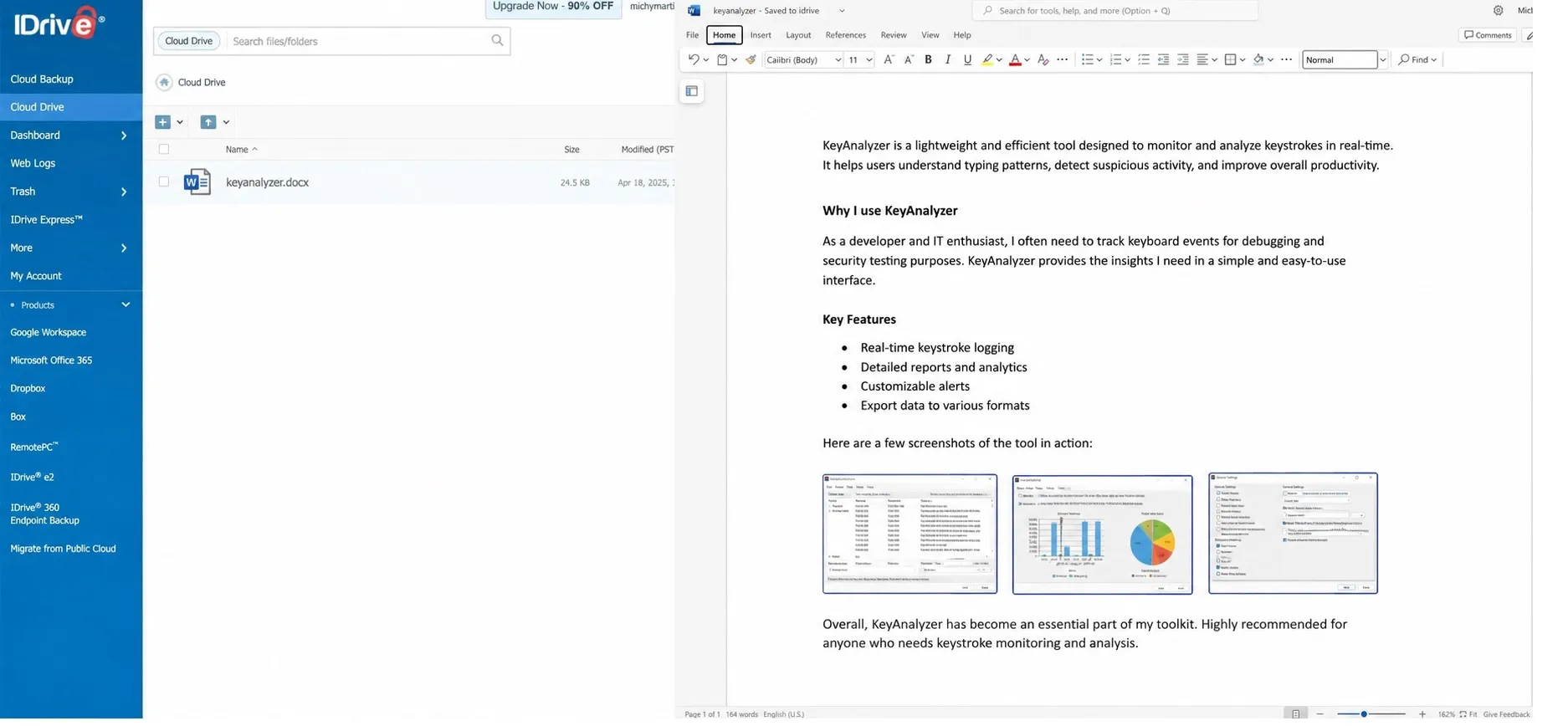
IDrive is fundamentally different from the other services on this list. It is a backup service first, a photo storage service second. That distinction matters.
What IDrive Excels At
IDrive’s core strength is unlimited device backup. One account backs up your phone, your laptop, your desktop, your tablet, your external drives, and even your NAS. There is no per-device fee. For households with five smartphones, three laptops, and a desktop, this is transformative.
IDrive also offers disk image backup. You can create a complete image of your entire hard drive, including the operating system, applications, and all files. If your computer dies, you restore the image to a new machine and pick up exactly where you left off. This is not photo backup. This is disaster recovery.
IDrive Photos: A dedicated spin-off app focused specifically on photo and video backup. It costs $9.95/year for unlimited photo and video storage from mobile devices. The first year is discounted to $0.99. This is the cheapest unlimited photo backup on the market, bar none.
IDrive Pricing (2026)
| Plan | Storage | First Year Price | Renewal Price | Devices |
|---|---|---|---|---|
| Free | 10 GB | Free | Free | Unlimited |
| Mini | 100 GB | $2.95/yr | $2.95/yr | Unlimited |
| Personal 5 TB | 5 TB | $69.65 | $99.50/yr | Unlimited |
| Personal 10 TB | 10 TB | $99.75 | $199.50/yr | Unlimited |
| Personal 20 TB | 20 TB | $249.50 | $249.50/yr | Unlimited |
| IDrive Photos | Unlimited | $0.99 first yr | $9.95/yr | 1 mobile device |
The promotional pricing is aggressive but watch the renewal rates. The 5 TB plan jumps 43% after year one. The 10 TB plan doubles. Budget for the renewal price, not the teaser rate.
IDrive Pros and Cons
Pros:
- Unlimited devices on a single account
- Disk image backup for full system recovery
- IDrive Photos offers unlimited mobile photo backup for $9.95/year
- 256-bit AES encryption with optional private key
- Ransomware protection with immutable snapshots
- IDrive Express: physical hard drive shipment for large backups/restores
- Cloud-to-cloud backup (Google Workspace, Microsoft 365, Dropbox, Box, Salesforce)
Cons:
- Interface feels dated and clunky
- Significant price increases at renewal
- Restore speeds reported at ~48 hours per TB by users
- No AI photo search or organization
- No built-in photo editor
- Mid-2025 reliability concerns documented by users
Who Should Use IDrive
IDrive is for multi-device households and small businesses that need comprehensive backup, not just photo storage. If you have a family of five with multiple phones, laptops, and tablets, IDrive’s unlimited device policy saves money compared to per-device competitors. The disk image backup is invaluable for professionals who cannot afford downtime. For pure photo management and browsing, however, IDrive is lacking.
5. iCloud: Seamless If You Live in Apple’s World
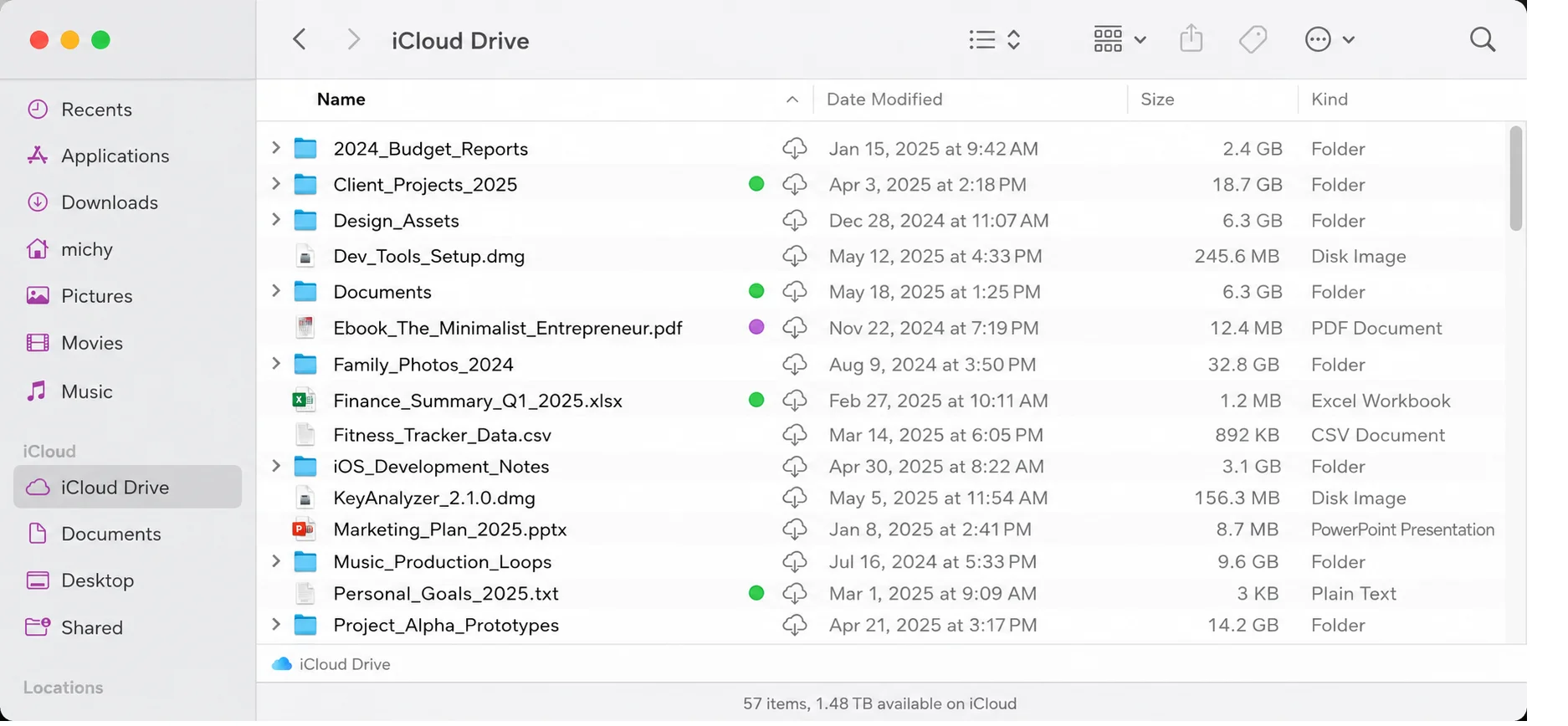
iCloud is the path of least resistance for iPhone and iPad users. It is built into iOS. It works automatically. And for users fully committed to the Apple ecosystem, it is genuinely hard to replace.
How iCloud Photo Backup Works
Enable iCloud Photos in Settings, and every photo you take syncs across your iPhone, iPad, Mac, and iCloud.com. Delete a photo on one device, it deletes everywhere. Edit a photo on your iPhone, the edit appears on your Mac. The integration is seamless because Apple controls the entire stack.
Shared Albums: Create albums and invite family members to contribute. Everyone sees the same photos in real-time. For family event documentation, this is genuinely useful.
iCloud+ Privacy Features: All paid plans include iCloud Private Relay (masks your IP address in Safari), Hide My Email (generates disposable addresses), and Custom Email Domain. The 200 GB and higher plans support Family Sharing, letting up to five family members share the storage pool.
iCloud Pricing (2026)
| Plan | Storage | Monthly Price | Annual Cost | HomeKit Cameras |
|---|---|---|---|---|
| Free | 5 GB | Free | Free | N/A |
| 50 GB | 50 GB | $0.99 | $11.88 | 1 camera |
| 200 GB | 200 GB | $2.99 | $35.88 | 5 cameras |
| 2 TB | 2 TB | $9.99 | $119.88 | Unlimited |
| 6 TB | 6 TB | $29.99 | $359.88 | Unlimited |
| 12 TB | 12 TB | $59.99 | $719.88 | Unlimited |
The 5 GB free tier is laughably small for modern iPhones. A single device backup can exceed it. Most users need the 50 GB plan at minimum. For families, the 200 GB or 2 TB plans with Family Sharing are the practical choices.
Critical limitation: iCloud offers no annual billing discount. Google One, OneDrive, and Dropbox all offer roughly 16-17% savings for annual prepayment. iCloud does not. Over a year, you pay about $20 more for 2 TB compared to competitors.
iCloud Pros and Cons
Pros:
- Seamless integration across all Apple devices
- Shared Albums for family collaboration
- iCloud+ privacy features (Private Relay, Hide My Email)
- HomeKit Secure Video integration
- Advanced Data Protection option for end-to-end encryption
- Family Sharing on 200 GB+ plans
Cons:
- 5 GB free tier is insufficient for modern devices
- No annual billing discount (pay more than competitors)
- No Android app (web-only access, capped at 1 GB)
- Limited Windows support
- iCloud Photos is sync, not true backup (deletions sync everywhere)
- No zero-knowledge encryption by default
Who Should Use iCloud
iCloud is for users who own only Apple devices and value convenience over cost optimization. If your household is iPhone, iPad, and Mac only, the seamless sync justifies the premium. For mixed-device households or users who want true backup (not sync), iCloud is the wrong tool.
6. Dropbox: The Collaboration King That Forgot About Photos
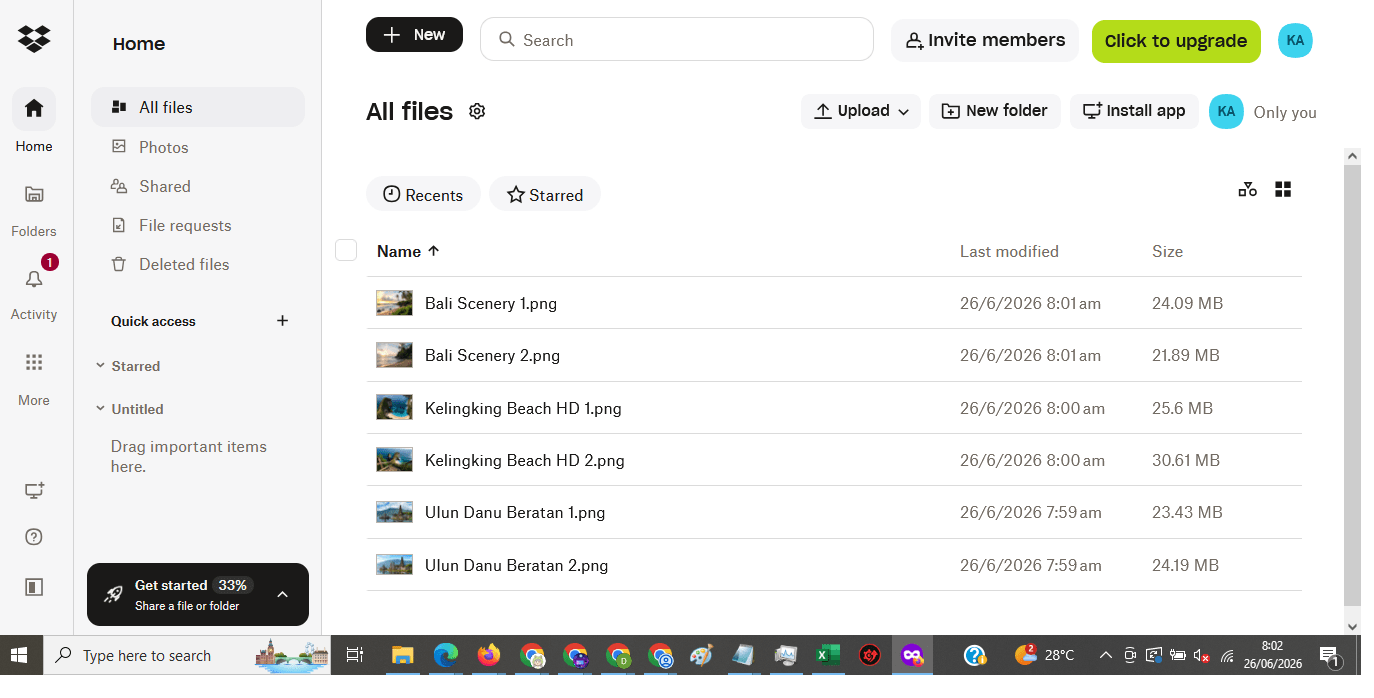
Dropbox backs up my photos in Bali
Dropbox invented modern cloud sync. In 2008, it solved a real problem elegantly — your files, everywhere, instantly. Nearly two decades later, with over 700 million registered users, it remains the benchmark for reliability. But for photo backup specifically, Dropbox has fallen behind.
What Dropbox Still Does Best
Sync Reliability: Dropbox’s sync engine is the most reliable in the industry. Files sync across devices with minimal conflict. The desktop client is lightweight and unobtrusive. For teams collaborating on documents, Dropbox is still the safe choice.
App Ecosystem: With 300,000+ third-party integrations, Dropbox connects to virtually every productivity tool. For workflows that depend on specific app connections, this matters.
Selective Sync: Choose which folders sync to which devices. Keep your entire photo library in the cloud while syncing only current projects to your laptop. This saves local storage without sacrificing access.
Dropbox Pricing (2026)
| Plan | Storage | Monthly Price | Annual Price | Users |
|---|---|---|---|---|
| Basic | 2 GB | Free | Free | 1 |
| Plus | 2 TB | $11.99 | $9.99/mo ($119.88/yr) | 1 |
| Professional | 3 TB | $19.99 | $16.58/mo ($198.96/yr) | 1 |
| Standard (Teams) | 5 TB pooled | $18/user | $15/user/mo | 3+ min |
| Advanced (Teams) | 15 TB+ pooled | $30/user | $24/user/mo | 3+ min |
The 2 GB free tier is the smallest of any major provider. The jump from free to 2 TB is massive — there is no middle ground. For photo backup, the Plus plan at $9.99/month is the entry point.
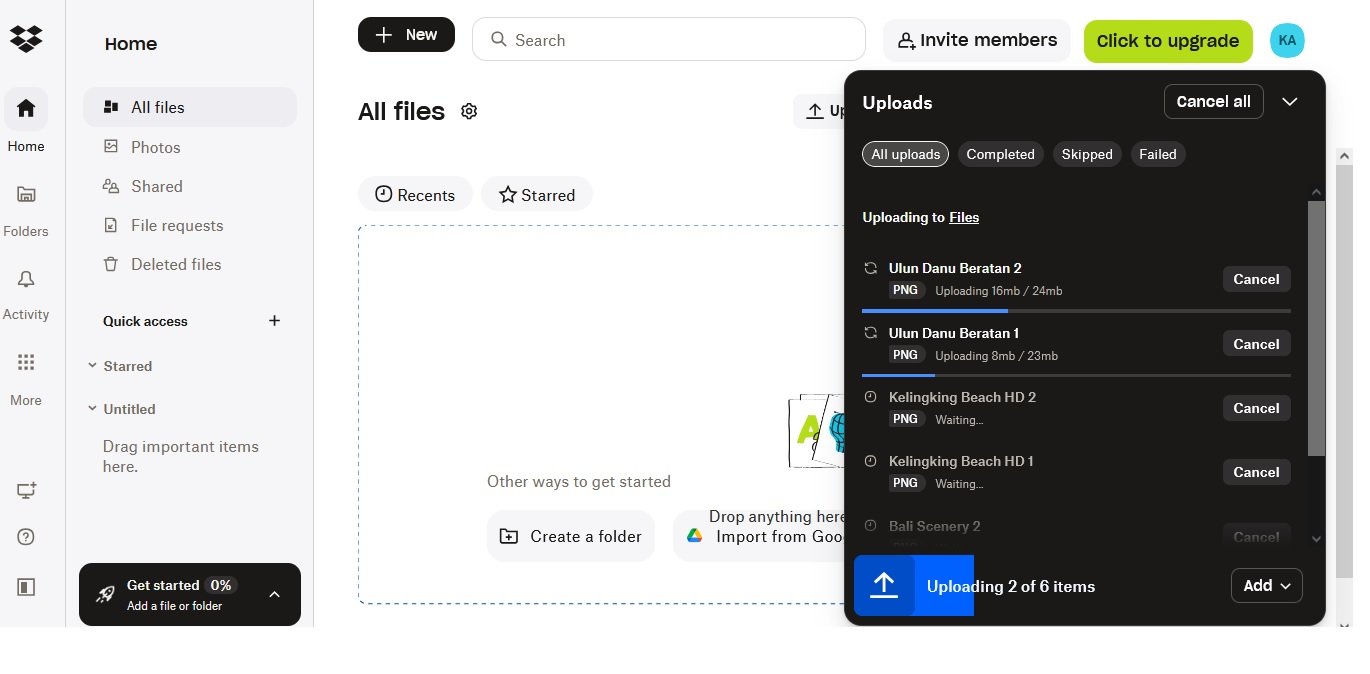
Dropbox Pros and Cons
Pros:
- Most reliable sync engine in the industry
- 300,000+ app integrations
- Selective sync saves local storage
- 180-day version history on Professional plan
- Branded sharing links and password protection on Professional
- HIPAA compliance available on Advanced plan
Cons:
- No AI photo search or organization
- No built-in photo editor
- 2 GB free tier is inadequate
- Expensive compared to competitors on a per-TB basis
- No lifetime plan option
- Photo backup feels like an afterthought
Who Should Use Dropbox
Dropbox is for teams and professionals who prioritize file collaboration and sync reliability over photo-specific features. If your workflow involves sharing large files with clients, collaborating on documents, and integrating with a specific app ecosystem, Dropbox delivers. For dedicated photo backup and management, there are better options.
7. My Cloud (Western Digital): Local Storage for the Privacy Purist

My Cloud is Western Digital’s line of Network Attached Storage (NAS) devices. Unlike every other service on this list, My Cloud stores your photos on a physical hard drive in your home or office, not in a remote data center.
How My Cloud Works
You buy a My Cloud device (ranging from ~$150 for 2 TB to ~$400 for 8 TB), connect it to your router, and configure it via the web interface. The device appears as a network drive on all your devices. Photos sync to it over your local network. You can access your library remotely via Western Digital’s cloud relay service.
My Cloud Home: The consumer-focused line with simplified setup and mobile apps. Automatic camera upload is supported on iOS and Android.
My Cloud EX2 Ultra: The prosumer line with RAID 1 mirroring, Plex media server support, and more advanced management options.
My Cloud Pros and Cons
Pros:
- One-time hardware cost, no subscription fees
- Complete physical control over your data
- Fast local network speeds for backups and restores
- No internet required for local access
- RAID options for data redundancy (on higher-end models)
- Plex media server support (on EX2 Ultra)
Cons:
- No off-site backup (if your house burns down, your photos are gone)
- Hardware can fail (hard drives die)
- Setup requires technical knowledge
- Remote access depends on your home internet upload speed
- No AI search or photo management features
- Western Digital’s software has a mixed reliability reputation
- No automatic cloud redundancy
Who Should Use My Cloud
My Cloud is for privacy purists and users with technical skills who want complete control over their data. If you do not trust any cloud provider with your photos, local NAS is the alternative. But you must implement your own off-site backup strategy — whether that is a second NAS at a different location, periodic external drive backups stored elsewhere, or a hybrid cloud approach. Without off-site backup, you are one house fire away from losing everything.
The Verdict: Which Photo Backup Solution Is Right for You?
After three years of daily use and testing across seven services, here is where I land:
For long-term photo storage with no recurring fees: pCloud is unmatched. The lifetime deal pays for itself, automatic upload never fails, and Swiss privacy law gives me confidence my data is protected. The virtual drive lets me access terabytes of photos without filling my laptop.
For AI-powered photo organization: Google Photos is the clear winner. The search, memories, and editing tools are best-in-class. Just accept the compression trade-off or pay for enough storage to use Original Quality.
For maximum privacy: NordLocker’s zero-knowledge encryption is the gold standard. But the lack of automatic upload and photo management features makes it a specialist tool, not a general-purpose solution.
For multi-device households: IDrive’s unlimited device policy and disk image backup make it the best value for comprehensive backup. The IDrive Photos app at $9.95/year for unlimited mobile backup is the cheapest option on the market.
For Apple-only users: iCloud is the path of least resistance. The integration is seamless. Just budget for the storage you need and understand that it is sync, not true backup.
For team collaboration: Dropbox remains the reliability benchmark. For photo backup specifically, it is overkill and overpriced.
For privacy purists with technical skills: My Cloud gives you complete control. Just implement off-site redundancy or accept the risk of single-point-of-failure.
My recommendation? Start with pCloud’s free 10 GB tier. Test the automatic upload. See how the virtual drive feels. If it works for you, the lifetime deal is one of the best investments you can make for your digital memories. Your future self — the one looking back at photos from 2026 in 2036 — will thank you.
You May Also Like
 Cloud Storage
Best Photo Backup for iPhone: 7 Reliable Ways to Keep Your Memories Safe
 Network Security
How to Transfer Files Between Two Laptops Over Wi-Fi: What Actually Works
 Cloud Storage
The Ultimate Guide to Sending Large Files Online: Top 20 Services for Easy File Sharing
 Data Security & Privacy
Beyond the Perimeter: The Architecture of Production-Grade Data Security (2026)
 Data Security & Privacy
What Is a Cloud Security Scanner for AWS, Azure, and Google Cloud?
 Cloud Storage
What Is pCloud Crypto? A Real-World Look at Encrypted Cloud Storage
 Data Security & Privacy
How to Protect Your Data With Google Cloud Platform: Complete Security Guide
 Cloud Storage
13 Best Free Cloud Storage Services to Back up & Keep Your Files Secure
 Cyber Security