Searching for the best SSD hard drive speed test tools? Hard drive speed test software has been a must-have for years—especially now that NVMe SSDs, USB4/Thunderbolt enclosures, and high-capacity HDDs make performance bottlenecks harder to “feel” until you copy a huge file or your system starts stuttering.
A hard drive (and SSD) is a fragile and important part of a computer. A speed test helps you confirm whether performance matches what the drive/interface should deliver, while a health tool (SMART/NVMe data) helps you decide whether the drive is safe to keep using. (You typically want both.)
The best HDD benchmark software will measure the read/write performance of a drive and help you decide whether something is wrong (thermal throttling, cable/interface limits, failing NAND, driver issues, etc.). For actual “health,” pair benchmarks with SMART/diagnostic tools so you’re not gambling with your data. Losing important data is usually more expensive than replacing storage proactively.
Important: Running benchmarks repeatedly can reduce SSD lifespan (writes) and can heat up NVMe drives, triggering throttling. Always keep backups before “health” or surface tests.
Quick Comparison (Speed + Health)
| Tool | Best for | OS | Notes |
|---|---|---|---|
| ATTO Disk Benchmark | Sequential & queue-depth tuning | Windows/macOS | Industry-standard for reviewers/manufacturers |
| CrystalDiskMark | Fast, repeatable SSD/HDD baseline | Windows | Multiple modes (Peak/Real World/Demo) |
| AS SSD Benchmark | SSD-focused random + access time | Windows | Includes copy + compression tests |
| Blackmagic Disk Speed Test | Video-editing style sustained throughput | macOS | Very simple “start and read/write” loop |
| CrystalDiskInfo / GSmartControl | SMART/NVMe health checks | Windows / multi‑OS | Health + diagnostics (not speed-first) |
10 Best Free Hard Drive Speed Test Software (SSD, HDD, Hard Disk) + SSD Health Tools (Updated)
1. ATTO Disk Benchmark

ATTO Disk Benchmark
ATTO Disk Benchmark is still one of the most trusted “industry” HDD benchmark software tools commonly used by drive manufacturers, IT professionals, and hardware review sites. It measures performance for HDDs, SSDs, RAID arrays, and even the host connection to attached storage (controllers/HBAs). You can run snapshots or continuous benchmarks, vary transfer sizes and queue depths, and run non-destructive tests via a file system. ATTO Technology Up-to-date notes (what changed vs older guides): ATTO continues to ship actively maintained downloads; the Windows Disk Benchmark download listing shows a newer Windows build (example: “win_app_benchmark_5.00.2.exe” with release notes dated 2025‑08‑14).
- Key features: variable transfer sizes, queue-depth control, multi-disk testing, snapshot vs continuous runs, non-destructive file-system testing, can measure network or block storage performance via a file system.
- Pros: widely referenced results; great for storage tuning and comparing sequential behavior across interfaces/controllers.
- Cons: mostly a “throughput” tool—doesn’t replace SMART health diagnostics; results can vary with caching unless configured carefully.
- Best for: power users, reviewers, RAID/NAS builders, and anyone validating expected sequential throughput on SATA/NVMe/RAID.
2. Anvil’s Storage Utilities

Anvil’s Storage Utilities
Anvil’s Storage Utilities remains a strong “all-in-one” style benchmark utility for Windows, covering both SSDs and HDDs. It can run standard SSD benchmarks as well as threaded I/O tests (sequential/random), show IOPS behavior, and includes an Endurance testing mode aimed at lifespan-style stress testing (use carefully). It’s also portable, so it’s easy to keep on a USB toolkit.
- Key features: read/write speed tests; WMI system storage info; standard SSD benchmark; threaded I/O benchmarks; endurance mode; MD5 integrity testing; configurable parameters (compression, Iometer parameters); screenshot export.
- Pros: portable; lots of knobs for advanced users; mixes performance + analysis in one UI.
- Cons: endurance testing can be write-heavy; UI/settings can overwhelm beginners.
- Best for: advanced users who want one tool for quick benchmarking plus deeper IOPS-style insight.
3. CrystalDiskMark

CrystalDiskMark is still the most common “baseline” disk benchmark on Windows, largely because it’s quick, easy, and widely comparable across the community. It measures sequential and random performance (Read/Write/Mix) and includes different measure modes (Peak/Real World/Demo). It also supports themes/editions (Standard, Aoi, Shizuku). Up-to-date notes: CrystalDiskMark is actively maintained. The official download page lists CrystalDiskMark 9.0.2 (dated 2026/02/17).
- Key features: sequential + random tests; multiple measure modes; multilingual UI; themes; broad Windows support including ARM64.
- Pros: simplest “click All” benchmark; easy comparison across the web; great for diagnosing “why is my SSD slow?” moments.
- Cons: not a health tool; results differ by test size, test location, fragmentation, controller/CPU—and major versions aren’t directly comparable.
- Best for: quick SSD/HDD speed checks, verifying NVMe PCIe lane/link issues, and validating external USB/Thunderbolt enclosure performance.
4. AS SSD Benchmark

AS SSD Benchmark
AS SSD Benchmark is designed primarily for SSD benchmarking and is especially useful when you want random 4K performance, access time, and copy-behavior style tests in one small portable app. It tests sequential and random read/write performance without using the OS cache (for the main synthetic tests), reads/writes a 1GB file, tests random 4K blocks, includes a 64-thread 4K test, and measures access time. It also includes copy benchmarks and a compression-related test to show how performance changes with data compressibility.
Up-to-date notes: The AS SSD Benchmark version commonly listed is 2.0.7316, and the developer’s download page also lists version 2.0.7316.34247. TechSpot Alex Intelligent Software
- Key features: sequential + random 4K; 4K-64Thrd; access time; copy benchmark; compression behavior testing; NVMe support noted in release notes; designed for SSD analysis.
- Pros: SSD-focused results; highlights access time and 4K behavior clearly; portable and lightweight.
- Cons: interface looks dated; like all benchmarks, it can heat/throttle NVMe drives during repeated runs.
- Best for: comparing SSDs, validating AHCI/NCQ behavior, and spotting “good sequential but weak random” scenarios.
5. HD Tune

HD Tune Free Tools to Measure Hard Drive and SSD Performance
HD Tune is a classic HDD/SSD benchmarking and diagnostic utility—but the free version is essentially frozen in time. Up-to-date reality check: the official download page still lists HD Tune 2.55 dated 12 February 2008, with support notes for Windows 2000/XP/Vista/7. On modern Windows versions it may run, but compatibility isn’t guaranteed.
- Key features: transfer rate graph; min/max/avg speeds; access time; burst rate; CPU usage (during test); basic health scanning (limited by age).
- Pros: simple and familiar UI; still useful for quick HDD transfer-rate graphs in some environments.
- Cons: free version is very old; OS support is outdated; newer tools better serve modern NVMe/USB4 scenarios.
- Best for: legacy Windows troubleshooting or quick “graph view” checks on older systems.
6. DiskMark (NetworkDLS)

DiskMark
DiskMark by NetworkDLS is a lightweight benchmark tool that lets you test disk performance while exposing “advanced options” to explore best-case vs typical performance scenarios (useful when you suspect caching, queue depth, or test-size sensitivity).
Up-to-date notes: NetworkDLS lists DiskMark v1.0.0.8 as a stable release (released 2018‑02‑23) and notes that it’s open source under the MIT License with code on GitHub.
- Key features: disk benchmarking with configurable advanced options; open-source (MIT).
- Pros: free/open-source; configurable; handy for experimentation beyond “one click” benchmarks.
- Cons: not as widely used as CrystalDiskMark/ATTO (fewer community comparison baselines).
- Best for: users who want a small tool and more control over how a benchmark runs.
7. AmorphousDiskMark (Mac)

hard drive speed test mac
AmorphousDiskMark is one of the best CrystalDiskMark-style benchmarks on macOS. It reports both MB/s and IOPS and supports detailed queue depth and test-size selection, which is crucial for modern NVMe/TB enclosures where QD behavior matters.
- Key features: sequential 1MiB and random 4KiB tests; queue depth selection up to 1024; MB/s and IOPS reporting; random vs zero-fill data; measurement size from 16MiB to 64GiB; interval control.
- Pros: Mac-native; excellent control over QD and test sizing; great for external SSDs and Thunderbolt.
- Cons: like all benchmarks, repeated runs can shorten SSD lifespan (developer warns against unnecessary repeats).
- Best for: Mac users testing internal SSDs, USB‑C/Thunderbolt NVMe enclosures, and NAS mounts (when combined with real-file tests).
8. Blackmagic Disk Speed Test (Mac)

Blackmagic Disk Speed Test
Blackmagic Disk Speed Test is a simple, video-workflow-oriented benchmark. It continuously writes and reads large blocks of data, then shows whether your disk is “certified” for high-quality video use (sustained throughput over time is what matters in editing).
Up-to-date notes: The App Store listing specifies it requires macOS 10.13 or later.
- Key features: one-click start; large-block write then read; continuous testing to evaluate performance/readability over time.
- Pros: extremely easy; ideal for creators validating scratch disks and external editing drives.
- Cons: limited configurability compared with AmorphousDiskMark; not a health/SMART tool.
- Best for: video editors checking whether a drive sustains enough throughput for their workflow.
Bonus: Modern SSD “Health” + Diagnostics Tools (Highly Recommended)
If your goal is specifically “Check SSD health for Windows 10/11,” pair a benchmark with one of the tools below. Benchmarks tell you speed; SMART/NVMe tools help you judge risk (reallocated sectors, media errors, temperature history, remaining life, total bytes written, etc.).
9. CrystalDiskInfo (Health monitoring)
If you want to know how to check SSD health, one of the best tools we use is CrystalDiskInfo. This popular Windows SSD/HDD monitoring utility analyzes drive health status using SMART data and NVMe diagnostics. CrystalDiskInfo supports solid-state drives (SSD), hard disk drives (HDD), NVMe SSDs, some USB bridges, and Intel RAID configurations. If you need a quick way to see “Is my drive healthy?” on Windows, CrystalDiskInfo is one of the most trusted disk health monitoring tools available
- Key features: SMART/health monitoring; broad Windows + Server support; NVMe support notes; newer builds require .NET for email notification features.
- Pros: very clear “health” snapshot; great companion to CrystalDiskMark.
- Cons: Windows-focused; USB/NVMe passthrough support can vary by enclosure/controller.
- Best for: checking SSD/HDD health quickly before/after running speed tests.
How to check SSD health using CrystalDiskInfo?
- Download CrystalDiskInfo from the official website and install it on your Windows PC.
- Open CrystalDiskInfo; the tool will automatically detect your SSD or HDD.
- Select your SSD from the list of detected storage drives.
- Check the Health Status indicator (Good, Caution, or Bad).
- Review important SMART attributes such as temperature, read/write errors, and power-on hours.
- Look at NVMe or SMART data details to identify potential SSD health issues or drive failures.
- If the status shows Caution or Bad, consider backing up your data and replacing the SSD. 💾
10. GSmartControl (SMART GUI for multi‑OS)
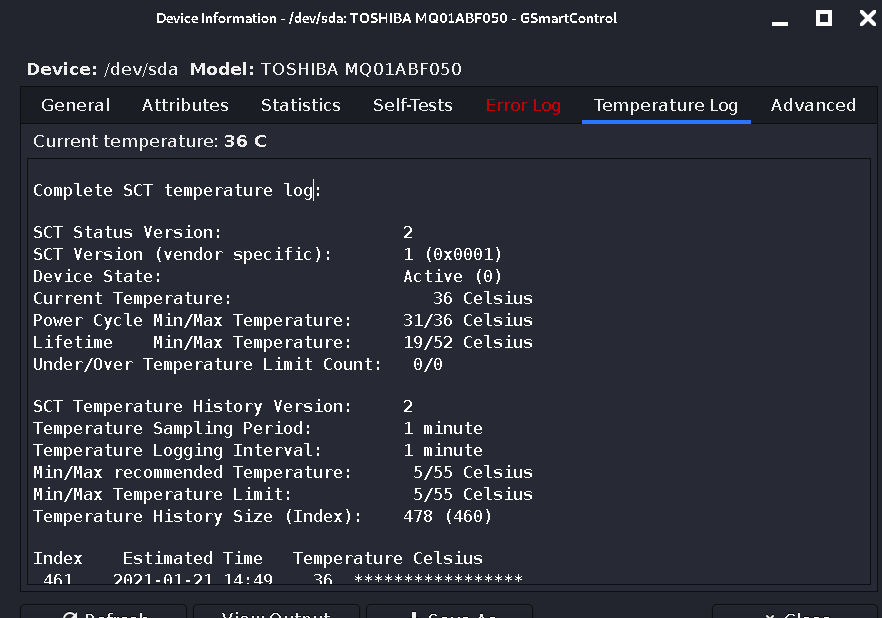
GSmartControl is a graphical user interface (GUI) for smartctl, a command-line utility from the smartmontools package used for disk monitoring and storage diagnostics. It functions as an SSD diagnostic tool and SSD health check utility, allowing users to inspect SMART (Self-Monitoring, Analysis and Reporting Technology) data, evaluate SSD and HDD health status, and run drive self-tests such as short, extended, and conveyance tests to detect potential drive failures.
GSmartControl supports multiple operating systems, including Linux, Windows, macOS, and BSD, and works with a wide range of storage hardware such as SATA, PATA, and NVMe SSDs, traditional hard disk drives (HDDs), and some USB bridge adapters and RAID controllers. This makes it a powerful tool for SSD health monitoring, drive diagnostics, storage performance analysis, and preventive maintenance.
- Key features: highlights anomalies; enable/disable SMART; run SMART self-tests; detailed identity/attributes/statistics; multi‑OS support.
- Pros: cross-platform; deeper diagnostics than most “benchmark” apps.
- Cons: interpretation of SMART attributes requires some knowledge; results depend on controller passthrough support.
- Best for: technicians and power users who need real diagnostics, not just speed numbers.
How to check SSD health using GSmartControl
- Download GSmartControl from the official website and install it on your Windows, Linux, or macOS system.
- Open GSmartControl; it will automatically detect all connected SSD and HDD drives.
- Select your SSD from the device list.
- Click “View Details” to access the SMART (Self-Monitoring, Analysis, and Reporting Technology) data.
- Check the SMART attributes such as reallocated sectors, wear level, temperature, and error rates.
- Run a Short Self-Test or Extended Self-Test to analyze the SSD health and performance.
- Review the overall SMART health status to determine if the SSD is healthy or failing. 💾
11. smartmontools (smartctl + smartd) + cron/automation
If you want “crons” (scheduled checks), smartmontools-style monitoring is the gold standard: you can run automated SMART checks and long-term monitoring using a background daemon and schedulers/cron-style routines (commonly done in server/NAS environments). The smartmontools overview highlights automation via cron jobs/schedulers and unattended monitoring.
- Key features: command-line control; background monitoring; automation/scheduling; early warning indicators (e.g., bad sectors, temperature anomalies).
- Pros: best for ongoing monitoring; scriptable; scalable for many machines.
- Cons: not beginner-friendly; requires setup and alerting choices.
- Best for: NAS/home servers, IT admins, and anyone who wants scheduled disk health checks.
12. Samsung Magician (Samsung SSDs)
Samsung Magician is designed to manage Samsung memory products (internal SSDs, portable SSDs, memory cards, USB drives). It includes firmware updates, drive health/status, performance benchmark, performance optimization, over provisioning, secure erase, and data security—feature availability depends on model and OS.
- Pros: best-in-class for Samsung firmware + optimization workflows.
- Cons: primarily for Samsung products; feature limits on non-Samsung/OEM environments; internal SSDs are not supported on macOS/Android per Samsung’s notes.
- Best for: Samsung SSD owners who want health + firmware + performance tools in one suite.
13. SanDisk Dashboard / WD SSD Dashboard (SanDisk & some WD SSDs)
SanDisk’s support KB explains that SanDisk Dashboard can maintain peak performance on supported SSDs in Windows, analyze drive details (model, capacity, firmware version, health, SMART attributes), and update firmware. The same KB was updated in 2026, and it provides online/offline installers.
- Pros: practical for supported SanDisk/WD SSD firmware + health stats.
- Cons: not all drive categories supported (KB notes internal HDD/USB flash/most memory cards/some externals aren’t supported).
- Best for: supported SanDisk/WD SSD users who want vendor firmware and SMART visibility.
14.Western Digital Kitfox (WD drives, Windows)
WD ended support for “Western Digital Dashboard” and points users to alternatives; WD’s KB states Kitfox provides similar features for HDDs, and Dashboard has been updated to “SanDisk Dashboard” for SSD products.
Kitfox itself assists with WD drive testing, temperature monitoring, and health checks, and WD notes it’s not compatible with macOS.
Up-to-date features: The Kitfox release notes list ongoing improvements (e.g., TrueDrive feature, SMART thresholds, diagnostics and erase improvements, device configuration options).
- Pros: official WD path for Windows drive management/testing.
- Cons: Windows-only; scope depends on drive support.
- Best for: WD HDD users who want official diagnostics + erase + health tools.
15. Seagate SeaTools (Diagnostics)
SeaTools is Seagate’s official diagnostic toolkit. Seagate’s “How to use SeaTools for Windows” KB describes running tests like Short DST/Short Generic/Long Generic (reads each sector), and explains best practices like closing apps and disabling sleep during long scans.
(SeaTools downloads are available on Seagate’s download page.)
- Pros: vendor diagnostics; good for confirming suspected failures and generating warranty-related evidence.
- Cons: diagnostics can take hours; repairs can risk data if sectors are reallocated (backup first).
- Best for: Seagate drive owners, and anyone needing long/sector-level diagnostic confirmation.
More Great Speed Test Options (Optional)
AJA System Test (Great for creators + network drives)
AJA System Test can speed-test any drive (including network mapped drives) and display results clearly, with reporting that can be copied into spreadsheets. It’s widely used in production/postproduction for predicting whether a drive system can sustain target codecs/resolutions.
KDiskMark (Linux GUI like CrystalDiskMark, powered by fio)
KDiskMark is a Linux HDD/SSD benchmark GUI that calls Flexible I/O Tester (fio) under the hood and presents results in an easy-to-interpret way.
fio (Flexible I/O Tester) — the “pro” workload simulator
fio exists to simulate specific I/O workloads using job files (instead of writing custom benchmark programs). It’s ideal for reproducible, advanced storage testing.
Windows built-in: WinSAT (winsat disk)
If you want a built-in Windows option, Microsoft documents winsat disk as measuring storage performance (sequential/random read/write and flush policy tests) via command line.
Conclusion
If you only want a fast, reliable speed baseline on Windows, CrystalDiskMark is the simplest choice (and it’s actively maintained). If you want deeper sequential tuning and queue-depth behavior (especially for RAID/controllers), ATTO Disk Benchmark is the most “industry standard.” For SSD-focused insights like access time + 4K + copy/compress behavior, AS SSD Benchmark is still excellent. Mac users should start with AmorphousDiskMark (configurable) or Blackmagic Disk Speed Test (simple sustained throughput).
For true SSD/HDD “health,” don’t rely on speed results alone—add SMART/NVMe health monitoring (CrystalDiskInfo, GSmartControl/smartctl, or vendor dashboards like Samsung Magician / SanDisk Dashboard / WD Kitfox / SeaTools). That combination is what helps you decide whether to replace a drive before it fails.
FAQs
What’s the difference between an SSD speed test and an SSD health check?
A speed test (CrystalDiskMark/ATTO/AS SSD) measures performance under specific workloads (sequential vs random, queue depth, etc.). A health check reads SMART/NVMe telemetry (remaining life, media errors, reallocated sectors, temperature history). You need health tools like CrystalDiskInfo, GSmartControl/smartctl, or vendor dashboards for real “should I replace this drive?” decisions.
Can benchmarking damage my SSD?
Benchmarking isn’t “dangerous,” but repeated write-heavy tests can contribute to SSD wear and can heat NVMe drives enough to throttle, lowering results and stressing the drive. Some tools explicitly warn against unnecessary repeat measurements. Run a few passes for consistency, then stop.
Why is my NVMe SSD slower than expected?
Common causes include thermal throttling, running in a slower PCIe lane/link mode, enclosure/interface limits (USB vs Thunderbolt), background activity, or caching/test settings. Use CrystalDiskMark or ATTO to confirm the pattern, then check temperatures/health in a SMART tool or vendor dashboard.
What’s the best tool for scheduled (cron) disk health monitoring?
For ongoing monitoring, a smartmontools-style setup (smartctl + background monitoring) is the typical approach because it supports automation via cron/schedulers and unattended long-term health checks. If you prefer a GUI, GSmartControl is a practical companion for on-demand checks.
You May Also Like
 Best Software
Top 10 Free & Open Source Inventory Management Software in 2026: A Comprehensive Buyer’s Guide With Real-World Data
 SaaS
SaaS
11 Best VoIP Call Center Solutions for Small Business 2026 (Comparison Guide)
 Best Software
6 Best Software to Record Mouse and Keyboard Actions and Automate Repetitive Tasks
 Best Software
Jira vs Hive: Which Project Management Tool is Right for Your Team?
 Best Software
8 Best Free Registry Cleaners Tools to Clean Junk and Registry on Windows PC
 Best Software
12 Top Plumbing Management Software Solutions for 2026
 Best Software
ServiceTitan Pricing Explained: How Much Does ServiceTitan Cost for Your Business?
 Best Software
12 Best Construction Project Management Software For Your Businesses
 Best Software