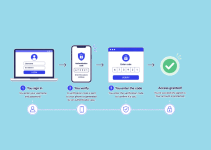
A strong password that is easy to remember combines length, unpredictability, and personal meaning without using obvious personal details. You do not need to sacrifice security for convenience. Millions of people reuse weak passwords or write them down because they believe strong passwords must be complicated. That is not true. With the right method, you can build passwords that resist hacking attempts and still feel natural to recall.
Passwords protect your bank accounts, email, social media, and private messages. A weak password can lead to stolen money, identity theft, or loss of personal photos and documents. Cybercriminals use automated tools that guess millions of passwords per second. Simple passwords like “123456” or “password” get cracked instantly. But a strong, memorable password slows them down — often enough to make them give up. The goal is to create something only you can remember, but no computer or stranger can easily guess.
This guide shows you how to build such passwords using proven techniques. You will learn how to use passphrases, substitute characters smartly, add numbers meaningfully, and avoid common traps. Whether you are a student, a parent, a small business owner, or someone who just wants better online safety, these methods work for everyone. No technical skills are required. Just follow the steps, and you will have passwords that are both secure and simple to recall.
What Makes a Password Strong and Memorable?
A strong and memorable password has at least 12 characters, mixes uppercase and lowercase letters, includes numbers or symbols, and avoids personal information like birthdays or pet names.
Length matters more than complexity. A 12-character password made of random words is harder to crack than an 8-character password with symbols but no structure. Hackers use dictionary attacks — programs that try every word in the English language. They also use brute force — trying every possible combination. Both fail faster against longer passwords.
Memorability comes from personal meaning. If your password tells a tiny story or uses a rhythm you know well, your brain retains it. Think of song lyrics, movie quotes, or inside jokes — but never use them directly. Modify them slightly. For example, “I love chocolate ice cream!” becomes “IL0v3Ch0c0l@t3!Cr3@m”. This password is 19 characters long, uses substitutions, and still relates to something you enjoy.
Here are 5 traits of a strong, memorable password:
- Length over complexity — Aim for 12–20 characters.
- Unpredictable structure — Avoid patterns like “Abc123” or “Qwerty”.
- Personal but not public — Use private memories, not Facebook details.
- Variety of character types — Mix uppercase, lowercase, numbers, symbols.
- No reuse across accounts — Each password should be unique.
Studies show that 81% of data breaches happen due to weak or stolen passwords. Creating a strong password reduces that risk dramatically. You do not need to be a tech expert. You just need a system.
How to Build a Password Using Passphrases
Build a password using passphrases by combining 3–5 unrelated words, adding numbers or symbols between them, and capitalizing some letters.
Passphrases are easier to remember than random strings. Your brain recalls stories and images better than abstract symbols. A passphrase like “PurpleTiger$Bakes9Pies!” is both strong and visual. You can picture a purple tiger wearing an apron, baking pies. That image sticks in your mind.
Start with four random words. Use a word generator or pick them yourself. Avoid common phrases like “let it go” or “happy birthday”. Instead, choose words with no obvious link: “Battery”, “Kangaroo”, “Velvet”, “Rocket”. Now combine them: “BatteryKangarooVelvetRocket”.
Next, add modifications:
- Insert a symbol between two words: “Battery#KangarooVelvetRocket”
- Replace a letter with a number: “B@ttery#Kangar00VelvetRocket”
- Capitalize random letters: “B@ttery#Kangar00vElvetRocket”
- Add a number at the end related to the account: “B@ttery#Kangar00vElvetRocket24” (for a bank account opened in 2024)
This method creates passwords that are:
- Long (usually 16–25 characters)
- Unique per account
- Visually memorable
- Resistant to dictionary attacks
Tools like password managers can generate these for you, but building them yourself helps memory. Write them down once, then destroy the paper after memorizing. Never store them in plain text on your phone or computer.
How to Use Character Substitution Without Making It Hard to Remember
Use character substitution by replacing letters with similar-looking numbers or symbols, but keep the original word recognizable to you.
Substitution adds complexity without confusion. The key is consistency. Pick a few rules and stick to them. For example:
- Replace “a” with “@”
- Replace “e” with “3”
- Replace “s” with “$”
- Replace “o” with “0”
Apply these to your base word or phrase. If your phrase is “CoffeeTimeIsBest”, it becomes “C0ff33T1m31$B3$t”. You still recognize it as “Coffee Time Is Best”, but a hacker sees a jumble.
Avoid overdoing it. Changing every letter makes the password hard to recall. Change 2–4 characters per word. Also, avoid predictable substitutions like “P@ssw0rd”. Hackers already know those patterns.
Here’s how to apply substitution step by step:
- Choose your base phrase: “WalkTheDogAtDawn”
- Pick 3 letters to substitute: “a” → “@”, “e” → “3”, “o” → “0”
- Apply substitutions: “W@lkTh3D0g@tD@wn”
- Add a symbol or number: “W@lkTh3D0g@tD@wn#7”
This password is 18 characters long, uses 3 character types, and still relates to your morning routine. You can adjust the substitutions for different accounts. For email, use “W@lkTh3D0g@tD@wn#Em”. For shopping, use “W@lkTh3D0g@tD@wn#Sh0p”.
How to Add Numbers That Are Meaningful But Not Obvious
Add numbers that are meaningful but not obvious by using inside references, favorite digits, or modified dates — never full birthdays or anniversaries.
Numbers make passwords stronger. But “1985” or “0712” (your birthday) are easy to guess. Hackers check public profiles and try common dates. Instead, use numbers that mean something only to you.
Examples:
- Your high school locker number: “27”
- The page number of your favorite book quote: “184”
- The jersey number of your childhood sports hero: “23”
- The number of pets you’ve owned: “4”
Embed these into your passphrase. If your phrase is “BlueSkyRunningFast”, and your locker number was 27, try “Blue27SkyRunningFast”. Or split it: “BlueSky27RunningFast”.
You can also modify dates. Instead of “1990”, use “90” or “19” or add/subtract a number: “1990” becomes “1989+1” → “19891”. Or reverse it: “0991”.
Never use:
- Full birth years
- Phone numbers
- Addresses
- License plate numbers
These are too easy to find or guess. Choose numbers tied to private memories. No one else needs to understand why “37” matters — only you do.
How to Avoid Common Password Mistakes
Avoid common password mistakes by never reusing passwords, avoiding dictionary words alone, and not using personal public information.
Many people think they are being clever but fall into traps hackers expect. Here are 5 mistakes and how to fix them:
- Reusing passwords — If one account gets hacked, all others are at risk. Fix: Use a unique password for every account.
- Using “Password123” — These are the first combinations hackers try. Fix: Use phrases, not single words.
- Including your name or birthday — This info is often public. Fix: Use private memories or fictional references.
- Making minor changes — “Password1”, “Password2” is still weak. Fix: Build each password from scratch using your system.
- Writing passwords on sticky notes — Physical theft is real. Fix: Memorize or use a password manager with a master password you remember.
A study found that 51% of users reuse passwords across multiple sites. That number drops to 12% among users who adopt a passphrase system. Building each password with a core phrase and account-specific tweaks solves this.
Also, avoid patterns on the keyboard. “Qwerty123” or “1qaz2wsx” look random but are common in hacking dictionaries. Use scattered letters instead.
How to Test Your Password Strength
Test your password strength using free online tools like Kaspersky Password Checker or Bitwarden Password Strength Tester — but never enter real passwords.
These tools analyze length, character variety, and predictability. They do not store your password. Use them with sample passwords to learn what works.
Create a test password using your method. Enter it into the tool. Look for:
- Length score (aim for green or 100%)
- Complexity score (mix of uppercase, lowercase, numbers, symbols)
- Uniqueness warning (if it detects common phrases)
Do not test your actual passwords. Use similar ones. For example, if your real password is “Sunset@B3@ch2024!”, test “Sunset@Test2024!”.
Also, check if your email or passwords have been leaked. Use “Have I Been Pwned” by Troy Hunt. Enter your email. If it appears in a breach, change those passwords immediately.
Testing helps you improve. If a tool says your password is weak, add one more word or symbol. Small changes make big differences.
How to Remember Multiple Passwords Without Writing Them Down
Remember multiple passwords without writing them down by using a base phrase and adding unique modifiers for each account.
You do not need to memorize 50 different passwords. Use one strong base, then tweak it per site. This is called a “password framework”.
Example base: “MyD0gL0v3sT0Run!”
Now add modifiers:
- For Facebook: “MyD0gL0v3sT0Run!FB”
- For Gmail: “MyD0gL0v3sT0Run!GM”
- For Amazon: “MyD0gL0v3sT0Run!AZ”
The modifier can be:
- First two letters of the site
- A symbol representing the site (e.g., $ for bank, @ for email)
- A number you associate with the site (e.g., 3 for your third email account)
This way, you only memorize the base and the rule. Your brain recalls patterns better than random data.
If you have many accounts, group them:
- Social media: Add “SM” + number (SM1, SM2)
- Shopping: Add “Shop” + first letter (ShopA, ShopW)
- Work: Add “Wrk” + department (WrkHR, WrkIT)
Never use the same modifier twice. Keep a mental map. Review it once a week until it sticks.
Should You Use a Password Manager?
Yes, you should use a password manager if you have more than 10 accounts or struggle to remember modified passphrases.
Password managers store your passwords in an encrypted vault. You only need to remember one master password. They can also generate strong passwords and auto-fill them on websites.
Popular options:
- Bitwarden (free and open-source)
- 1Password (user-friendly)
- NordPass (good for beginners)
- KeePass (local storage only)
Benefits:
- Auto-generate strong passwords — No thinking required.
- Auto-fill login forms — Saves time and prevents typos.
- Sync across devices — Access passwords on phone, tablet, laptop.
- Alert you for breaches — Some notify you if a password is compromised.
- Store secure notes — Save answers to security questions.
Risks:
- If someone guesses your master password, they access everything.
- If you forget the master password, you lose access.
Solution: Make your master password extra strong using the methods in this guide. Write it down once and store it in a locked drawer. Do not store it digitally.
Using a password manager does not mean you stop learning. It means you work smarter. Even with a manager, knowing how to build strong passwords helps you create a secure master key.
Conclusion: Build Security Into Your Daily Routine
Creating a strong password that is easy to remember is a skill anyone can learn — and it only takes a few minutes per account.
You do not need complex formulas or tech jargon. Start with a phrase you love. Add a few twists. Make it longer. Keep it private. That’s it.
Security is not about fear. It’s about habits. Just like locking your front door or wearing a seatbelt, strong passwords are simple actions with big rewards. They protect your money, your memories, and your identity.
Practice building one password today. Use it for a low-risk account like a news site. See how it feels. Then build another. Soon, you will have a system that works for you — no stress, no sticky notes, no fear.
The internet is full of risks. But with the right password habits, you take back control. Start now. Your future self will thank you.
You May Also Like
 Cyber Security
Can Ransomware Infect iCloud? What Mac and iPhone Users Need to Know
 Data Security & Privacy
Two-Factor Authentication (2FA): How It Works, Which Method to Use, and How to Stay Safe
 Data Security & Privacy
Is a Password Manager Safe? How to Use One Securely
 Data Security & Privacy
19 Best Email Service Providers for Personal and Business Use
 WordPress
12 Best Cheap SSL Certificate Providers To Secure Your Website
 Data Security & Privacy
Is Password Protection the Same as Encryption? Differences in Data Security
 Data Security & Privacy
How Your Digital Footprint Can Make or Break Your Career Opportunities
 Data Security & Privacy
What Is End-to-End Encryption? Your Complete Guide to Secure Communication
 Data Security & Privacy