When we want to protect a file, folder, email, phone, or online account, we often look for a password option. It feels simple. Add a password, save the file, and assume the information is secure.
But password protection and encryption are not always the same thing.
A password can control who is allowed to open something. Encryption changes the information itself into unreadable data unless the person has the correct decryption key. In some cases, a password is used to unlock encrypted data. In other cases, a password only creates a basic access barrier.
That difference matters.
If you are protecting personal photos, tax documents, customer data, business contracts, financial records, cloud files, or private messages, you need to know whether your information is truly encrypted or only hidden behind a password prompt.
Password protection can be useful. Encryption can be much stronger. The best data security often uses both.
What Password Protection Means
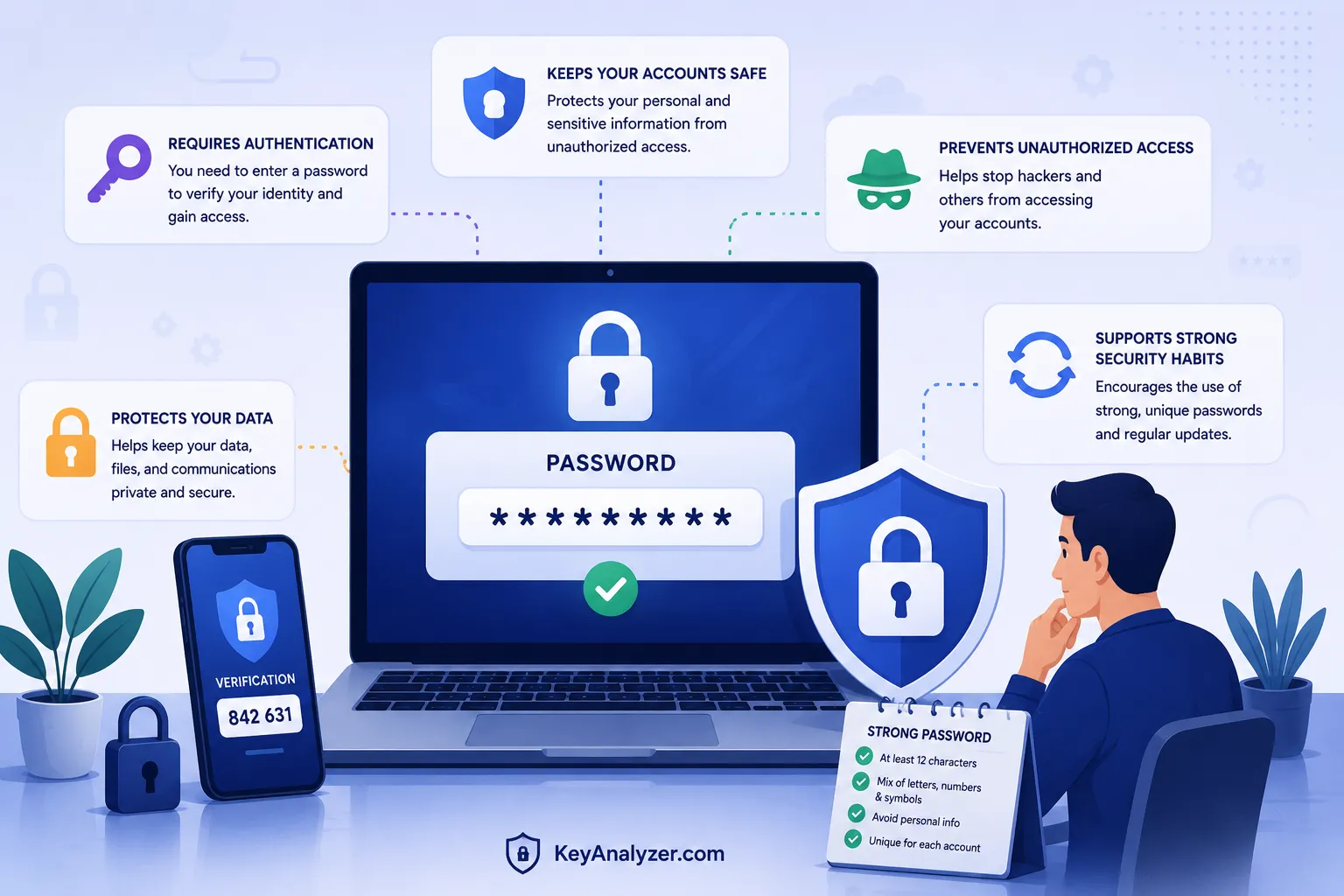
Password protection is an access control method. It requires someone to enter a password before they can open, view, edit, download, or change information.
We use password protection every day. It protects:
- Email accounts
- Social media profiles
- Online banking
- Business software
- Mobile phones
- Laptop accounts
- PDF files
- Microsoft Word documents
- Excel spreadsheets
- Cloud storage
- Wi-Fi networks
- Password managers
A password answers a basic security question: “Are you allowed to access this?”
When you enter the correct password, the system checks whether it matches the stored account information. If it does, the system allows access.
Password protection is part of authentication. Authentication means confirming that a person is authorized to enter an account, device, or system.
The weakness is that passwords can be guessed, reused, stolen, leaked, shared, copied, or exposed through phishing scams.
For example, if we use the same password for email, social media, and online shopping, one data breach could put all three accounts at risk. A criminal may take a leaked email and password combination and test it on other websites.
That is why password protection alone is not always enough for sensitive data.
What Encryption Means
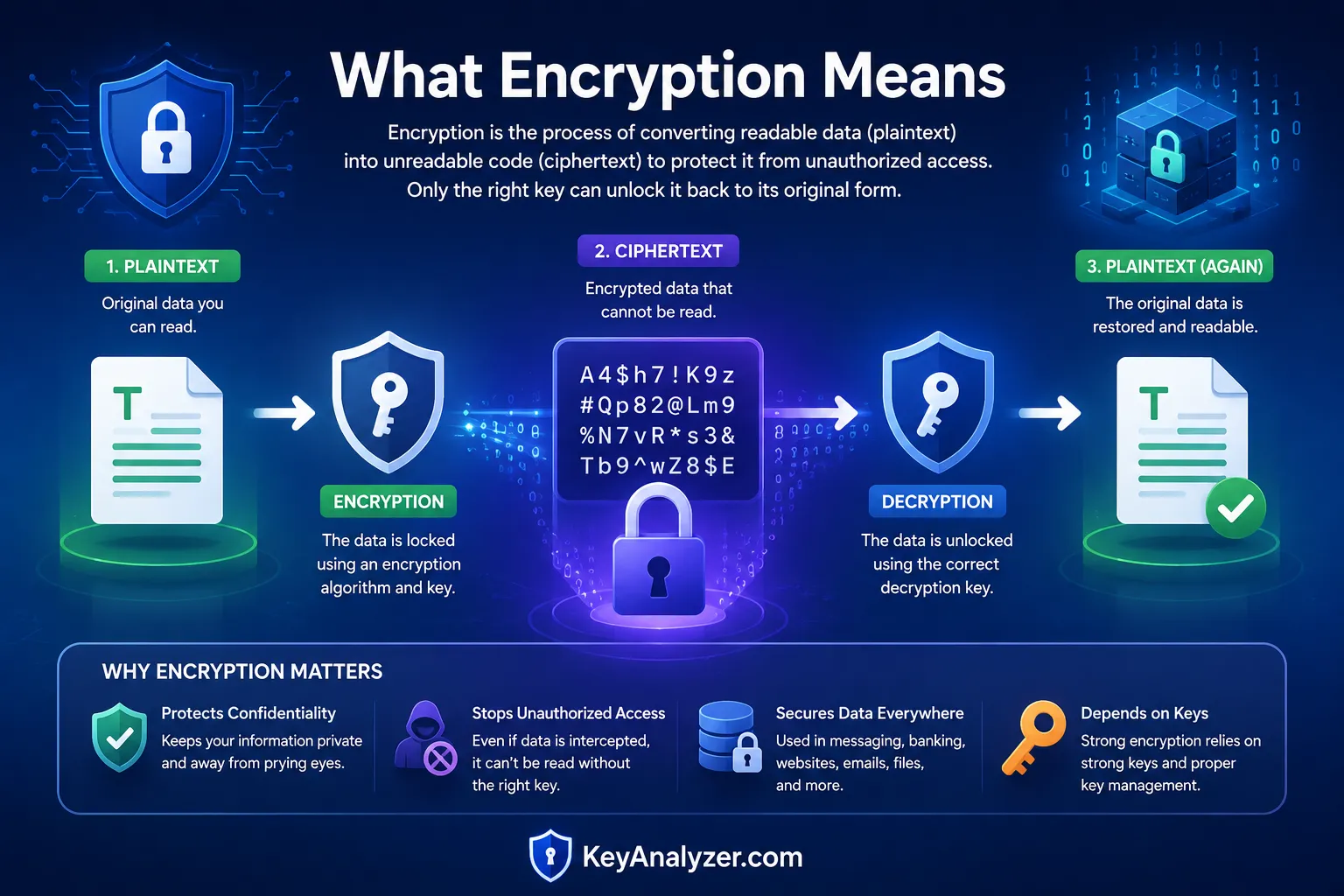
Encryption is a data security method that changes readable information into unreadable data. The unreadable version is often called ciphertext.
To read encrypted data, someone needs the correct decryption key. The key changes the ciphertext back into readable information.
For example, a normal document may say:
Client contract details and payment information.
After encryption, the document becomes unreadable data. Someone who copies the file without the correct key should not be able to understand what it contains.
Encryption is used to protect:
- Files and folders
- Hard drives
- Smartphones
- Cloud storage
- Email messages
- Messaging apps
- Video calls
- Online banking sessions
- Wi-Fi networks
- Databases
- Customer records
- Password manager vaults
- Backups
Encryption protects the content itself. Even if someone gets a copy of an encrypted file, they should not be able to read it without the key.
This makes encryption useful for data at rest and data in transit.
Data at rest means information stored on a device, hard drive, cloud server, USB drive, or database.
Data in transit means information moving across the internet or a network, such as an email, online payment, video call, or file upload.
Is Password Protection the Same as Encryption?
No, password protection is not always the same as encryption. A password is often used to control access. Encryption changes the data itself so it cannot be read without the correct key.
However, some tools use both together.
For example, when you choose “Encrypt with Password” in Microsoft Word, Excel, or some PDF tools, the password may be used to protect an encryption key. In that case, the file is password-protected and encrypted.
But other password options may only limit actions. They may stop someone from editing, printing, copying, or changing a file without actually encrypting the contents.
That means a person with enough technical knowledge may be able to bypass simple document restrictions or access an unencrypted copy.
This is why we should not assume every password prompt provides strong encryption.
| Security method | Main purpose | Does it make data unreadable? | Example |
|---|---|---|---|
| Password protection | Controls access | Not always | Password required to open an account |
| Encryption | Protects data content | Yes | Encrypted hard drive or encrypted file |
| Password-protected encryption | Uses a password to unlock encrypted data | Yes | Encrypted PDF with a strong password |
| File editing restriction | Limits changes or copying | Usually no | “Restrict Editing” in a document |
| Two-factor authentication | Adds a second login check | No | Password plus authentication code |
| Access permissions | Controls what users can do | No | View-only cloud file sharing |
The key question is not simply, “Does it ask for a password?” The better question is, “Is the data encrypted, and how is the encryption key protected?”
How Passwords and Encryption Work Together
Passwords and encryption often work together, but they do different jobs.
A password proves that you are authorized to access something. Encryption protects the information inside that thing.
For example, your phone may have a screen lock. That passcode controls who can open the device. The phone may also use full-disk encryption to protect files stored on it. If someone steals the phone and tries to access the storage directly, encryption can make the stored data much harder to read.
A password manager works in a similar way. You enter a master password to unlock the vault. The vault itself is encrypted. The master password helps unlock the encryption key needed to read the saved passwords.
A secure setup often includes:
- A long, unique password
- Strong encryption
- Two-factor authentication
- Secure recovery options
- Device security
- Regular software updates
One layer supports the next. A strong password helps prevent unauthorized access. Encryption protects the data if someone gets a copy of it. Two-factor authentication makes stolen passwords less useful.
Why Password Protection Alone Can Be Weak
Password protection can fail when the password is weak, reused, or exposed.
Many people use passwords based on familiar information. They may use a child’s name, a pet’s name, a birthday, a favorite sports team, a business name, or a simple number pattern.
Examples of weak passwords include:
Password123Summer2026JohnSmith1985Business123Welcome1ILoveDogsQwerty123
These passwords may be easy for someone to guess, especially if they can find personal details on social media.
Password reuse is another common risk. If the same password is used across several accounts, one stolen password can create a chain reaction.
For example, imagine that you use the same password for:
- Gmail
- Shopify
- PayPal
- Dropbox
- Your business website
- A customer management platform
If one smaller website suffers a breach, criminals may try that password on every other major platform. This is known as credential stuffing.
Password protection also cannot help much if we give the password away. Phishing emails, fake login pages, and scam messages are designed to trick people into entering passwords on fraudulent websites.
Encryption can help protect data after theft, but weak passwords can still make encrypted data easier to attack.
What Is a Strong Password?
A strong password is long, unique, and difficult for other people to guess.
The best password is not necessarily full of random symbols that you cannot remember. Long passphrases can be strong and easier to remember.
A passphrase is a password made from several unrelated words. For example:
Cedar-Cloud-Mango-Train-87River!Lamp!Garden!Coffee!42BlueWindowForestBook93
Do not use these exact examples. Create your own phrase that is not connected to your personal life.
A strong password should be:
- Unique for one account only
- Long enough to resist guessing attempts
- Unrelated to your name or public information
- Stored safely in a password manager
- Protected with two-factor authentication when available
A password manager can generate long, random passwords for every account. This means we do not need to remember dozens of complicated passwords. We only need to remember the master password for the password manager.
What Is File Encryption?
File encryption protects individual documents, photos, spreadsheets, PDFs, folders, or archives.
This can be useful when we need to share sensitive files, store private records, or keep business documents secure.
Files that may need encryption include:
- Tax returns
- Bank statements
- Employee records
- Customer information
- Legal agreements
- Business contracts
- Medical documents
- Passport scans
- Financial reports
- Client project files
- Password recovery codes
- Private photos
- Backup files
For example, if you create an encrypted PDF with a strong password, someone who downloads the file should not be able to read it without the password or decryption key.
But we need to be careful with how we share the password. Do not send the encrypted file and the password in the same email thread. If someone gains access to that email, they may get both pieces.
A better approach is to send the encrypted file through one channel and the password through another trusted channel. For example, send the file by email and share the password by phone call, secure messaging app, or in person.
Are Password-Protected PDFs Actually Secure?
A password-protected PDF can be secure if the PDF uses modern encryption and a strong password. But not every PDF password option offers the same protection.
Some PDF tools let us set:
- A password required to open the file
- A password required to edit the file
- Restrictions on printing
- Restrictions on copying
- Restrictions on changing the document
A password required to open the file can protect the document more effectively when it is connected to strong encryption.
Editing restrictions may be weaker. They may discourage casual changes, but they do not always prevent a determined person from copying, extracting, or modifying content.
If you are sending sensitive information in a PDF, look for options that specifically mention encryption, such as AES encryption. AES stands for Advanced Encryption Standard. It is widely used to protect files, devices, and communications.
For stronger PDF security:
- Use a modern PDF tool
- Select encryption, not only edit restrictions
- Create a long and unique password
- Do not reuse your email or account password
- Share the password separately
- Remove unnecessary personal details from the file
- Check that the file is encrypted before sending it
What Is Full-Disk Encryption?
Full-disk encryption protects all data stored on a computer, phone, tablet, or external drive.
When full-disk encryption is turned on, the device encrypts files, apps, system data, and other stored information. The data becomes readable only after you unlock the device with the correct password, PIN, fingerprint, or face scan.
Common examples include:
- BitLocker on Windows
- FileVault on macOS
- Android device encryption
- iPhone and iPad encryption
- Encrypted external hard drives
- Encrypted USB drives
Full-disk encryption is especially important if a device is lost or stolen. Without encryption, someone may be able to remove the hard drive and try to access the files directly. With full-disk encryption, the stolen storage should be much harder to read without the correct credentials.
For business owners, full-disk encryption can help protect customer files, company documents, invoices, employee data, and financial records stored on laptops.
If you work remotely, travel often, use coworking spaces, or keep customer information on a device, full-disk encryption is worth turning on.
What Is End-to-End Encryption?
End-to-end encryption protects communication between the people involved in a conversation.
When you send an end-to-end encrypted WhatsApp message, Signal message, iMessage, or FaceTime call, the content is encrypted on your device before it is sent. It stays protected while it moves through networks and servers. The recipient’s device decrypts it.
This means the messaging company may help deliver the message, but it should not be able to read the message content.
End-to-end encryption is useful for:
- Private messages
- Voice calls
- Video calls
- Group chats
- Shared photos
- Voice notes
- Business conversations
- Personal family communication
- Sensitive discussions
However, end-to-end encryption does not stop the recipient from taking a screenshot, forwarding a message, recording a call, or sharing the content after they receive it.
It also does not protect you if a criminal gets into your unlocked phone, steals your password through phishing, or accesses an unencrypted cloud backup.
Encryption works best when we protect our accounts and devices too.
Password Protection vs. Encryption vs. Two-Factor Authentication
Password protection, encryption, and two-factor authentication are all part of data security. But they solve different problems.
A password helps confirm your identity. Encryption protects data. Two-factor authentication adds another check before someone can access an account.
| Security layer | What it does | Example |
|---|---|---|
| Password | Confirms access | Signing in with a passphrase |
| Encryption | Makes data unreadable without a key | Encrypting a hard drive |
| Two-factor authentication | Requires a second proof of identity | Password plus authenticator-app code |
| Password manager | Stores unique passwords securely | Saving login credentials in an encrypted vault |
| Device lock | Prevents easy physical access | PIN, fingerprint, or face scan |
| Backup security | Protects stored copies of data | Encrypted cloud or external-drive backup |
We should not think of these tools as replacements for each other. A password does not replace encryption. Encryption does not replace account security. Two-factor authentication does not replace strong passwords.
The strongest approach is layered security. Each layer makes it harder for an unauthorized person to access our information.
Is Cloud Storage Encrypted?
Most major cloud storage services use encryption in some form. Google Drive, Microsoft OneDrive, Dropbox, iCloud Drive, Box, and other services generally protect data while it travels and while it is stored.
But the details matter.
Many cloud providers encrypt files on their servers, yet they may still manage the encryption keys. That can mean the provider has the ability to access files in certain situations, depending on its system design, legal requirements, or account recovery process.
Some privacy-focused cloud storage services offer end-to-end encryption or zero-knowledge encryption. Zero-knowledge encryption means the provider is designed so that it cannot read your files because only you hold the key or password needed to decrypt them.
If you are storing highly sensitive documents, check:
- Is the file encrypted while it travels?
- Is it encrypted while stored?
- Who controls the encryption key?
- Does the provider offer zero-knowledge encryption?
- Is two-factor authentication turned on?
- Are shared links protected with passwords or expiration dates?
- Can anyone with the link access the file?
- Are old shared links still active?
Cloud storage can be very useful, but it should be managed carefully. Never assume that “stored in the cloud” automatically means “private.”
What Happens If We Lose an Encryption Password or Key?
Losing an encryption password or key can be serious. Strong encryption is designed to prevent unauthorized access. That also means the service provider may not be able to recover your files if you lose the only way to decrypt them.
This is common with encrypted backups, password managers, encrypted external drives, and zero-knowledge cloud storage.
Before using encryption, create a recovery plan:
- Use a password manager to store complex encryption passwords.
- Save recovery codes in a secure place.
- Keep backup keys where only trusted people can access them.
- Use a secure emergency-access feature if available.
- Keep encrypted backups of important data.
- Test your recovery process before an emergency happens.
- Avoid storing the only copy of important files in one place.
Do not save encryption passwords in plain text files, email drafts, or unprotected phone notes. That can undo the protection encryption provides.
A secure recovery plan is not about making data easy for everyone to access. It is about making sure we can regain access without giving outsiders an easy path in.
Common Data Security Mistakes
Many security problems come from small habits that seem harmless at the time.
| Common mistake | Why it is risky | Better approach |
|---|---|---|
| Reusing passwords | One breach can affect multiple accounts | Use a password manager |
| Using short passwords | They are easier to guess or crack | Use long passphrases |
| Trusting any password prompt | Some files are not truly encrypted | Check for encryption settings |
| Sending passwords with files | Anyone who gets both can open the file | Share passwords separately |
| Skipping two-factor authentication | A stolen password may be enough to sign in | Use an authenticator app or passkey |
| Keeping devices unlocked | Anyone nearby may access data | Use a PIN, fingerprint, or face scan |
| Ignoring cloud-sharing settings | Old links may still expose files | Review and remove inactive links |
| Forgetting backup protection | Backups can expose private data | Encrypt backups |
| Using old software | Security flaws may remain unpatched | Update devices and apps |
| Opening unknown attachments | Malware can steal files or passwords | Verify the sender first |
The goal is not to make daily work difficult. It is to build habits that protect the information we have worked hard to collect, create, and manage.
How to Protect Sensitive Files and Accounts
If you want stronger data protection, start with the accounts and files that would cause the most damage if they were exposed.
Protect these first:
- Main email account
- Password manager
- Bank and payment accounts
- Cloud storage
- Business email
- Customer databases
- Tax documents
- Identity documents
- Website hosting
- Domain registrar accounts
- Social media business accounts
- Employee and contractor information
Then use this security routine:
- Create unique passwords for every account.
- Store passwords in a secure password manager.
- Turn on two-factor authentication.
- Encrypt laptops, phones, and external drives.
- Use encrypted files for highly sensitive documents.
- Review cloud-sharing permissions.
- Use secure messaging for private conversations.
- Keep software updated.
- Back up important files securely.
- Remove access for people who no longer need it.
You do not need to do everything at once. Start with your email and password manager. Those two accounts often control access to many others.
Frequently Asked Questions About Password Protection and Encryption
Is a password-protected file always encrypted?
No. Some password-protected files are encrypted, while others only use password-based access restrictions. Check whether the file uses actual encryption, not only editing or viewing controls.
Can a password protect an encrypted file?
Yes. A password can be used to unlock an encrypted file. In this case, the password helps protect the encryption key that makes the file readable.
Is encryption better than password protection?
Encryption is stronger for protecting data content because it makes the information unreadable without the correct key. Password protection is still useful because it helps control who can access a device, account, or encrypted file.
Do we need both encryption and two-factor authentication?
Yes. Encryption protects the data. Two-factor authentication protects account access. Using both gives us stronger security than relying on one method alone.
Can hackers break encryption?
Strong modern encryption is difficult to break when it is implemented correctly and protected with a strong password or key. In many cases, criminals look for easier ways in, such as phishing, malware, weak passwords, stolen devices, or poor account recovery settings.
Is a password manager encrypted?
Yes. Reputable password managers store login information in an encrypted vault. Your master password helps unlock the vault, which is why it should be long, unique, and protected with two-factor authentication.
Final Thoughts on Password Protection and Encryption
Password protection and encryption are connected, but they are not the same thing. A password controls access. Encryption protects the actual data by making it unreadable without the right key.
The most effective approach is to use both. Use strong passwords to protect accounts and devices. Use encryption to protect files, storage, backups, and private communication. Add two-factor authentication so a stolen password is not enough to get in.
When we understand the difference, we can make better decisions about how to protect personal files, business records, customer information, cloud data, and online accounts.
You May Also Like
 Cyber Security
Can Ransomware Infect iCloud? What Mac and iPhone Users Need to Know
 Data Security & Privacy
Two-Factor Authentication (2FA): How It Works, Which Method to Use, and How to Stay Safe
 Data Security & Privacy
Is a Password Manager Safe? How to Use One Securely
 Data Security & Privacy
19 Best Email Service Providers for Personal and Business Use
 WordPress
12 Best Cheap SSL Certificate Providers To Secure Your Website
 Data Security & Privacy
How Your Digital Footprint Can Make or Break Your Career Opportunities
 Data Security & Privacy
What Is End-to-End Encryption? Your Complete Guide to Secure Communication
 Data Security & Privacy
What Is a Cloud Security Scanner for AWS, Azure, and Google Cloud?
 Cyber Security