Most of us have more online accounts than we realize. We use email, banking apps, shopping sites, streaming services, social media, work platforms, health portals, school accounts, and business tools. Each one asks us to create a password.
Over time, it is easy to reuse the same password or make small changes to a password we already know.
That habit is understandable, but it creates a real security problem. If one website suffers a data breach and your password is exposed, someone may try the same credentials on your email, bank, social media, or business accounts. They do not need to guess every password if one reused password works across several services.
A password manager helps solve that problem. It can create strong, unique passwords, store them in an encrypted vault, and fill them in when you need them. Instead of trying to remember dozens or hundreds of passwords, you mainly need to remember one master password.
But that raises an important question: is a password manager safe?
Generally, a reputable password manager is a much safer way to manage passwords than reusing them, saving them in plain-text notes, or trying to remember everything ourselves. It is not risk-free, though. The security of the setup also depends on the provider, the software, the master password, account recovery, and how we use the device.
This guide explains how password managers work, why they are useful, what risks to consider, and how to use one safely for personal or business accounts.
What Is a Password Manager?
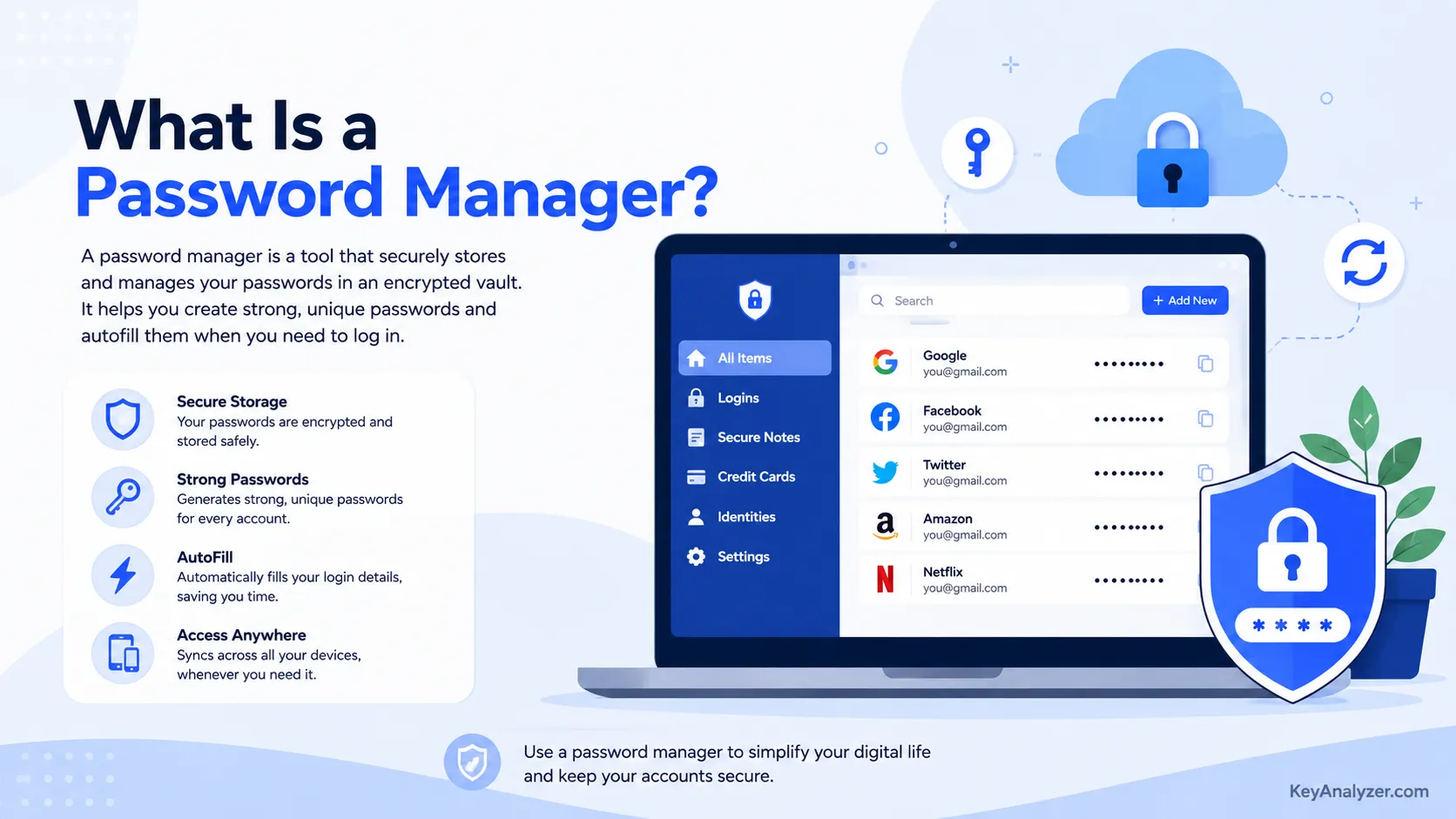
A password manager is an app, browser tool, or service that stores login details in an encrypted digital vault. Depending on the product, it may also store usernames, website addresses, payment details, secure notes, recovery codes, and other sensitive information.
When you visit a website, the password manager can fill in your login information automatically. It can also create a new password when you sign up for an account or change an existing one.
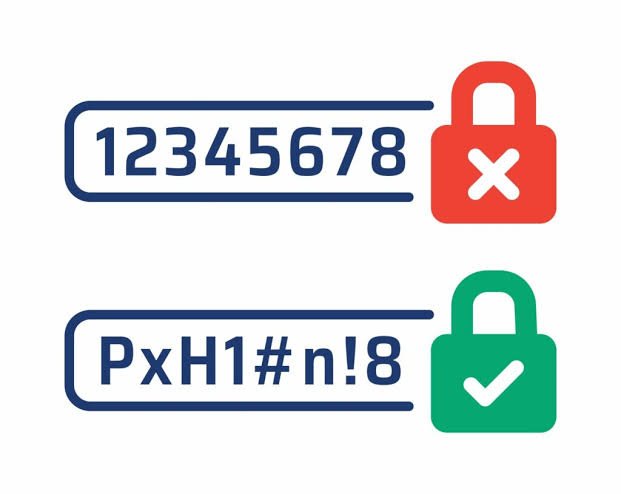
Instead of using passwords such as:
Califoria2026California2026!California2026!ShopCalifornia2026!Work
a password manager can create passwords that are long, random, and different for each account. They may look like this:
mB7!qT7#Lx9@pV4$zR8Lake-Window-Train-Cloud-67W8r$K2n!vP6@xQ5#dL3
You do not need to memorize these passwords. The password manager remembers them for you.
The password used to unlock the vault is commonly called the master password. This is the one password you generally do need to remember. It should be long, unique, and never reused anywhere else.
Think of the password manager as a secure digital cabinet. The vault stores many credentials, while the master password helps protect access to the cabinet.
Why Do We Need a Password Manager on Our Devices?
Managing a handful of strong passwords is possible. Managing dozens or hundreds of unique passwords without a system becomes much harder.
That is when people often take shortcuts.
We may reuse a password across several sites, use personal information such as a birthday or pet name, write passwords in a notebook, save them in a phone note, or email them to ourselves.
Those methods may feel convenient, but they can create avoidable security risks.
A reused password can affect more than one account. A password based on personal information may be easier to guess. A plain-text note can become accessible if someone gains control of the device. An email account containing saved passwords can become a particularly valuable target.
A password manager gives us a more practical system. It lets us use a different password for every account without requiring us to remember every credential.
This becomes even more useful when managing a business. A company may need credentials for:
- Business email
- Website hosting
- Domain registration
- Social media accounts
- Payment processors
- Accounting software
- Customer management tools
- Online stores
- Advertising platforms
- Cloud storage
- Scheduling systems
- Team communication apps
Trying to manage all of those passwords manually can become difficult very quickly. A password manager helps organize access while reducing the damage that can result from one reused password.
How Does a Password Manager Work?
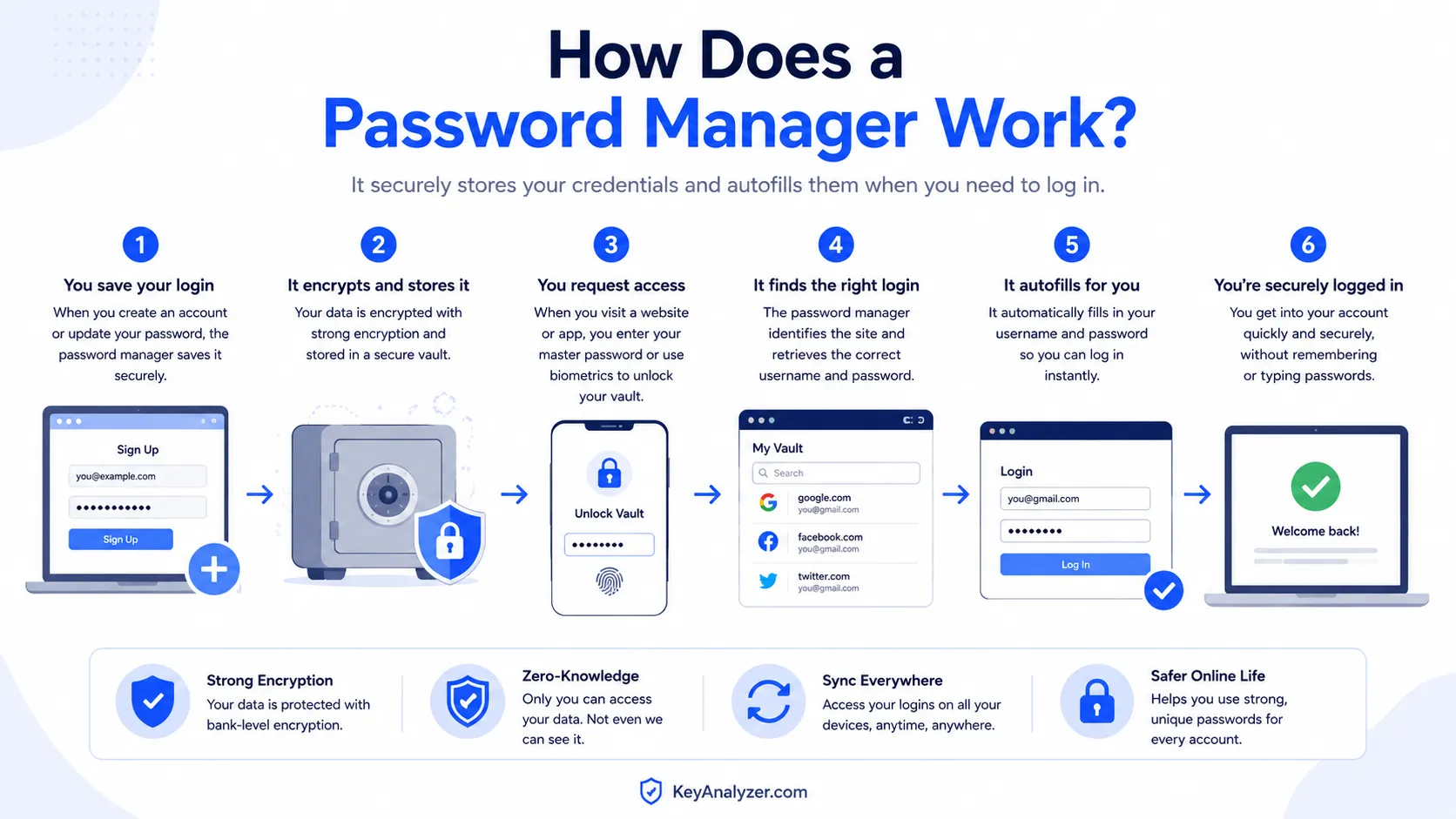
A password manager stores your information inside an encrypted vault. Encryption transforms readable information into protected data so that it cannot simply be read without the appropriate cryptographic keys.
When you create a password manager account, you set up a master password or another authentication method. The exact design varies by provider, but the goal is to protect access to the encrypted vault.
Many password managers use an architecture designed so the provider cannot directly read the contents of your encrypted vault. This is often described using terms such as zero-knowledge architecture or zero-knowledge encryption.
The exact implementation varies between providers, so it is worth reading how a service handles encryption, account recovery, and vault access rather than relying on the label alone.
This design can provide an important privacy benefit: the provider should not simply be able to open your vault and read all of your passwords.
There is also a trade-off.
If you forget your master password and your provider does not offer a recovery method that preserves access to the encrypted vault, the company may not be able to restore your passwords for you. That can be inconvenient, but it can also be part of the security model.
A password manager may work through several formats:
| Password manager type | How it works | Best for |
|---|---|---|
| Standalone password manager | A dedicated app or service for passwords | People who want dedicated password tools and sharing options |
| Browser password manager | Password storage built into a web browser | Basic personal use and convenience |
| Device password manager | Password storage connected to a phone or computer ecosystem | People who mainly use one device ecosystem |
| Business password manager | A vault system with team controls and shared access | Teams, freelancers, agencies, and companies |
Some password managers work across computers, phones, tablets, and browsers. This can make it easier to save a password on a laptop and use it later on a phone.
Is a Password Manager Safe?
Yes, a reputable password manager is generally a safer way to manage passwords than reusing passwords, storing them in plain text, or using the same credentials across multiple accounts.
That does not mean every password manager is equally secure.
Potential risks can include software vulnerabilities, phishing, a weak master password, a compromised device, poor account recovery controls, or an insecure browser environment.
The more useful question is not whether a password manager is absolutely safe. No software can provide that guarantee.
The better question is whether it reduces your overall security risk compared with the alternatives.
For most people, it can.
A password manager can:
- Create long and random passwords.
- Make it easier to use a different password for every account.
- Reduce the need to write passwords down.
- Warn about weak or reused passwords.
- Alert you to certain known breaches when the service supports that feature.
- Reduce the chance of entering a saved password on the wrong website.
- Store recovery codes and private notes.
- Provide controlled password sharing for trusted people or teams.
The biggest remaining risks often come from the surrounding account and device security.
If you choose a weak master password, skip 2FA, enter credentials into a phishing site, or leave an unlocked device unattended, the password manager cannot compensate for all of those problems.
A password manager is a tool. It works best as part of a broader security setup.
What Makes a Master Password Strong?
Your master password protects access to many other credentials, so it should be treated as a high-value secret.
Do not use your name, business name, birthday, favorite sports team, pet name, or another detail that someone who knows you might guess.
Avoid examples such as:
JohnSmith1988MyBusiness123Password123!
A strong master password should be long, unique, and difficult for someone else to predict.
One useful approach is a passphrase made from several unrelated words. For example:
Cedar-Window-Mango-River-82SilverTrainCoffeeGardenLampBright!Forest!Pencil!Ocean!47
Do not use these exact examples. Create your own phrase using words that are not connected to your personal life.
A good master password should be:
- Long enough to make guessing difficult
- Unique to the password manager
- Memorable enough for you to recall
- Difficult for another person to predict
- Combined with strong account protection such as 2FA
Never share your master password.
A spouse, business partner, employee, support agent, or IT contractor should not need it. When someone needs access to a specific account, use the password manager’s sharing controls instead of giving them access to the entire vault.
Should We Turn On 2FA for Our Password Manager?
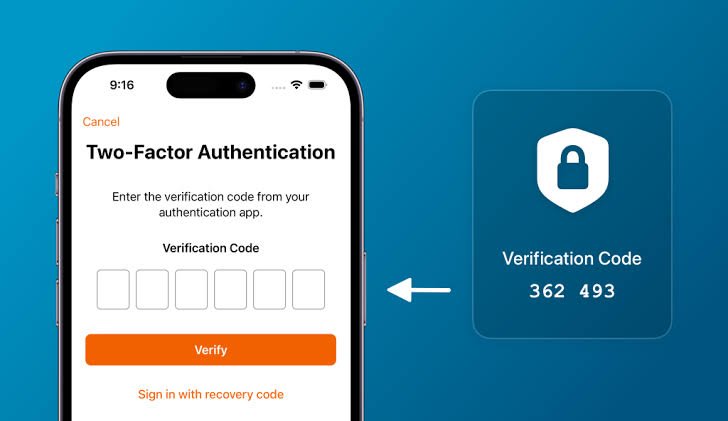
Yes. Two-factor authentication should be enabled for your password manager whenever the service supports it.
Your master password protects access to the vault, while 2FA adds another authentication layer.
If someone obtains your master password, the additional factor can make account access more difficult.
For sensitive accounts, an authenticator app, passkey, or physical security key is generally preferable to relying only on text-message codes. SMS can still be useful, but it has additional risks such as phishing and phone-number attacks.
A practical setup is:
- Create a long, unique master password.
- Turn on two-factor authentication.
- Save backup codes in a secure location.
- Add a backup authentication method when available.
- Review your recovery email and phone number.
- Remove devices you no longer use.
If you use a physical security key, consider keeping a second backup key somewhere secure. This can help prevent lockout if your primary key is lost or damaged.
What Can a Password Manager Store?
Most password managers can store more than usernames and passwords. Depending on the product, your vault may also hold:
- Website usernames and passwords
- Email login details
- Secure notes
- Credit card details
- Bank account information
- Identity documents
- Passport details
- Driver’s license information
- Wi-Fi passwords
- Software license keys
- Two-factor authentication recovery codes
- Emergency contact details
- Business account credentials
This can be useful, but storing additional sensitive information also makes the vault more valuable.
Before adding highly sensitive data, check the password manager’s security settings and understand how account recovery works.
For example, storing a bank account number may be reasonable when the vault is properly protected. It should still be protected by a strong master password, strong account authentication, and a secure device.
The more information you store, the more important it becomes to secure the vault and the devices that can access it.
Can a Password Manager Protect Us From Phishing?
A password manager can help with some phishing attempts, but it cannot protect you from every scam.
Phishing happens when someone creates a fake email, message, or website designed to trick you into giving away sensitive information. The fake website may look very close to the real one, including familiar logos, colors, and wording.
For example, you may receive a message saying that your email account will be closed unless you sign in immediately. The included link may lead to a fake login page.
A password manager can help because it usually associates saved credentials with a particular website address. If you are on a different domain, the manager may not offer to fill in the saved password.
That can be a useful warning sign.
Still, do not depend on autofill alone.
Check the website address before signing in. Watch for spelling changes, extra words, unusual domains, and pages that ask for information they should not need.
A password manager also cannot stop someone from approving an unexpected 2FA request or entering information manually into a fake site.
Useful habits include:
- Type important website addresses yourself when practical.
- Use official apps when possible.
- Avoid unexpected login links in emails and text messages.
- Check the website address before signing in.
- Never share a one-time verification code.
- Do not approve login notifications you did not request.
- Change a password promptly if you believe you entered it on a fake website.
What Is the Difference Between a Browser Password Manager and a Dedicated Password Manager?
Most modern browsers can save passwords. This can be a useful option, especially when you want something simple that works within one browser.
A dedicated password manager often provides a broader set of features and may make more sense when you use several browsers, multiple devices, or shared accounts.
A browser password manager may be enough for someone with basic needs. It can create passwords, store them, and fill them in while using that browser.
A dedicated password manager often offers additional capabilities, such as:
| Feature | Browser password manager | Dedicated password manager |
|---|---|---|
| Saves passwords | Usually | Yes |
| Generates strong passwords | Usually | Yes |
| Works across many browsers | Sometimes | Usually |
| Secure password sharing | Limited | Usually available |
| Shared family or team vaults | Limited | Often available |
| Secure notes and documents | Limited | Usually available |
| Security reports | Basic or unavailable | Often available |
| Emergency access | Rare | Often available |
| Admin controls for businesses | Rare | Often available |
| Advanced 2FA options | Varies | Often available |
A dedicated password manager may be a better fit if you use multiple devices, switch between browsers, share access with trusted people, or manage business accounts.
That said, the best password manager is one you will actually use. A browser manager that helps you stop reusing passwords today is still a meaningful improvement over weak password habits.
How Do We Choose a Safe Password Manager?
Choosing a password manager can feel confusing because many products advertise similar features.
You do not need to understand every technical detail, but you should be able to find clear answers about how the provider protects your vault and handles account recovery.
Look for a password manager that offers:
- Strong encryption
- A clear explanation of its vault security model
- Two-factor authentication
- Support for long, unique master passwords
- Password generation tools
- Regular security updates
- Independent security reviews or audits
- A clear recovery process
- Support for your devices and browsers
- Secure sharing when needed
- A transparent approach to security issues
Do not choose only based on the lowest price or the most attractive interface.
You are trusting this service with credentials that may control your email, finances, business, and personal accounts.
Before moving all your passwords, consider testing the service with a few lower-risk accounts. Try it on the devices you actually use and see how it handles autofill, password generation, recovery codes, 2FA, and account recovery.
Also check whether you can export your passwords.
You may never need to leave the service, but knowing that your data can be exported can give you more flexibility if the service no longer meets your needs.
How Do We Move Existing Passwords Into a Password Manager?
Moving passwords into a password manager takes some time, but it does not have to happen in one day.
Start with accounts that would cause the most trouble if someone gained access to them.
A practical order is:
- Email account
- Password manager account
- Banking and payment accounts
- Mobile phone account
- Cloud storage
- Social media accounts
- Business tools
- Shopping sites
- Streaming services
- Older accounts you no longer use
As you add each account, replace the old password with a new password generated by the password manager.
Do not simply save an old reused password and move on. The main security benefit comes from replacing reused credentials with unique ones.
If the password manager identifies duplicate, weak, or old passwords, use the report as a to-do list.
Start with high-risk accounts and work your way through the rest.
You may also discover accounts you forgot existed. If you no longer use one, consider closing it. Old accounts can remain security liabilities, especially if they contain personal information or use an old reused password.
How Can We Safely Share Passwords With Family or Team Members?
Sharing passwords through text messages, email, spreadsheets, or ordinary chat apps creates unnecessary exposure.
Once a password has been sent, it may be copied, forwarded, stored on another device, or left in an old conversation.
A password manager can provide a safer way to share credentials.
Many services allow you to share a login or vault item without simply sending the password in a message.
This can be useful for families and businesses.
For example, a small business may need to share access to:
- Social media pages
- Website hosting
- Domain accounts
- Brand design tools
- Scheduling platforms
- Shared subscriptions
- Customer support software
Instead of sending a password to a freelancer or employee, use the manager’s access controls when available.
When someone leaves the team, you may be able to remove their access without changing every shared password manually.
The principle of least privilege is important here. Give people access only to the accounts they need.
A marketing contractor may need an advertising account but should not need access to payroll or banking. A virtual assistant may need scheduling software but not your primary email account.
Is It Safe to Store 2FA Codes in a Password Manager?
It can be safe, but there is a trade-off.
Some password managers can store the secret used to generate time-based one-time passwords. This is convenient because the password and authentication code are available in the same vault.
For lower-risk accounts, that may be a practical approach because it reduces friction and can make consistent 2FA easier.
For high-value accounts, such as your main email, bank, payment services, password manager, or business administrator accounts, keeping the second factor separate can provide another layer.
For example, you could store the password in the password manager while using a separate authenticator app, passkey, or security key for the second factor.
Keeping the two authentication elements separate can reduce the damage if one account or device is compromised.
There is no single rule that fits every situation. What matters is understanding the trade-off and protecting your highest-value accounts with stronger layers.
What Happens If We Forget the Master Password?
Recovery depends on the password manager you use.
Some services provide recovery features. Others are designed so that the provider cannot reset the master password without potentially losing access to the encrypted vault.
That is why recovery planning should happen before you need it.
Practical steps include:
- Create a master password you can remember.
- Keep recovery instructions somewhere secure.
- Save emergency-access information when offered.
- Add a trusted emergency contact when appropriate.
- Keep 2FA backup codes in a secure location.
- Add more than one trusted device when appropriate.
- Review recovery settings periodically.
Do not store your master password in an unprotected phone note, desktop file, or email draft.
That would undermine much of the protection provided by the password manager.
A long passphrase built from unrelated words can be easier to remember than a short, complicated password.
Can a Password Manager Be Hacked?
A password manager can be targeted just like any online service or application.
No company, device, or software system can guarantee that it will never face an attack.
The more useful question is whether using a password manager reduces your overall exposure compared with the alternatives.
For many people, it does.
Without a password manager, it is common to see password reuse, short passwords, or credentials stored in insecure places.
With a password manager, each account can have a long, random, unique password.
If one website suffers a breach, the password used there should not also unlock your other accounts.
That is one of the biggest security advantages of a password manager.
You can further reduce your risk by:
- Using a long and unique master password
- Turning on strong 2FA
- Keeping the password manager updated
- Using a secure device lock
- Avoiding unknown browser extensions
- Avoiding unexpected login links
- Reviewing devices connected to the account
- Removing old devices and former team members
- Saving recovery options securely
- Paying attention to security alerts
A password manager does not remove the need for good security practices. It gives you a stronger system for managing credentials.
How Should Businesses Use Password Managers?
Businesses can benefit significantly from password managers because shared access becomes difficult to manage as a team grows.
A company may begin with one person handling every account. Later, it may add employees, contractors, agencies, or business partners.
Without a structured system, credentials can end up in email messages, chat apps, spreadsheets, documents, and personal devices.
That makes it difficult to know who still has access and harder to remove access when someone’s role changes.
A business password manager can help establish clearer controls:
- Give every person their own account.
- Use shared vaults for team tools.
- Limit access according to each person’s role.
- Require strong authentication.
- Remove access when someone leaves.
- Review permissions periodically.
- Keep recovery details under company control.
- Avoid storing critical passwords only in one employee’s personal account.
For example, a company domain account should not be tied only to a former employee’s personal email address.
The business should control important recovery addresses, billing information, and administrator access.
It is also wise to have at least two trusted administrators for essential systems. If one person becomes unavailable, the company can still access email, hosting, billing, or other critical services.
How Do Password Managers Work With Passkeys?
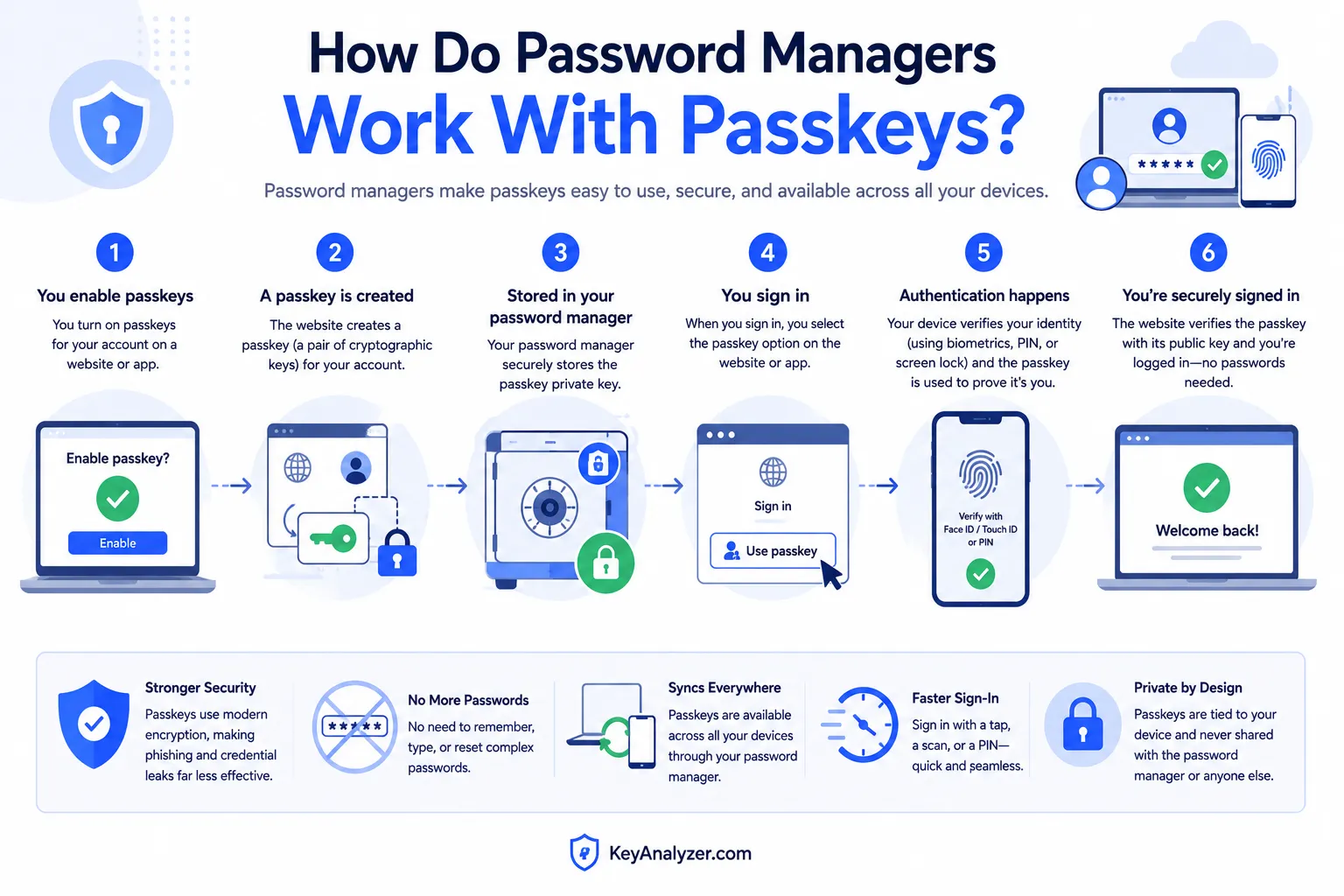
Passkeys are becoming more common, and many password managers can store and manage them.
A passkey allows you to sign in without typing a traditional password.
Depending on the device and service, you may authenticate with a fingerprint, face scan, device PIN, or another supported method while the passkey is handled securely in the background.
Passkeys are designed to work with the correct website or app rather than relying on a reusable password that you type into a login form.
That can make them more resistant to common password-phishing attacks.
As more services support passkeys, password managers can become useful for managing both passwords and passkeys.
For now, many websites still rely on traditional passwords, so both approaches may be part of your account-security setup.
Common Password Manager Mistakes to Avoid
A password manager works best when the security around it is also handled properly.
| Mistake | Why it creates a problem | Better approach |
|---|---|---|
| Reusing the master password elsewhere | A breach on another site could expose the credential protecting your vault | Use a unique master password |
| Skipping 2FA | A stolen master password may be enough to access the account | Use an authenticator app, passkey, or security key when supported |
| Saving passwords in plain notes too | The vault may be protected while the note is not | Move sensitive credentials into the protected vault |
| Sharing the master password | Another person could gain access to the entire vault | Share individual credentials or vault items instead |
| Ignoring password alerts | Weak, reused, or exposed passwords may remain active | Review and replace high-risk credentials |
| Forgetting recovery details | You could lose access after a device or account problem | Keep backup codes and recovery information secure |
| Leaving old devices connected | A lost or retired device may still have account access | Remove devices you no longer use |
| Using autofill without checking the site | Manual entry or other actions can still expose credentials on a fake site | Check the website address before signing in |
The goal is not to make security stressful.
The goal is to make the safer choice easier than the unsafe one.
Frequently Asked Questions About Password Managers
Are password managers safer than writing passwords down?
Yes. A reputable password manager is generally safer than keeping passwords in plain notes, spreadsheets, email drafts, notebooks, or text messages.
It can encrypt stored information and protect access with a master password and additional authentication.
Should we use a free password manager?
A free password manager can be a reasonable option when it comes from a reputable provider and offers appropriate security features.
Look for strong encryption, 2FA, a clear security model, regular updates, and a recovery process you understand.
Paid plans may offer additional storage, sharing, security reports, emergency access, or business features, but price alone does not determine security.
Can we trust browser password managers?
Browser password managers can be much safer than reusing passwords or saving them in plain notes.
A dedicated password manager may offer more cross-browser support, sharing features, security reports, emergency access, or business controls.
The better choice depends on your needs and the products available on your devices.
Should we change every password right away?
No.
Start with the accounts that would cause the most damage if compromised, such as email, banking, payment services, cloud storage, business tools, and social media.
Then work through the remaining accounts over time.
Can a password manager create strong passwords for us?
Yes.
Most password managers include a password generator that can create long, random passwords.
Use a different generated password for every account.
What happens if someone steals our phone?
A phone that is protected with a strong device lock, biometric authentication, and password-manager protections may make it much harder for a thief to open the vault.
However, the exact protection depends on your device, operating system, password manager, and settings.
If a device is lost, use your password manager’s account controls and your device-management tools to review sessions and revoke access when appropriate.
Is it safe to store credit cards in a password manager?
It can be reasonable when the password manager uses appropriate security protections and the device is properly secured.
However, storing financial information increases the importance of protecting the vault and reviewing the provider’s security practices.
Should I store my authentication codes in the same password manager?
That depends on your risk tolerance and the importance of the account.
Keeping the password and second factor together is convenient. Keeping them separate can provide another layer for high-value accounts.
Can a password manager protect against phishing?
It can reduce some phishing risk because autofill may be tied to the correct website address.
It cannot stop every phishing attack, especially if you manually enter credentials or approve an unexpected authentication request.
Always check the website before signing in.
Final Thoughts on Password Managers and Online Safety
A password manager is one of the most practical tools you can use to improve account security.
It helps you stop reusing passwords, create stronger credentials, organize sensitive information, and share access more safely when necessary.
It is not perfect, and it is not something you should set up once and then forget.
You still need a strong master password, strong account authentication, secure recovery options, updated devices, and caution around suspicious messages.
But compared with reused passwords, weak passwords, scattered notes, or shared credentials, a well-chosen password manager can be a significant improvement.
Start with the accounts that matter most. Protect your email first, then work through banking, payment accounts, cloud storage, business tools, social media, and other important services.
Once you have a system in place, account security becomes less about remembering everything and more about building habits that protect the access you have worked hard to secure.
You May Also Like
 Cyber Security
Can Ransomware Infect iCloud? What Mac and iPhone Users Need to Know
 Data Security & Privacy
Two-Factor Authentication (2FA): How It Works, Which Method to Use, and How to Stay Safe
 Data Security & Privacy
19 Best Email Service Providers for Personal and Business Use
 WordPress
12 Best Cheap SSL Certificate Providers To Secure Your Website
 Data Security & Privacy
Is Password Protection the Same as Encryption? Differences in Data Security
 Data Security & Privacy
How Your Digital Footprint Can Make or Break Your Career Opportunities
 Data Security & Privacy
What Is End-to-End Encryption? Your Complete Guide to Secure Communication
 Data Security & Privacy
What Is a Cloud Security Scanner for AWS, Azure, and Google Cloud?
 Cyber Security