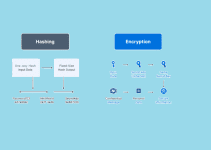
The best way to protect your data on Google Cloud Platform (GCP) is to combine Identity and Access Management (IAM), AES-256 encryption, VPC Service Controls, and multi-factor authentication (MFA) into a layered security strategy. These tools work together to block unauthorized access, prevent data leaks, and detect threats in real time. GCP also provides built-in tools like Cloud Armor, the Data Loss Prevention API, and the Security Command Center to further strengthen your security posture.
Google Cloud Platform powers millions of businesses worldwide — from small startups to large enterprises in healthcare, finance, and government. As more organizations move sensitive workloads to the cloud, the risk of data breaches, misconfigurations, and unauthorized access increases. Research shows that 83% of data breaches involve misconfigured cloud storage, and security issues remain undetected for an average of 197 days when proper monitoring is not in place.
This guide covers every major GCP security tool, step-by-step setup instructions, and actionable best practices. Whether you are just getting started on Google Cloud or strengthening an existing setup, this guide gives you a complete roadmap to protect your data effectively.
Why Google Cloud Platform Data Protection Matters
Protecting data on Google Cloud Platform matters because cloud environments are a primary target for cyberattacks, and data breaches cause financial, legal, and reputational damage. A single misconfigured permission or unencrypted storage bucket can expose sensitive customer data to the public internet.
Understanding the importance of data security is the foundation of any cloud security strategy. On GCP, the stakes are high because one Google Cloud project can host databases, APIs, AI models, storage buckets, and virtual machines — all of which need individual protection policies.
There are 4 key reasons data protection on GCP is critical:
- Regulatory requirements — Businesses storing personal data must comply with GDPR, HIPAA, and SOC 2 standards
- Financial risk — The average cost of a data breach reached $4.88 million in 2024, according to IBM
- Operational continuity — Ransomware and DDoS attacks can shut down cloud workloads entirely
- Customer trust — A single breach erodes years of user trust and brand credibility
What Are the Most Common GCP Security Threats?
The 3 most common GCP security threats are complex access management, encryption gaps, and visibility blind spots.
- Complex access management — Large organizations manage hundreds of projects and thousands of users. Over-privileged accounts raise breach risk significantly
- Encryption gaps — Misconfigured encryption settings leave sensitive data exposed, even in production environments
- Visibility blind spots — As environments grow, teams lose track of resources and configurations, leaving threats undetected for months
What Is the Shared Responsibility Model in Google Cloud?
The shared responsibility model in Google Cloud means Google secures the infrastructure, while the customer is responsible for securing their data, identities, and application configurations. This model defines the boundary between what GCP protects automatically and what you must configure yourself.
Who Is Responsible for What in GCP?
| Responsibility | Customer | |
|---|---|---|
| Physical data center security | ✅ Yes | ❌ No |
| Hardware and network infrastructure | ✅ Yes | ❌ No |
| Hypervisor and host OS | ✅ Yes | ❌ No |
| IAM policies and user permissions | ❌ No | ✅ Yes |
| Data encryption configuration | Partial | ✅ Yes |
| Application code security | ❌ No | ✅ Yes |
| Firewall and network rules | ❌ No | ✅ Yes |
| Compliance with regulations | Partial | ✅ Yes |
Google secures the physical and infrastructure layers. Everything above the infrastructure — data, identities, app config, and compliance — is the customer’s responsibility.
Failing to understand this model is one of the most common reasons GCP users experience breaches. Google does not automatically enforce least-privilege IAM policies, configure encryption keys, or set up audit logging. You must do these manually.
How to Set Up Identity and Access Management (IAM) on GCP
IAM on Google Cloud Platform controls who can access which resources and what actions they can perform. It is the first and most important layer of GCP security. Every user, application, and service account that touches your cloud environment needs a correctly scoped IAM role.
What Is the Principle of Least Privilege in Google Cloud?
The principle of least privilege means granting users and services only the minimum permissions they need — nothing more. On GCP, this means assigning predefined or custom IAM roles instead of primitive roles like Owner or Editor, which give unrestricted access across the entire project.
There are 3 types of IAM roles in GCP:
- Primitive roles — Viewer, Editor, Owner — broad permissions, avoid for production use
- Predefined roles — Service-specific permissions like
roles/storage.objectViewer— recommended for most use cases - Custom roles — User-defined roles with exact permissions — best for sensitive workloads
To assign an IAM role in GCP, follow these 5 steps:
- Open the Google Cloud Console
- Navigate to IAM & Admin > IAM
- Click Grant Access
- Enter the user email or service account
- Select a predefined or custom role and click Save
GCP’s IAM Recommender uses machine learning to suggest role changes that reduce over-provisioning, automatically detecting accounts with permissions they have never used.
How to Enable Multi-Factor Authentication on GCP
Multi-factor authentication (MFA) on GCP protects accounts from unauthorized logins even when passwords are stolen. Google Cloud supports MFA through Google Accounts with options including Titan Security Keys, authenticator apps, and SMS codes.
To enforce MFA for all users in your organization:
- Open the Google Admin Console at admin.google.com
- Navigate to Security > 2-Step Verification
- Select Allow users to turn on 2-Step Verification
- Set enforcement to On for all users or specific organizational units
- Choose Security Key (Titan Key) as the preferred method for privileged accounts
Hardware security keys like the Titan Security Key provide the highest level of MFA protection because they cannot be phished remotely.
How to Encrypt Data on Google Cloud Platform
GCP automatically encrypts all data at rest using AES-256 encryption and all data in transit using TLS 1.2 or higher. This default encryption requires no additional setup. However, organizations with stricter requirements can take control of the encryption key lifecycle through Customer-Managed Encryption Keys (CMEK).
What Is AES-256 Encryption in GCP?
AES-256 encryption is a symmetric encryption standard that uses a 256-bit key to protect data stored in GCP services like Cloud Storage, BigQuery, Firestore, and Compute Engine persistent disks. Google manages the encryption keys by default using its internal Key Management Infrastructure.
AES-256 encryption protects data at 2 levels on GCP:
- Data at rest — All files, databases, and backups stored in GCP services are encrypted automatically
- Data in transit — All data moving between services, users, and external networks uses TLS 1.2 or higher
What Are Customer-Managed Encryption Keys (CMEK)?
Customer-Managed Encryption Keys (CMEK) give organizations full control over the encryption key lifecycle for GCP resources. Instead of letting Google manage the keys, your team creates, rotates, and revokes keys using Cloud Key Management Service (Cloud KMS).
CMEK is recommended for organizations in regulated industries such as healthcare, finance, and government. It lets you:
- Rotate keys on a schedule to reduce exposure if a key is compromised
- Revoke key access instantly, which renders encrypted data unreadable
- Audit key usage through Cloud Audit Logs for compliance evidence
- Use external keys via Cloud External Key Manager (Cloud EKM) for hardware-based key storage
To enable CMEK for a Cloud Storage bucket:
- Create an encryption key ring in Cloud KMS
- Create a new key and assign a rotation period (90 days is common)
- Grant the Cloud Storage service account
roles/cloudkms.cryptoKeyEncrypterDecrypter - When creating a storage bucket, select Customer-managed key and choose your key ring
How to Use VPC and Firewall Rules to Protect GCP Data
Virtual Private Cloud (VPC) on GCP creates an isolated network environment where your resources communicate privately without exposure to the public internet. VPC networks, combined with properly configured firewall rules, form the network security layer of any GCP deployment.
Reviewing cloud computing security tips alongside your VPC setup helps ensure you have covered both infrastructure and application-level security in a coordinated way.
How Do VPC Service Controls Work?
VPC Service Controls create security perimeters around GCP services like Cloud Storage, BigQuery, and Cloud Spanner. These perimeters restrict which users and services can access data within the perimeter — even if their IAM permissions would otherwise allow it.
VPC Service Controls protect against 2 major risks:
- Data exfiltration — Prevents data from moving to unauthorized external destinations, even from compromised accounts
- Cross-project data leakage — Blocks access to data in one project from services running in another project outside the perimeter
How to Configure GCP Firewall Rules
GCP firewall rules control which traffic is allowed in and out of your VPC network. Firewall rules apply at the network level and filter traffic based on IP address, protocol, port, and service account tags.
Follow these 6 steps to configure secure VPC firewall rules:
- Open the Google Cloud Console and navigate to VPC network > Firewall
- Click Create Firewall Rule
- Set the direction — Ingress (incoming) or Egress (outgoing)
- Set the action — Allow or Deny
- Define targets using network tags or service accounts
- Specify source/destination IP ranges and allowed protocols and ports
Best practices for GCP firewall rules:
- Delete the default-allow-ssh and default-allow-rdp rules in production environments
- Use service account-based targeting instead of network tags for precise control
- Enable firewall logging for every deny rule to capture blocked traffic
- Set the default rule priority to Deny All and create explicit Allow rules for needed traffic only
- Review and audit firewall rules every 30 days for unused or overly permissive entries
How to Protect Against DDoS Attacks With Cloud Armor
Google Cloud Armor protects GCP applications from Distributed Denial of Service (DDoS) attacks and common web vulnerabilities by filtering malicious traffic at the Google network edge — before it reaches your servers. It uses the same infrastructure that protects Google Search, Gmail, and YouTube.
What Does Google Cloud Armor Do?
Cloud Armor provides 5 core security functions for GCP workloads:
- Layer 3 and Layer 4 DDoS protection — Blocks volumetric network attacks before they reach your load balancers
- Web Application Firewall (WAF) — Filters HTTP/HTTPS traffic using preconfigured rules based on the OWASP Top 10
- Adaptive Protection — Uses machine learning to detect and mitigate Layer 7 DDoS attacks in real time
- Rate limiting — Blocks IP addresses that send too many requests in a given timeframe
- Bot management — Integrates with reCAPTCHA Enterprise to block automated bot traffic
Cloud Armor defends against OWASP Top 10 threats including SQL injection (SQLi), cross-site scripting (XSS), remote file inclusion (RFI), and local file inclusion (LFI).
How to Enable Cloud Armor on GCP
To enable Cloud Armor for an application load balancer:
- Open Network Security > Cloud Armor in the Google Cloud Console
- Click Create Policy
- Choose Backend security policy for load balancer protection
- Add rules — start with preconfigured WAF rules like
sqli-stableandxss-stable - Set the default action to Deny 403 for unmatched traffic
- Attach the policy to your Backend Service under Load Balancing
- Enable Adaptive Protection under the policy settings for ML-based DDoS mitigation
Use Preview mode first when deploying new rules. This lets you observe the impact on real traffic before enabling active enforcement.
How to Detect and Prevent Data Loss on GCP
The Google Cloud Data Loss Prevention (DLP) API automatically scans, classifies, and redacts sensitive data like Social Security numbers, credit card numbers, passport numbers, and health records across your GCP environment. It scans Cloud Storage, BigQuery, and Datastore in real time.
Understanding what data protection means at the organizational level helps teams set the right DLP policies for their specific industry and compliance requirements.
What Is the Google Cloud DLP API?
The Cloud DLP API is a Google-managed service that detects personally identifiable information (PII) and regulated data types, then applies masking, tokenization, or redaction to reduce exposure. It supports over 150 built-in data type detectors (called infoTypes) like EMAIL_ADDRESS, PHONE_NUMBER, CREDIT_CARD_NUMBER, and US_SOCIAL_SECURITY_NUMBER.
The Cloud DLP API performs 3 main functions:
- Discovery — Scans data repositories to locate where sensitive data exists
- Inspection — Classifies detected content by type and assigns a confidence level
- Transformation — Applies de-identification techniques including masking, redaction, and format-preserving encryption
How to Set Up Cloud DLP for GCP
Follow these steps to configure a DLP inspection job:
- Enable the Cloud Data Loss Prevention API in the Google Cloud Console
- Navigate to Security > Data Loss Prevention
- Click Create Job and select your data source (Cloud Storage, BigQuery, or Datastore)
- Choose the infoTypes you want to scan for (e.g.,
CREDIT_CARD_NUMBER,EMAIL_ADDRESS) - Set a scan schedule — daily or weekly for active data stores
- Configure actions — choose between Save Findings to BigQuery or Notify via Pub/Sub
- Review the results in the DLP Findings Dashboard
Apply selective scanning by filtering only recently changed files to reduce scan costs on large datasets.
What Is Zero Trust Architecture on GCP?
Zero Trust Architecture on GCP means no user or device is trusted by default — every access request is verified explicitly, regardless of whether it comes from inside or outside the corporate network. The zero-trust model replaces traditional perimeter-based security, which assumes everything inside the network is safe.
Knowing how to protect your data online is increasingly tied to zero-trust principles because modern threats operate across multiple networks, devices, and cloud environments simultaneously.
How Does BeyondCorp Enterprise Work on GCP?
BeyondCorp Enterprise is Google’s zero-trust access solution that grants secure access to applications based on user identity, device posture, and context — without requiring a VPN. It evaluates 3 factors for every access request:
- User identity — Verified through SSO, MFA, and directory services
- Device posture — Checks whether the device is managed, up to date, and compliant with security policies
- Context — Evaluates location, time of access, and behavioral signals
To implement Zero Trust on GCP, combine these 5 tools:
- Identity-Aware Proxy (IAP) — Controls access to applications at the application layer
- Access Context Manager — Creates access policies based on user, device, and location
- BeyondCorp Enterprise — Delivers zero-trust access for web apps and internal tools
- Workload Identity Federation — Eliminates long-lived service account keys for workload authentication
- VPC Service Controls — Restricts API access to verified service perimeters
The zero-trust model follows an “assume breach” mindset — meaning security systems are designed with the assumption that attackers may already be inside the network.
How to Monitor and Audit GCP Security
Monitoring and auditing on GCP means collecting logs, setting alerts, and reviewing security events in real time to detect threats before they cause damage. Security without visibility is incomplete. GCP provides centralized tools to track every action taken across your projects, services, and users.
What Is the Security Command Center?
The Security Command Center (SCC) is Google Cloud’s unified security dashboard that provides real-time threat detection, vulnerability assessments, and asset inventory across all GCP resources. It continuously monitors your environment and surfaces actionable findings ranked by severity.
SCC detects 6 categories of security risks:
- Vulnerabilities — Misconfigured services, open firewall ports, and unencrypted storage
- Threats — Anomalous IAM access, unusual API calls, and compromised credentials
- Misconfigurations — Resources that deviate from security best practices
- Compliance violations — Resources that fail GDPR, HIPAA, or CIS benchmark checks
- Data risks — Publicly accessible storage buckets or datasets containing sensitive data
- Identity risks — Service accounts with excessive permissions or inactive users with active roles
How to Use Cloud Logging and Audit Logs
Cloud Logging captures every administrative action, data access event, and system event across your GCP environment. Audit logs are the foundation of any incident investigation.
There are 3 types of Cloud Audit Logs:
- Admin Activity Logs — Records changes to resource configuration (always enabled, no cost)
- Data Access Logs — Records reads and writes to data (must be manually enabled per service)
- System Event Logs — Records GCP system-level events like automatic VM migration
To enable Data Access Logs for Cloud Storage:
- Open IAM & Admin > Audit Logs
- Select the service (e.g., Cloud Storage)
- Check DATA_READ, DATA_WRITE, and ADMIN_READ
- Click Save
Set up log-based alerts in Cloud Monitoring to receive notifications when specific events occur — such as a service account being granted Owner privileges or a storage bucket being made publicly accessible.
How to Meet Compliance Requirements on GCP
Google Cloud Platform supports compliance with GDPR, HIPAA, SOC 2, PCI DSS, ISO 27001, and over 100 other regulatory frameworks through a combination of built-in controls, certifications, and customer-configurable tools.
Understanding the nature of a cybersecurity attack helps compliance teams map GCP security controls directly to the threat scenarios described in regulations like GDPR Article 32 and HIPAA Security Rule requirements.
Here is how GCP supports the 3 most common compliance frameworks:
| Framework | GCP Support |
|---|---|
| GDPR | DLP API for PII discovery, data residency controls, audit logging, data deletion tools |
| HIPAA | Business Associate Agreement (BAA) available, encrypted PHI storage, audit trails |
| SOC 2 | Security Command Center monitoring, access controls, logging, and incident response tools |
4 steps to improve GCP compliance posture:
- Sign a BAA with Google if you process Protected Health Information (PHI) under HIPAA
- Enable Security Health Analytics in SCC to automatically detect compliance violations
- Use Organization Policy Service to enforce resource-level rules like disabling public IPs across all projects
- Run DLP scans on storage and databases quarterly to find and remediate unprotected sensitive data
GCP Security Tools Quick Reference
Here is a summary of the 10 core GCP security tools and their primary function:
| Tool | Primary Function |
|---|---|
| IAM | Access control and permission management |
| Cloud KMS | Encryption key management and CMEK |
| VPC Service Controls | Data perimeters and exfiltration prevention |
| Cloud Armor | DDoS protection and WAF |
| Cloud DLP API | Sensitive data discovery and redaction |
| Security Command Center | Unified threat detection and asset visibility |
| Cloud Audit Logs | Activity logging and forensic investigation |
| Identity-Aware Proxy (IAP) | Zero-trust application access |
| Secret Manager | Secure storage of API keys and credentials |
| Shielded VMs | Boot-level malware and rootkit protection |
8 Tips to Strengthen Your GCP Data Security
These 8 practices improve GCP data security for any organization, from small startups to large enterprises:
- Enable MFA on all accounts — Use Titan Security Keys for privileged users and admin accounts
- Delete default firewall rules — Remove
default-allow-sshanddefault-allow-rdpimmediately after project creation - Enable audit logging on every service — Data Access Logs are off by default and must be turned on manually
- Rotate encryption keys every 90 days — Use Cloud KMS automated rotation to reduce key compromise risk
- Never use the default service account — Create dedicated service accounts per workload with minimal permissions
- Scan storage buckets for public access — Run SCC reports weekly to catch accidentally exposed buckets
- Use Secret Manager for credentials — Never hardcode API keys, passwords, or tokens in application code
- Set up billing alerts — Unusual cost spikes often signal unauthorized compute usage from compromised credentials
Conclusion
Protecting your data on Google Cloud Platform requires a multi-layered approach that combines IAM, encryption, network security, threat detection, and compliance controls. No single tool provides complete protection — the strongest GCP security posture layers multiple defenses so that if one control fails, others remain in place.
Here are the 5 most important steps to get started today:
- Enable MFA and enforce least-privilege IAM — These 2 steps eliminate the majority of access-based breaches
- Turn on CMEK through Cloud KMS — Take control of your encryption key lifecycle for sensitive workloads
- Configure VPC firewall rules and Service Controls — Isolate your data and restrict its movement
- Enable the Security Command Center and Audit Logs — Gain full visibility before a threat appears
- Run Cloud DLP scans on storage and databases — Know where your sensitive data lives before attackers do
Cloud security is not a one-time setup. It is an ongoing process of reviewing permissions, rotating keys, updating firewall rules, and responding to audit findings. GCP gives you every tool needed — but using them correctly and consistently is what keeps your data safe.
You May Also Like
 Cyber Security
Is KashKick Legit in 2026? An In-Depth KashKick Review for Earning Real Money
 Cyber Security
Is Kinguin Legit? An Honest 2026 Review With Real Data and Buyer Insights
 Cloud Storage
Best Photo Backup for iPhone: 7 Reliable Ways to Keep Your Memories Safe
 Network Security
How to Transfer Files Between Two Laptops Over Wi-Fi: What Actually Works
 Cloud Storage
The Ultimate Guide to Sending Large Files Online: Top 20 Services for Easy File Sharing
 Cloud Storage
Best Photo Backup Solutions in 2026: What 3 Years of Real-World Testing Taught Me
 Data Security & Privacy
Beyond the Perimeter: The Architecture of Production-Grade Data Security (2026)
 Cyber Security
Is iGram World Legit and Safe? Download a Video from Instagram
 Cyber Security