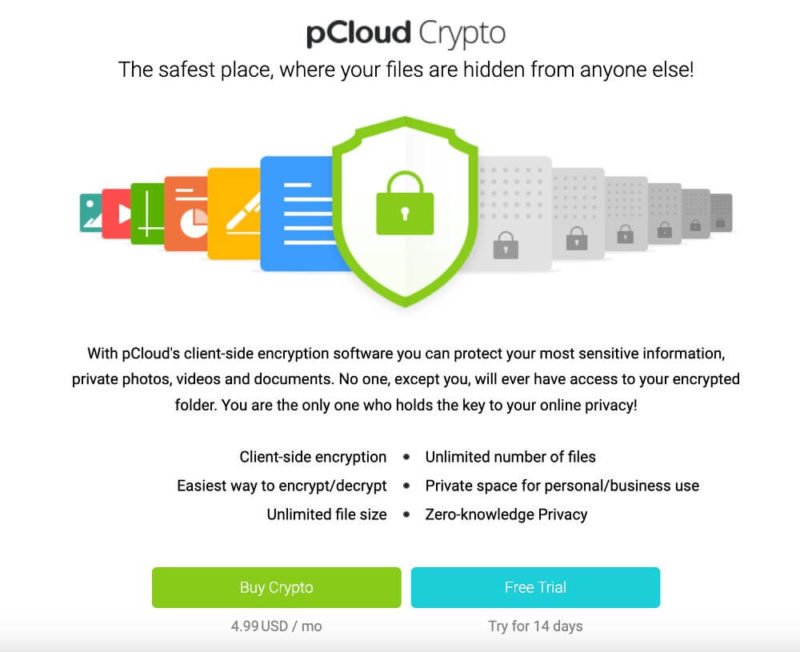
pCloud Crypto is an optional security layer built on top of pCloud’s cloud storage platform. It gives you a dedicated encrypted folder inside your pCloud account where files are locked down with zero-knowledge, client-side encryption — meaning nobody but you can ever read what’s inside. Not pCloud’s staff, not a hacker who somehow breaches a server, and not a government agency with a legal order.
I bought a lifetime 500 GB pCloud plan and use it daily to back up photos, files, and 4K videos from my iPhone 16 Pro. The standard pCloud experience already feels solid for syncing and organizing everything, but Crypto is where it gets serious. Once I started dropping tax documents, scanned IDs, and client contracts into the Crypto folder, the peace of mind was immediate. Those files are mine and mine alone.
Under the hood, pCloud Crypto pairs 4096-bit RSA encryption for your private keys with 256-bit AES encryption for each individual file and folder. Your encryption key never leaves your device — pCloud’s servers only ever see scrambled data. What is data encryption and why is it important covers the broader reasons encryption should matter to everyone, but the short version is this: if your cloud provider holds the keys, your privacy depends on their goodwill and their ability to fend off every attacker forever. With pCloud Crypto, that dependency disappears.
How Does pCloud Crypto Work?
Everything happens locally, on your phone or computer, before a single byte reaches pCloud’s servers in Switzerland. When you move a file into the Crypto folder, the pCloud app encrypts it right there on your device using your unique Crypto Pass — a password you create and that pCloud never stores. Only the encrypted output gets uploaded.
The Encryption Process, Step by Step
The workflow boils down to four stages:
- File Selection — Drag a file (or an entire folder) into the Crypto folder, or use automatic upload on mobile.
- Local Encryption — The pCloud app encrypts everything on-device using your Crypto Pass before anything touches the internet.
- Secure Upload — Only the encrypted version travels to pCloud’s Swiss data centers. The original plaintext never exists on their infrastructure.
- Access Control — Files stay completely unreadable until you enter your Crypto Pass again on any of your devices.
A Quick Look at the Technical Side
pCloud uses 4096-bit RSA for protecting your private keys and 256-bit AES for encrypting individual files and folders — both are industry-standard algorithms trusted by banks, governments, and security researchers worldwide.
What makes pCloud’s approach a bit different from some competitors is the use of a modified Merkle tree structure (the same concept underlying Bitcoin’s blockchain) to verify file integrity. This means every piece of your data is cryptographically checked to confirm nothing has been altered or tampered with during storage or transfer. It’s a stronger guarantee than simple checksum verification.
pCloud put their encryption to the test publicly. In their $100,000 Crypto Hacking Challenge, 2,860 participants — including teams from MIT, Berkeley, and 613 organizations — spent 180 days trying to crack it. Nobody succeeded. That doesn’t prove anything is truly “unbreakable” in the mathematical sense, but it’s a strong practical signal.
Key Features of pCloud Crypto
Zero-Knowledge Privacy
pCloud genuinely cannot see your encrypted files. They do not store your encryption key anywhere on their end. If law enforcement sends them a court order, they can hand over the encrypted blobs, but without your Crypto Pass those files are meaningless noise. This is a fundamentally different model from services like Google Drive or Dropbox, where the provider holds the keys.
Client-Side Encryption
Your data gets encrypted before it leaves your device. Server-side encryption (what most providers offer) protects files during transit and at rest on their servers, but the provider can still decrypt them. Client-side encryption removes that possibility entirely. Your plaintext files never exist on pCloud’s infrastructure.
Mixed Storage — Encrypt What Matters, Leave the Rest Accessible
This is one of pCloud’s smartest design decisions, and something I genuinely appreciate in daily use. Unlike services that encrypt everything by default (Tresorit, for example), pCloud lets you choose. My vacation photos and random screenshots sit in regular folders where I can browse thumbnails, stream video, and share download links. My financial documents, contracts, and personal IDs go into the Crypto folder. You get full cloud functionality for everyday files and a locked vault for sensitive ones — all inside the same account.
Cross-Device Access
You can unlock and access encrypted files from your computer, phone, or tablet. On my iPhone 16 Pro, I open the pCloud app, tap the Crypto folder, enter my Crypto Pass, and everything’s there. When I lock the folder again, the files vanish from view immediately.
Swiss Data Protection
pCloud is headquartered in Baar, Switzerland, and stores data in Swiss data centers. Switzerland’s Federal Act on Data Protection (FADP) is one of the most stringent privacy frameworks in the world — significantly more protective than what you’ll find in the US or most of Europe outside of GDPR. Privacy engineering principles inform how pCloud handles data at every level, and the Swiss jurisdiction adds a meaningful extra layer of legal protection.
pCloud Crypto Pricing and Plans
Subscription Options
pCloud Crypto is a standalone add-on that you purchase separately from your storage plan. As of 2026, the pricing looks like this: $49.99 per year for the annual plan, or you can go month-to-month at a slightly higher rate. You can attach Crypto to any pCloud storage tier — the free 10 GB plan, the 500 GB Premium, the 2 TB Premium Plus, or the massive 10 TB plan.
Lifetime Option
The Crypto Lifetime plan is $150 — a single one-time payment. No renewals, no surprise price bumps, nothing. Considering the annual plan runs close to $50 per year, the lifetime option pays for itself in about three years. I grabbed it alongside my 500 GB lifetime storage plan and haven’t thought about encryption costs since.
Business Plans
pCloud’s Business plans (starting at $7.99/user/month billed annually for 1 TB per user) include built-in pCloud Encryption at no extra charge. Business Pro ($15.98/user/month) adds 2 TB per user and priority support. Both come with 180 days of file versioning, an admin panel, and Crypto included — making it a straightforward choice for teams handling sensitive client data.
Value Comparison
Compared to fully encrypted competitors like Tresorit (which starts around $11/month for personal plans), pCloud Crypto is considerably cheaper, especially on the lifetime tier. The trade-off is that encryption is opt-in rather than blanket — but for most people, that’s a feature, not a limitation. Is pCloud encryption worth it breaks down the cost-benefit analysis in more detail.
Benefits of Using pCloud Crypto
Genuine File Security
Your sensitive files are protected by encryption that has publicly withstood thousands of hacking attempts. Even in a worst-case scenario where pCloud’s servers are compromised, attackers would only find encrypted data they cannot read. With current computing power, cracking 256-bit AES is not a realistic threat.
You Own Your Privacy
There’s no backdoor, no master key held by pCloud, and no recovery mechanism that could be exploited. The flip side of this (which I’ll address in the limitations section) is that if you forget your Crypto Pass, you’re locked out permanently. But that’s exactly how zero-knowledge encryption should work.
It Works Like a Normal Folder
There is no learning curve worth mentioning. On desktop, the Crypto folder appears alongside your other pCloud folders. On the iPhone app, it’s a single tap. You drag files in, they get encrypted. You don’t need to understand RSA or AES or Merkle trees to use it — the complexity is entirely hidden.
Syncs Across All Your Devices
Encrypted files sync automatically between your computer, phone, and tablet. I took a photo of a contract on my iPhone 16 Pro, moved it into the Crypto folder, and it was accessible on my MacBook within seconds — still encrypted, still requiring my Crypto Pass to unlock. The sync speed is fast; pCloud consistently ranks among the quickest cloud storage services in independent benchmarks.
Redundant Backups
pCloud stores your encrypted files across multiple data centers, so hardware failure on one server doesn’t mean data loss. Your encrypted data is replicated and protected against physical disasters, with the added assurance that even pCloud’s own backup systems only contain the encrypted versions.
Setting Up pCloud Crypto
Account Requirements
You need an active pCloud account — any tier works, including the free plan with up to 10 GB. Once you’ve subscribed to the Crypto add-on (either through the app, website, or your account dashboard), you’re ready to go.
Getting Started
- Log into your pCloud account on the web or through the desktop/mobile app.
- Navigate to the Encryption section in your settings or the pCloud store.
- Purchase the Crypto add-on (lifetime, annual, or monthly).
- Make sure you’re running the latest version of the pCloud client on your devices.
- Create your Crypto Pass — this is the master password that protects everything.
Choosing Your Crypto Pass
This is the single most important step. Your Crypto Pass is the only key to your encrypted data. Pick something long and strong — a passphrase of four or five random words works well. Write it down and store that paper somewhere physically secure (a home safe, a safety deposit box). Seriously: pCloud cannot recover your Crypto Pass. If you lose it, your encrypted files are gone for good. I keep mine in a password manager and have a physical backup in a fireproof safe.
Your First Encrypted File
Once setup is complete, a new “Crypto” folder appears in your pCloud directory. Drop a file in. That’s it. The app handles the encryption silently in the background, and within moments, an encrypted copy sits on pCloud’s servers. The folder stays unlocked while your session is active — lock it when you’re done, and everything inside becomes invisible until you enter the Crypto Pass again.
Security Considerations
Password Management
Your Crypto Pass is the linchpin of the entire system. Use a unique password you don’t reuse anywhere else. A dedicated password manager (1Password, Bitwarden, KeePass) is the best tool for storing it. And enable two-factor authentication on your main pCloud account for an extra barrier against unauthorized logins. Best cloud storage options all share one thing in common: they’re only as strong as the password protecting them.
Device Security
Since encryption and decryption happen locally, your devices are the weakest link in the chain. Use a strong screen lock on your iPhone (Face ID on the iPhone 16 Pro is excellent for this). Keep your operating system and apps up to date so security patches are applied promptly. If someone gets physical access to an unlocked device with the Crypto folder open, encryption won’t save you.
Backup Strategy
Even though pCloud replicates your data across servers, consider keeping a separate encrypted backup of truly irreplaceable files — a local external drive, or a second encrypted cloud account. Redundancy protects against scenarios like accidental deletion or account-level issues.
Access Monitoring
Check your pCloud account’s recent activity periodically. Look at login locations and device lists. If you see anything unfamiliar, change your account password and Crypto Pass immediately.
Comparing pCloud Crypto to Alternatives
Versus Google Drive
Google Drive encrypts data in transit and at rest on their servers, but Google holds the decryption keys. They can (and do, per their privacy policy) process your data for various purposes. There is no client-side encryption option for individual users. If privacy is a genuine concern, pCloud Crypto operates in a different universe. Google Drive alternatives covers several options that take encryption more seriously.
Versus Dropbox
Dropbox uses 256-bit AES encryption at rest and TLS in transit, which is perfectly standard. But Dropbox retains the encryption keys, which means they can technically access your files — and they have complied with law enforcement requests in the past. Dropbox also doesn’t offer any zero-knowledge encryption option for personal users. pCloud Crypto’s approach is fundamentally stronger for privacy.
Versus Tresorit
Tresorit is the closest direct competitor. It offers zero-knowledge, end-to-end encryption on every file by default. Security-wise, it’s excellent. But Tresorit is noticeably more expensive (personal plans start around $11/month), and because everything is encrypted, you lose convenient features like thumbnail previews and in-browser media playback. pCloud’s hybrid approach — where you choose what to encrypt — gives you more flexibility at a lower price.
Versus Cryptomator
Cryptomator is a free, open-source tool that creates an encrypted vault on top of any cloud storage (Google Drive, Dropbox, OneDrive, etc.). It’s a great option for the technically inclined, but the setup is manual, the user experience is rougher, and you’re responsible for managing the integration yourself. pCloud Crypto is fully integrated into the pCloud ecosystem — everything just works out of the box.
Common Use Cases
Business Documents
Contracts, NDAs, financial projections, HR records — anything that would cause real damage if leaked belongs in the Crypto folder. Law firms and healthcare providers dealing with client confidentiality find this particularly valuable, since zero-knowledge encryption means even a breach at the storage level exposes nothing.
Personal Files
Tax returns, passport scans, insurance documents, medical records — these are exactly the files identity thieves target. I keep all of mine in the Crypto folder. The originals on my iPhone get uploaded through pCloud’s auto-backup, and the truly sensitive items I manually move into the encrypted space.
Professional Photography and Video
Photographers and videographers can protect client deliverables before sharing. Wedding photos, portrait sessions, commercial shoots — lock them in the Crypto folder until the client is ready to receive them. Watermarked previews can live in a regular pCloud folder for easy client review, while the full-resolution originals stay encrypted.
Financial Records
Bank statements, investment account exports, crypto wallet backups, business accounting files — all contain information that could enable fraud or identity theft. Encrypted cloud storage is a practical safeguard that takes seconds to set up.
Limitations to Consider
No Password Recovery — Period
This is both the strongest security feature and the biggest risk. If you forget or lose your Crypto Pass, your encrypted files are permanently inaccessible. There is no recovery email, no security question, no backdoor. pCloud’s support team cannot help you. Treat your Crypto Pass with the same care you’d give a physical vault key.
Encryption Adds Processing Time
Encrypting and decrypting files requires CPU work. For small documents, you won’t notice it. For large video files shot on an iPhone 16 Pro in 4K (which can easily run several gigabytes each), the encryption step adds noticeable time before the upload begins. It’s not a dealbreaker, but it’s worth knowing if you regularly move huge files.
Some Cloud Features Don’t Work on Encrypted Files
Encrypted files can’t be previewed in the browser or the app. No thumbnail generation for photos, no video streaming, no document preview. You have to decrypt the file first (by unlocking the Crypto folder) to interact with it fully. This is exactly why pCloud’s mixed-storage design is so useful — keep everyday media in standard folders for full functionality, and reserve the Crypto folder for files where privacy outweighs convenience.
Mobile Experience Is Slightly Behind Desktop
The pCloud iOS app supports Crypto fully — you can lock, unlock, upload, and download encrypted files. But the desktop client is still the more capable experience for managing large numbers of encrypted files or doing bulk operations. pCloud has been steadily improving the mobile app (recent iOS updates added better auto-upload controls, the ability to restrict uploads to Wi-Fi only, and album exclusion options), but power users will still find themselves reaching for the desktop client occasionally.
Troubleshooting Common Issues
Cannot Access Encrypted Files
Double-check your Crypto Pass — caps lock catches more people than you’d expect. Make sure you’re logged into the correct pCloud account (if you have more than one). Verify that the pCloud app is up to date. If the problem persists after all of that, reach out to pCloud’s support team through your account dashboard.
Slow Upload Speeds
Remember that encryption happens locally before the upload starts, so there are two bottlenecks: your device’s processing power and your internet connection. Close bandwidth-heavy apps. On mobile, connect to Wi-Fi rather than cellular. For very large files, consider uploading overnight or during off-peak hours.
Sync Problems
Make sure every device is running the latest pCloud client. Confirm that Crypto is activated on each device (it doesn’t enable itself automatically across new installations). Check that you have enough free space in your pCloud account. A quick restart of the app resolves most transient sync hiccups.
Mobile App Issues
Update to the most recent pCloud app version from the App Store. If glitches continue, clear the app cache in your iPhone’s storage settings, or delete and reinstall the app entirely. Also verify that your device has sufficient local storage — pCloud needs temporary space to encrypt and decrypt files on the fly.
Best Practices for pCloud Crypto
Regular Backups
Don’t put all your trust in a single storage location, even one as reliable as pCloud. Maintain a secondary backup of your most important encrypted files — an external hard drive, a second cloud service, or both. Test that you can actually restore from those backups once in a while.
Password Security
Use a unique, strong password for your pCloud account that’s different from your Crypto Pass. Turn on two-factor authentication. Store both passwords in a reputable password manager. This way, even if one credential is compromised, the other still protects you.
File Organization
Keep your Crypto folder tidy with a clear subfolder structure — financial documents in one place, personal IDs in another, client files separated by project. It makes finding things faster and prevents the kind of clutter that leads to accidentally leaving sensitive files in unencrypted folders.
Access Management
Review your connected devices in pCloud’s account settings regularly. Remove any device you no longer use. If you sell or give away a phone or laptop, make sure to deauthorize it from your pCloud account first. Change your passwords at least once a year, or immediately if you suspect anything unusual.
The Road Ahead for pCloud Crypto
Ongoing Improvements
pCloud has been steadily refining both performance and usability. The mobile apps have gained meaningful features over the past year (smarter auto-upload controls, background upload optimization), and the desktop clients continue to get faster with each update. As devices get more powerful, the performance overhead of encryption shrinks further.
Growing Competition
The encrypted cloud storage market has gotten more crowded. Tresorit, Internxt, Filen, and even mainstream providers like Apple (with Advanced Data Protection for iCloud) are raising the bar on encryption. That competition pushes everyone to improve, and pCloud’s combination of lifetime pricing, mixed storage flexibility, and Swiss jurisdiction keeps it competitive.
Evolving Privacy Regulations
Data protection laws are tightening worldwide. The EU’s GDPR enforcement is getting stricter, new regulations are emerging in Asia and Latin America, and businesses face increasing compliance obligations. Zero-knowledge encryption like pCloud Crypto makes compliance simpler — if you literally cannot access customer data, a whole category of regulatory risk disappears. Cybersecurity awareness is no longer optional for individuals or businesses.
Integration and Platform Expansion
pCloud already supports Windows, macOS, Linux, iOS, Android, and web browsers. API improvements could open doors for tighter integration with business tools and productivity suites. The direction is clear: make encrypted cloud storage as seamless and frictionless as unencrypted storage, without compromising on security.
Frequently Asked Questions
Is pCloud Crypto completely secure?
pCloud Crypto uses zero-knowledge, client-side encryption with 4096-bit RSA and 256-bit AES. Your files are encrypted on your device before upload, and pCloud has no ability to read them. Their encryption withstood a public hacking challenge with 2,860 participants and zero successful breaches. No system can be called 100% secure in an absolute sense, but this is about as strong as consumer-grade encryption gets.
Can I recover files if I forget my Crypto Pass?
No. This is by design. pCloud does not store your Crypto Pass or any recovery key. If you lose it, your encrypted files are permanently inaccessible. Write it down, store it in a password manager, and keep a physical backup somewhere safe.
Does pCloud Crypto slow down file synchronization?
It adds some processing time, yes. Small files (documents, photos) barely show a difference. Large video files — like 4K footage from an iPhone 16 Pro — take noticeably longer because they need to be fully encrypted before the upload begins. For most everyday use, the delay is minimal.
Can I use pCloud Crypto on mobile devices?
Yes. The pCloud iOS and Android apps fully support the Crypto folder. You can lock and unlock it, upload and download encrypted files, and use automatic camera upload. The desktop client still has a slight edge for bulk operations, but the mobile experience has improved substantially in recent updates.
Is the lifetime plan worth buying?
If you plan to use pCloud for three or more years, the $150 lifetime Crypto plan saves you money compared to paying $49.99 annually. You also eliminate the risk of future price increases. For anyone who has already committed to a pCloud lifetime storage plan, adding lifetime Crypto is a natural next step.
Does pCloud Crypto work with all pCloud plans?
Yes — every tier, from the free plan (up to 10 GB) through the 500 GB, 2 TB, and 10 TB paid plans. Business accounts include Crypto at no additional cost.
Can I share encrypted files with others?
You can share access to encrypted files, but the recipient needs your Crypto Pass to decrypt them. This maintains security while allowing controlled sharing, though it’s better suited for a small number of trusted recipients rather than broad distribution.
What happens if pCloud goes out of business?
Because encryption and decryption happen on your device, you always have access to your local copies (both encrypted and decrypted versions, depending on what you’ve saved). Cloud synchronization would stop, but you wouldn’t lose the files already on your devices. This is one more reason to maintain local backups of your most critical data.
Conclusion
After using pCloud Crypto alongside a 500 GB lifetime plan to back up and protect files from my iPhone 16 Pro, I can say it delivers exactly what it promises: serious encryption with minimal friction. The zero-knowledge approach means my sensitive files are genuinely private — not “private unless pCloud gets hacked” or “private unless a court order shows up,” but actually private.
The mixed storage model is what makes pCloud stand apart from the competition. You don’t have to sacrifice thumbnail previews, video streaming, or easy sharing for every single file just to protect the ones that actually need it. Encrypt your tax returns and contracts; leave your vacation photos in a regular folder where you can actually enjoy browsing them.
If you handle sensitive documents — whether personal, financial, or professional — pCloud Crypto is one of the most practical solutions available. The $150 lifetime price is hard to beat, especially when you compare it to the monthly subscription costs of fully encrypted competitors. Just remember: your Crypto Pass is everything. Lose it, and no one on earth can get your files back.
Is pCloud safe for backup offers additional context on pCloud’s broader security track record for anyone still weighing the decision. For most people looking for encrypted cloud storage that’s genuinely usable every day, pCloud Crypto hits the right balance of security, flexibility, and value.
You May Also Like
 Cyber Security
Is KashKick Legit in 2026? An In-Depth KashKick Review for Earning Real Money
 Cyber Security
Is Kinguin Legit? An Honest 2026 Review With Real Data and Buyer Insights
 Cloud Storage
Best Photo Backup for iPhone: 7 Reliable Ways to Keep Your Memories Safe
 Network Security
How to Transfer Files Between Two Laptops Over Wi-Fi: What Actually Works
 Cloud Storage
The Ultimate Guide to Sending Large Files Online: Top 20 Services for Easy File Sharing
 Cloud Storage
Best Photo Backup Solutions in 2026: What 3 Years of Real-World Testing Taught Me
 Data Security & Privacy
Beyond the Perimeter: The Architecture of Production-Grade Data Security (2026)
 Cyber Security
Is iGram World Legit and Safe? Download a Video from Instagram
 Cyber Security