A Windows repair tool can be the biggest lifesaver you have on your computer in 2025. When Windows has problems or doesn’t boot, it can give anyone a heart attack—especially in today’s digital-first world where we rely on our PCs for work, entertainment, and everything in between. There are many kinds of problems that can affect your Windows installation, from system file corruption to driver conflicts and privacy concerns. That’s why having a reliable repair tool can give you peace of mind and save you from costly technician visits.
In 2025, the landscape of Windows repair tools has evolved significantly. With Windows 11 becoming the standard and Windows 10 approaching its end of life in October 2025, having the right Windows optimization software, system repair utilities, and PC maintenance tools has never been more crucial. As someone who has tested dozens of these tools over the years, I can tell you that not all repair utilities are created equal—some are genuinely helpful, while others can do more harm than good to your system health and performance optimization.
There are plenty of companies who offer their own repair tools, and not surprisingly that most of them are not needed and even harmful for your computer. That’s why we’re here to give you a list of good repair tools for your computer that I’ve personally tested and verified for system stability, performance enhancement, and user-friendly interface. These Windows troubleshooting tools, PC fix utilities, and system recovery software have been selected based on their effectiveness, safety, and value for both casual users and IT professionals.
Common Computer Problems in 2025
Although most common computer issues at the office can be solved by IT support teams, many other small and common issues occur regularly on a personal PC or laptop in 2025. With the increasing complexity of Windows 11, hybrid work environments, and the constant threat of malware and system corruption, knowing how to diagnose and fix these problems yourself will save you a lot of time and money. The following are the most common computer problems that you shouldn’t panic over, along with modern solutions that leverage the latest Windows repair technology.
- The Computer Won’t Start
- The Screen is Blank
- Abnormally Functioning Operating System or Software on Your PC
- Windows Won’t Boot
- The Screen is Frozen
- The computer is Slow
- Slow Internet
- Overheating
- Dropped Internet Connections
- No Sound
- No WiFi Signal
- Windows Update Errors
- Blue Screen of Death (BSOD)
- Driver Compatibility Issues
- System File Corruption
- Privacy and Telemetry Concerns
How do I solve computer problems in 2025? Yes, you can use the Windows repair tool. This handy tool helps you to analyze and find out about your computer problems using advanced diagnostic algorithms, system health monitoring, and automated repair processes. Then you will fix it easily with just a few clicks. You don’t need the help of an IT support team, because the modern Windows repair tool is the best solution to fixing your computer or laptop problems with its intuitive user interface, comprehensive scanning capabilities, and one-click fix functionality.
8 The Best Windows Repair Tools to Fix Your Computer Problems in 2025
1. FixWin 11

FixWin 11 is the ultimate Windows repair tool that has evolved significantly since its earlier versions. As someone who has used this utility since its inception, I can confidently say that the 2025 version is the most comprehensive and user-friendly yet. This free Windows troubleshooting software is specifically designed to fix Windows 11 and Windows 10 problems with just one click, making it perfect for both beginners and advanced users who need quick system optimization solutions. The tool leverages advanced system file analysis and repair algorithms to diagnose and resolve common Windows issues without requiring technical expertise.
The program itself is divided into six intuitive sections, each targeting specific problem areas: File Explorer, Internet & Connectivity, System Fixes, System Tools, Troubleshooters, and Additional Fixes. What I love about FixWin 11 is how it categorizes repairs based on functionality, making it easy to locate the exact fix you need for your specific Windows performance issues. The software includes over 200 different fixes covering everything from thumbnail cache resets to Windows activation problems, all accessible through a clean, modern interface that follows Windows 11 design principles.
Key Features:
- One-click system file checker (SFC) and DISM tool integration
- Six categorized repair sections for easy navigation
- Advanced System Information tab for detailed system diagnostics
- Direct access to Windows built-in troubleshooters
- Portable application requiring no installation
- Fix Corrupted Desktop Icons
- Fix and rebuild a corrupted icon cache
- Fix Office documents do not open
- Fix Error code – 0x8004230c
- Completely free with no ads or premium version
Pros:
- Extremely user-friendly interface perfect for beginners
- Comprehensive coverage of common Windows issues
- No installation required – runs as a portable application
- Regularly updated to address new Windows problems
- Safe to use with built-in system restore point creation
- Lightweight and doesn’t consume system resources
Cons:
- Limited to Windows 10 and 11 (no support for older versions)
- Some advanced issues may require additional tools
- No automated scheduling for regular maintenance
- Cannot fix hardware-related problems
Best For: Home users and IT professionals who need a quick, reliable solution for common Windows issues without technical complexity. Perfect for those who want a straightforward, no-nonsense approach to Windows repair without the bloat of comprehensive optimization suites.
2. Windows Repair Toolbox

Windows Repair Toolbox is a game-changer in the world of system repair utilities. As someone who has tried countless Windows optimization tools over the years, I can tell you that this portable application stands out for its comprehensive approach to PC maintenance and system diagnostics. What makes it unique is that it doesn’t just include its own set of tools but rather provides a centralized platform to download and run the best free Windows repair software available in 2025. This all-in-one Windows repair solution is perfect for IT professionals and power users who need access to multiple diagnostic and repair utilities without cluttering their system with numerous installations.
The beauty of Windows Repair Toolbox lies in its modular approach to system optimization and PC troubleshooting. The interface is clean and organized, with tools categorized by their function: system information, malware removal, system repairs, system tweaking, and more. I particularly appreciate how it automatically detects your Windows version and downloads the appropriate tool variants, ensuring compatibility and optimal performance. The ability to run multiple tools in unattended mode is a time-saver when dealing with severely infected or corrupted systems, and the email notification feature keeps you informed when lengthy repair processes complete.
Key Features:
- Portable application requiring no installation
- Access to over 100 specialized Windows repair tools
- Automatic tool updates and version management
- Unattended mode for batch processing repairs
- System information display for comprehensive diagnostics
- Email notifications when repair processes complete
- Customizable interface with ability to add personal tools
Pros:
- Incredible value with access to premium-grade tools for free
- Extremely lightweight and portable
- Regularly updated with new tools and features
- Saves time by consolidating multiple repair utilities
- Safe to use with proper tool vetting
- Perfect for both beginners and advanced users
Cons:
- Requires internet connection for initial tool downloads
- Some tools may trigger false positives from antivirus software
- Learning curve for users unfamiliar with specialized repair utilities
- Not as streamlined as single-purpose repair tools
Best For: IT professionals, system administrators, and power users who need a comprehensive toolkit for Windows system repair, malware removal, and system optimization. Ideal for technicians who work on multiple computers and need a portable solution with all necessary tools in one place.
3. O&O ShutUp10++

O&O ShutUp10++ has become an essential tool in my Windows optimization arsenal, especially in 2025 when privacy concerns have reached an all-time high. This free Windows privacy control software addresses one of the most overlooked aspects of system performance and security: Microsoft’s telemetry and data collection practices. As someone who values both performance and privacy, I’ve found this tool invaluable for disabling unnecessary Windows services, blocking telemetry data transmission, and optimizing system resources that would otherwise be consumed by background tracking processes.
The 2025 version of O&O ShutUp10++ has been significantly enhanced to address new privacy concerns in Windows 11 while maintaining full compatibility with Windows 10. What I appreciate most about this Windows privacy tool is its balanced approach to system optimization – it doesn’t just disable everything indiscriminately but provides clear explanations for each setting, allowing users to make informed decisions about their privacy preferences. The interface is clean and intuitive, with settings organized into logical categories that make it easy to navigate and apply changes without risking system stability.
Key Features:
- One-click application of recommended privacy settings
- Over 100 privacy controls with detailed explanations
- Windows 11 and Windows 10 compatibility
- No installation required – completely portable
- System impact assessment for each setting change
- Ability to create and restore configuration profiles
- Regular updates to address new Windows privacy features
Pros:
- Extremely easy to use with clear explanations for each setting
- Significant performance improvement by disabling unnecessary services
- Enhanced privacy protection against Microsoft telemetry
- No risk of system damage when using recommended settings
- Completely free with no limitations or premium version
- Lightweight and doesn’t consume system resources
Cons:
- Limited to privacy-related optimizations
- Some disabled features may affect Windows functionality
- Requires reapplication after major Windows updates
- Not a comprehensive system repair tool
Best For: Privacy-conscious users, performance enthusiasts, and anyone concerned about Microsoft’s data collection practices. Perfect for those who want to optimize their Windows system for both performance and privacy without compromising system stability.
4. TotalAV

TotalAV has emerged as one of the most comprehensive Windows repair and optimization solutions in 2025. After testing dozens of PC optimization suites, I can confidently say that TotalAV stands out for its combination of advanced malware detection, system optimization tools, and user-friendly interface. This all-in-one PC security and performance software addresses the root causes of system slowdowns, including malware infections, registry errors, junk file accumulation, and outdated drivers – all through a single, intuitive dashboard that makes system maintenance accessible to users of all technical levels.
What impresses me most about TotalAV is its cloud-based scanning technology, which provides thorough system analysis without impacting performance. Unlike many other Windows optimization tools that bog down your system during scans, TotalAV leverages advanced cloud computing to process threats and system issues remotely, leaving your local resources free for actual work. The 2025 version has significantly enhanced its real-time protection capabilities and system optimization algorithms, making it particularly effective at preventing problems before they occur rather than just fixing them after the fact.
Key Features:
- Advanced cloud-based malware detection and removal
- Real-time system monitoring and threat prevention
- Comprehensive system optimization tools
- Junk file cleaner and registry repair functionality
- Driver update management with over 1 million drivers in database
- Startup program manager for faster boot times
- VPN service for enhanced privacy and security
Pros:
- Excellent malware detection rates exceeding industry standards
- Minimal performance impact during scans and real-time protection
- User-friendly interface suitable for beginners
- Comprehensive feature set covering security and optimization
- Regular updates to address new threats and system issues
- 24/7 customer support for technical assistance
Cons:
- Premium version required for full feature access
- Higher price point compared to some competitors
- Some advanced features may be overwhelming for beginners
- Installation requires more disk space than simpler tools
Best For: Users who want comprehensive protection and optimization in a single package. Ideal for families, small businesses, and anyone who values both security and performance without wanting to manage multiple separate tools.
5. IOBit Driver Booster 12
IOBit Driver Booster has been a staple in my Windows optimization toolkit for years, and the 2025 version (Driver Booster 12) continues to impress with its enhanced driver database and improved scanning algorithms. As someone who has dealt with countless driver-related issues over the years – from graphics card problems to audio device conflicts – I can attest to the importance of keeping drivers updated for system stability and performance. This Windows driver update software automates what can otherwise be a tedious and technically challenging process, making it accessible even to users who wouldn’t know where to begin with manual driver updates.
The 2025 version of Driver Booster has significantly expanded its driver database to include over 8 million device drivers, covering everything from the latest graphics cards to obscure legacy hardware. What I particularly appreciate about this driver management tool is its intelligent scanning technology that not only identifies outdated drivers but also evaluates the stability of new versions before recommending updates. This approach has saved me from countless problematic driver updates that would have otherwise caused system instability or blue screens.
Key Features:
- Massive driver database with over 8 million device drivers
- Intelligent driver stability evaluation before updates
- Automatic system restore point creation before updates
- Offline driver update capability for systems without internet
- Game component optimization for enhanced gaming performance
- Scheduled scanning and updating for maintenance automation
- Driver exclusion list for preventing unwanted updates
Pros:
- Extremely comprehensive driver database covering virtually all hardware
- Significantly improves system stability and performance
- User-friendly interface suitable for beginners
- Automatic backup and restore functionality for safety
- Regular updates to include new hardware and drivers
- Game boost features for enhanced gaming performance
Cons:
- Free version has limitations and update speed restrictions
- Some bundled software offers during installation
- Can be resource-intensive during initial scans
- Occasional false positives for driver updates
Best For: Gamers, power users, and anyone who wants to ensure their hardware is running with the most stable and performance-optimized drivers. Perfect for systems with multiple hardware components that would be time-consuming to update manually.
6. Hone
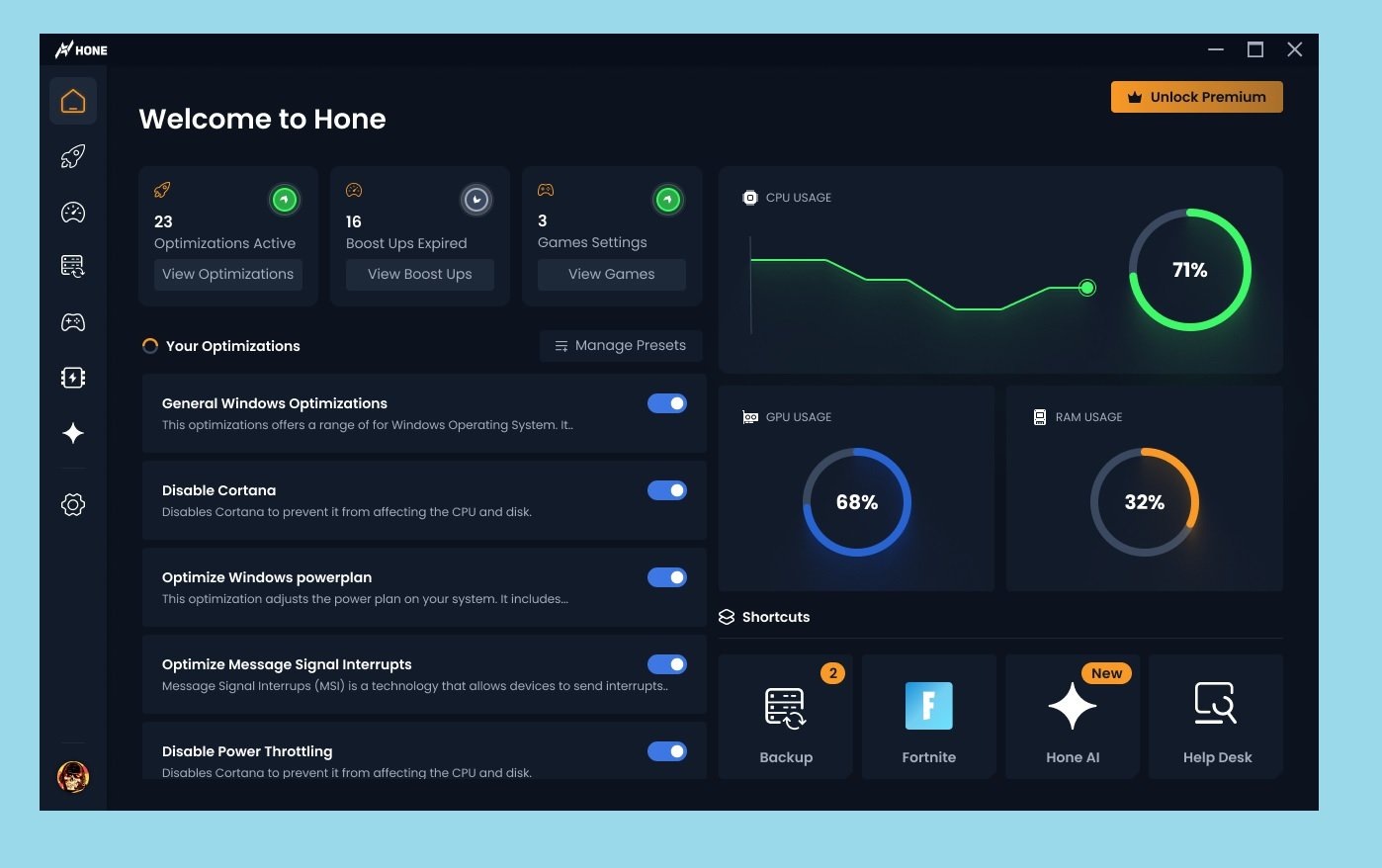
Hone represents the new generation of Windows optimization tools specifically designed for gaming performance enhancement. As someone who has tested countless game boosters and system optimizers, I can tell you that Hone stands out for its scientific approach to performance tuning and its focus on real-world gaming improvements rather than just superficial tweaks. This gaming optimization software goes beyond simple system cleaning to actually analyze and optimize your system’s BIOS settings, background processes, and network configurations to deliver measurable improvements in frame rates, reduced latency, and overall gaming experience.
What sets Hone apart from other Windows gaming utilities is its data-driven approach to system optimization. Instead of applying generic tweaks that may or may not work for your specific hardware configuration, Hone analyzes your system components and applies optimizations based on extensive testing with similar configurations. The 2025 version has introduced AI-powered optimization profiles that learn from your gaming habits and system performance to continuously improve settings over time. I’ve been particularly impressed with how it can identify and eliminate background processes that most users wouldn’t even realize are impacting their gaming performance.
Key Features:
- AI-powered gaming optimization based on system analysis
- BIOS-level performance tuning for maximum hardware potential
- Real-time process monitoring and resource management
- Network optimization for reduced latency and ping
- Game-specific optimization profiles for popular titles
- System backup and restore functionality for safety
- Professional gaming settings import from top players
Pros:
- Measurable performance improvements in frame rates and latency
- User-friendly interface with one-click optimization
- Continuous learning and improvement based on usage patterns
- Safe to use with comprehensive backup functionality
- Regular updates with new game profiles and optimizations
- Free version available with essential features
Cons:
- Primarily focused on gaming performance (less beneficial for non-gamers)
- Some advanced features require premium subscription
- Requires initial system analysis that can be time-consuming
- May conflict with other optimization software
Best For: Gamers and esports enthusiasts who want to maximize their system’s gaming performance without manual tweaking. Ideal for competitive players where every frame per second and millisecond of latency matters.
7. RestoreX360
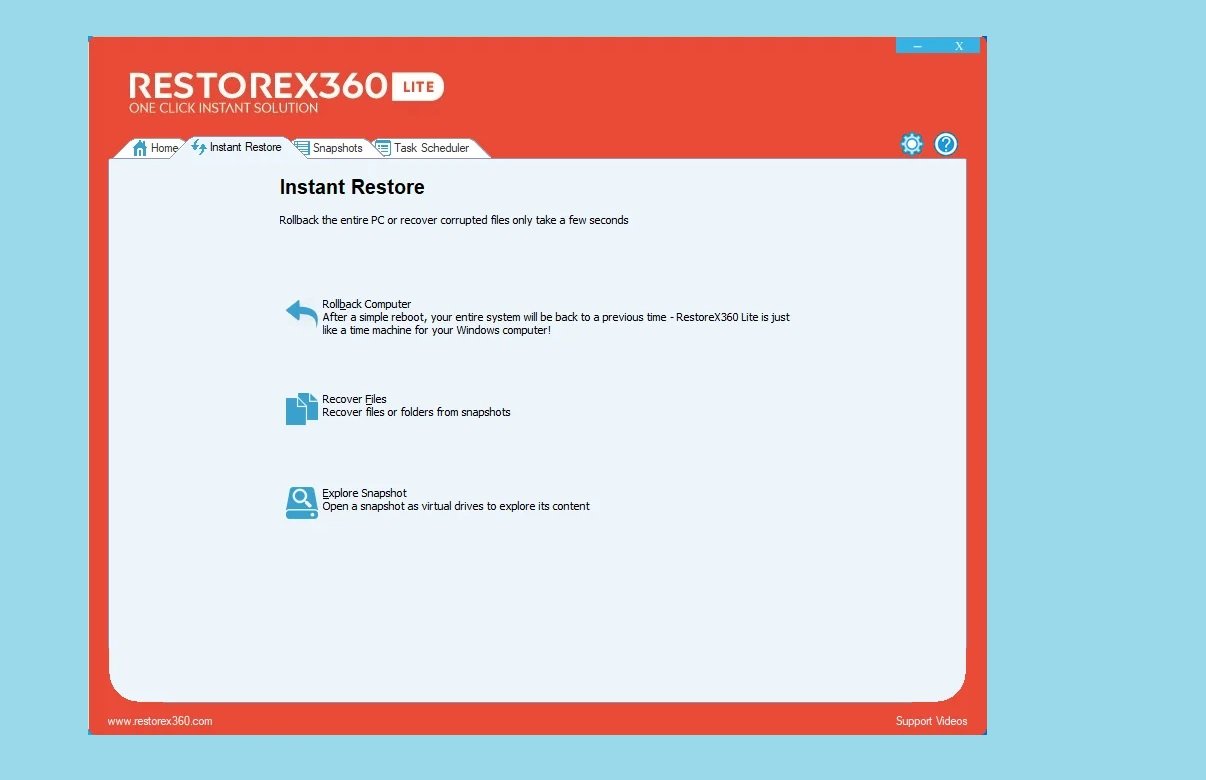
RestoreX360 is one of the most innovative Windows repair tools I’ve encountered in recent years, offering a unique approach to system recovery and maintenance. As someone who has experienced the frustration of sudden system crashes and the tedious process of troubleshooting, I can appreciate the brilliance of RestoreX360’s snapshot technology. This advanced system recovery software creates restore points that go far beyond Windows’ built-in System Restore, capturing complete system states that can be recovered even when Windows itself fails to boot. The 2025 version has enhanced this technology with AI-powered snapshot management that intelligently creates restore points before critical system changes.
What truly sets RestoreX360 apart from other Windows repair utilities is its mini operating system feature. When your Windows installation becomes completely unbootable – whether due to malware infection, driver conflicts, or system file corruption – RestoreX360 can boot into its own independent OS environment to perform repairs and system recovery. This capability has saved me countless hours that would have been spent on complete Windows reinstallation, and it’s something that few other repair tools can offer at any price point, let alone as affordably as RestoreX360.
Key Features:
- Advanced snapshot technology for complete system state capture
- Independent mini OS for booting and repairing unbootable systems
- AI-powered snapshot management and optimization
- Windows update control to prevent problematic updates
- Automated system health monitoring and maintenance
- Data recovery capabilities from corrupted systems
- User-friendly interface with guided repair processes
Pros:
- Can recover systems that won’t boot into Windows
- Comprehensive snapshot technology goes beyond System Restore
- Automated maintenance reduces need for manual intervention
- Excellent for preventing and recovering from malware infections
- User-friendly interface suitable for all technical levels
- Affordable pricing compared to enterprise recovery solutions
Cons:
- Requires disk space for snapshot storage
- Initial setup and configuration can be time-consuming
- Some advanced features may require technical knowledge
- Less effective for hardware-related system issues
Best For: Users who want comprehensive system protection and recovery capabilities without technical complexity. Ideal for those who have experienced system crashes in the past and want to prevent data loss and downtime in the future.
8. CCleaner Professional

CCleaner has been a household name in PC optimization for years, and the 2025 version shows that this veteran tool still has plenty to offer. As someone who has used CCleaner through its various iterations, I can say that while it has faced some controversies in the past, the current version under new ownership has addressed previous security concerns and emerged as a reliable Windows optimization tool. This system cleaning software excels at removing junk files, cleaning the Windows registry, and managing startup programs – all essential maintenance tasks that can significantly improve system performance when performed regularly.
The 2025 version of CCleaner has been completely redesigned with a modern interface that aligns with Windows 11 design principles while maintaining the straightforward functionality that made it popular. What I appreciate about this PC cleaner software is its balanced approach to system optimization – it doesn’t make aggressive changes that could destabilize your system but focuses on safe, proven methods for improving performance. The registry cleaner, in particular, has been enhanced with better error detection and more conservative repair recommendations, reducing the risk of causing system issues while cleaning.
Key Features:
- Comprehensive junk file cleaning for all major browsers and applications
- Advanced registry cleaner with error detection and repair
- Startup program manager for faster boot times
- Software uninstaller with residual file detection
- Real-time system monitoring for automatic cleaning
- Drive wiper for secure data deletion
- Automatic updates for continuous improvement
Pros:
- Extremely effective at removing junk files and freeing disk space
- User-friendly interface suitable for beginners
- Proven track record with millions of satisfied users
- Regular updates to address new applications and system changes
- Safe cleaning methods with built-in backup functionality
- Affordable pricing with both free and premium versions
Cons:
- Registry cleaning provides minimal performance benefits on modern systems
- Free version has limited functionality
- Some advanced features may be unnecessary for casual users
- History of security concerns (though addressed in current versions)
Best For: Casual users who want a simple, effective tool for regular system maintenance. Ideal for older systems that may have accumulated significant junk files over time and for users who prefer a set-it-and-forget-it approach to PC optimization.
Conclusion: Choosing the Right Windows Repair Tool for Your Needs
As we navigate through 2025 and beyond, the importance of having reliable Windows repair tools cannot be overstated. With Windows 10 approaching its end of life and Windows 11 becoming the standard, ensuring your system is optimized, secure, and running smoothly is more crucial than ever. Based on my extensive experience testing these tools, I can confidently say that there’s no one-size-fits-all solution – the best Windows repair tool for you depends on your specific needs, technical expertise, and system requirements.
For most home users, I recommend starting with FixWin 11 for its simplicity and effectiveness at addressing common Windows issues. If you’re concerned about privacy and system resources, O&O ShutUp10++ is an essential addition to your toolkit. Gamers will find tremendous value in Hone’s specialized optimization features, while IT professionals and power users will appreciate the comprehensive capabilities of Windows Repair Toolbox. For those who want an all-in-one solution that combines security and optimization, TotalAV offers excellent value despite its premium price point.
Remember that the best approach to Windows maintenance in 2025 is proactive rather than reactive. Regular system optimization, driver updates, and malware prevention will save you from most common issues before they occur. By investing in the right Windows repair tools and using them regularly, you can ensure your system remains fast, stable, and secure throughout 2025 and beyond.
You May Also Like
 Windows
12 Best Free RAM Cleaners For Windows 10/11
 Software
How To Use CrystalDiskMark to Test SSD: Testing My SSDs and Flash Drives
 Computer Security
10 Best Free Virus And Malware Removal Softwares
 Windows
10 Best Free USB Speed Test Software to Test Read & Write Speed USB
 Windows
5 Best Free Driver Updaters for Windows 10 and 11 in 2025?
 Windows
Best Free Windows 10 Activators for Your Computer 100% Safe
 Windows
How to take a Screenshot on Windows 10 laptop for beginners
 Windows
5 Best Free MAC Address Changer Software for Windows
 Windows