Your phone shares location and your activities. It also shares your personal information. Phone tracking happens when others monitor your phone without your permission. This guide shows you 15 ways to stop tracking. You can protect your privacy. You can keep your data safe.
Phones track you in many ways, such as GPS tracks your location, Cell towers track your signal, Wi-Fi networks track your connection and Apps track your usage. Understanding tracking methods helps you block them effectively. This article explains how to protect your phone. You’ll learn simple steps. You’ll gain control over your privacy.
Why Is Your Phone Being Tracked?
Phones track you through GPS, cell towers, Wi-Fi, and apps. Each method serves different purposes. Some help with navigation. Some help advertisers. Some help hackers. Knowing how tracking works helps you stop it.
Common Tracking Methods Explained
GPS tracking uses satellites to find your exact location. Navigation apps need GPS. Weather apps need GPS. But many other apps collect GPS data too. They sell this data to advertisers. They build profiles about you.
Cell tower tracking finds your location through phone signals. Your phone connects to nearby towers. Companies can guess your location. They do this by measuring signal strength. This works even when GPS is off.
Wi-Fi tracking happens when your phone connects to networks. Each Wi-Fi network has a unique ID. Companies use these IDs to track you. They know where you’ve been. They know where you go often.
App tracking collects data about what you do. Apps watch your usage patterns. They track your location history. They learn your interests. They sell this information to data brokers. Advertisers use it to target you.
How to Tell If Your Phone Is Being Tracked
Signs of tracking help you take action quickly. Your phone shows clues when someone tracks it. Watch for these signs. They can help you protect your privacy.
Physical Signs of Tracking
Battery drains fast when tracking apps run in background. These apps use power constantly. They send data to remote servers. If your battery dies quickly, check for tracking apps.
Phone gets hot without heavy use. Tracking software works hard. It collects data. It sends data. This makes your phone warm. If your phone feels hot, investigate.
Phone acts strange when shutting down. Tracking apps don’t want to turn off. They might delay shutdown. They might restart your phone. They might show unusual messages.
Digital Signs of Tracking
Data usage increases suddenly. Tracking apps send data often. They use your data plan. Check your data usage. Look for unusual spikes.
Strange apps appear on your phone. Hackers install tracking apps. These apps look harmless. They might look like system tools. Remove apps you don’t recognize.
Status icons light up unexpectedly. Modern phones show icons. They show when camera, mic, or location are active. If you see these icons when not using apps, someone might be tracking you.
15 Effective Methods to Block Phone Tracking
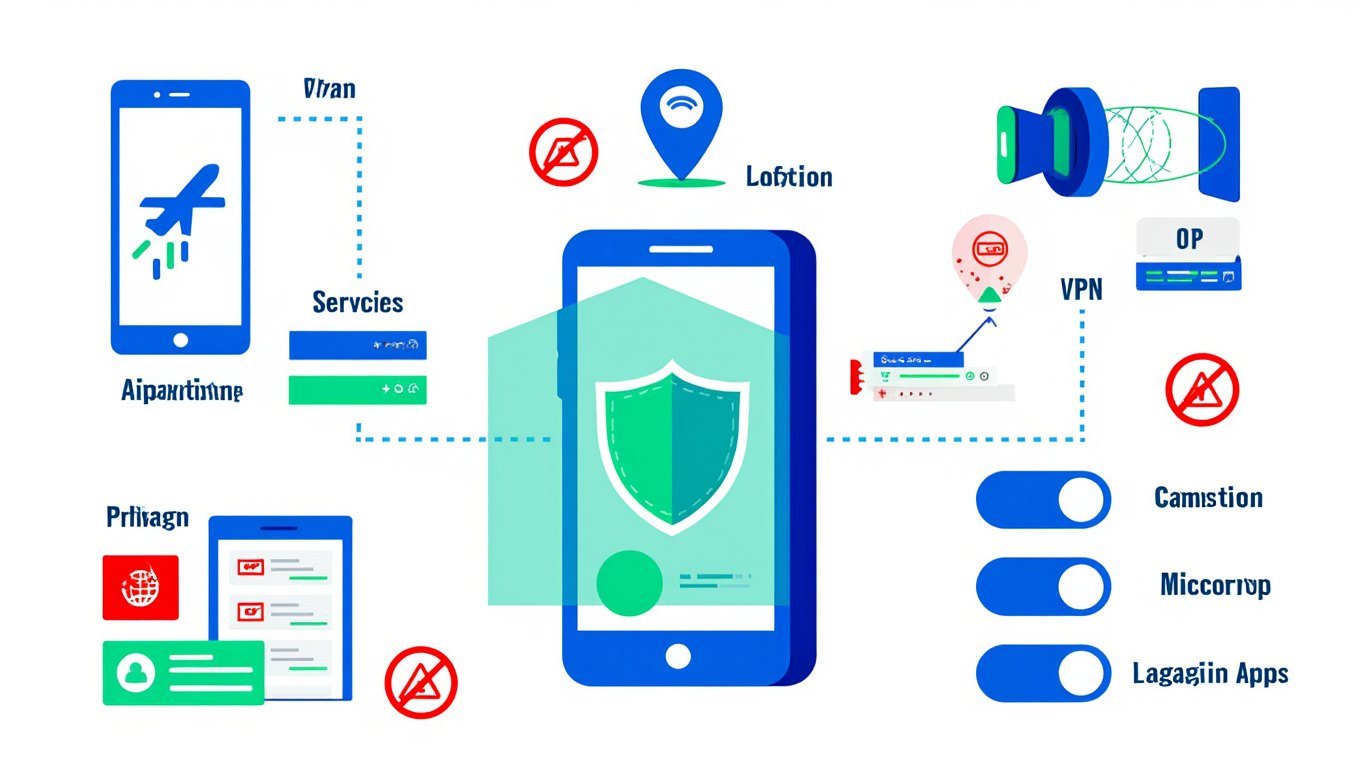
Using multiple protection methods works best. No single method blocks all tracking. Combine these strategies. Create strong protection for your privacy.
1. Disable Location Services
Turning off location services stops apps from knowing where you are. This blocks GPS tracking. It limits location-based services. But it protects your privacy.
On iOS Devices:
- Open Settings
- Select Privacy & Security
- Tap Location Services
- Toggle the switch to Off
On Android Devices:
- Open Settings
- Select Location
- Toggle Use location to Off
2. Use a VPN with Ad Blocker
A VPN hides your online activities from trackers. It encrypts your internet traffic. It masks your IP address. An ad blocker stops tracking scripts. Together, they provide strong protection.
Good VPN services include NordVPN and ExpressVPN. They have mobile apps. They protect your connection automatically. They block tracking attempts.
3. Turn Off Bluetooth When Not in Use
Bluetooth can track your location through beacons. Stores use Bluetooth beacons. They track customers. Hackers can use Bluetooth too. Turn it off when not needed.
To disable Bluetooth:
- iOS: Swipe down. Tap the Bluetooth icon
- Android: Swipe down. Tap the Bluetooth icon
4. Enable Airplane Mode in High-Risk Situations
Airplane mode blocks all wireless signals. It stops cellular tracking. It stops Wi-Fi tracking. It stops Bluetooth tracking. Use it when you need privacy.
To enable airplane mode:
- iOS: Swipe down. Tap the airplane icon
- Android: Swipe down. Tap the airplane icon
Note: Some advanced tracking might still work. But airplane mode blocks most tracking methods.
5. Manage App Permissions Carefully
Apps ask for permissions they don’t need. A game might request location access. A calculator might request camera access. Check these permissions. Deny unnecessary requests.
To manage permissions on iOS:
- Open Settings
- Select Privacy & Security
- Choose a permission category
- Review which apps have access
- Turn off unnecessary permissions
To manage permissions on Android:
- Open Settings
- Select Privacy
- Tap Permission Manager
- Choose a permission category
- Review app access
- Turn off unnecessary permissions
6. Scan for and Remove Spyware
Spyware hides on your phone. It collects your data. It sends it to hackers. Regular scans find spyware. They help you remove it safely.
Good antivirus apps include Malwarebytes and Avast. They scan your phone. They find suspicious apps. They help you remove them. Run scans weekly for best protection.
7. Clear Cookies and Browser Data Regularly
Websites use cookies to track you online. They remember your visits. They follow you across sites. Clearing cookies stops this tracking.
To clear browsing data on iOS (Safari):
- Open Settings
- Select Safari
- Tap Clear History and Website Data
- Confirm by tapping Clear History and Website Data
To clear browsing data on Android (Chrome):
- Open Chrome
- Tap the three dots
- Select History > Clear Browsing Data
- Choose time range
- Select data types to clear
- Tap Clear data
8. Use Private Browsers and Search Engines
Private browsers block tracking cookies. They don’t save your history. They protect your privacy. Good options include DuckDuckGo and Brave.
Private search engines don’t track your searches. They don’t build profiles about you. They don’t target you with ads. DuckDuckGo and Startpage are good choices.
9. Disable Location Tracking on Social Media Apps
Social media apps track your location constantly. They know where you live. They know where you work. They know where you visit. Turn off location tracking in these apps.
To disable location tracking in Facebook:
- Open the Facebook app
- Tap the three lines
- Select Settings & Privacy > Settings
- Tap Location
- Disable Location Access and Location History
To disable location tracking in Instagram:
- Open the Instagram app
- Go to your profile
- Tap the three lines
- Select Settings > Privacy
- Tap Location
- Disable location services
10. Avoid Public Wi-Fi Networks
Public Wi-Fi networks are often unsafe. Hackers use them to steal data. They can track your online activities. They can intercept your information.
If you must use public Wi-Fi:
- Connect to a VPN first. This encrypts your traffic.
- Verify the network name. Ask staff for the correct name.
- Avoid sensitive activities. Don’t access banking or email.
11. Turn Off Your Phone Completely
Powering off your phone stops all tracking. No signals can reach it. No apps can run. This gives you complete privacy. But you can’t make or receive calls.
Note: Your last known location might still be visible. But real-time tracking stops completely when your phone is off.
12. Lock Your SIM Card with a PIN
Your SIM card can be used to track you. It connects to cell towers. Companies can find your location. A SIM PIN prevents unauthorized use.
To set a SIM PIN on iOS:
- Open Settings
- Select Cellular > SIM PIN
- Toggle SIM PIN on
- Enter a 4-8 digit PIN
To set a SIM PIN on Android:
- Open Settings
- Select Security & location
- Tap SIM card lock
- Toggle Lock SIM card on
- Enter a PIN
13. Keep Your Phone Updated
Software updates fix security problems. They patch vulnerabilities. They improve privacy features. Hackers exploit old software. Updates protect you.
To check for updates:
- iOS: Settings > General > Software Update
- Android: Settings > System > System Update
14. Disable Ad Tracking
Advertisers track you across apps and websites. They build detailed profiles. They target you with ads. You can opt out of this tracking.
To disable ad tracking on iOS:
- Open Settings
- Select Privacy & Security
- Tap Tracking
- Toggle Allow Apps to Request to Track off
To disable ad tracking on Android:
- Open Settings
- Select Google > Ads
- Toggle Opt out of Ads Personalization on
15. Use a Faraday Bag for Complete Privacy
Faraday bags block all signals. They create a shield around your phone. No cellular signals get through. No Wi-Fi signals get through. No GPS signals get through.
Faraday bags provide maximum protection. Use them in high-risk situations. They block all tracking methods completely.
Advanced Protection Strategies
For extra protection, try these advanced methods. They require more effort. They provide stronger security. They help in high-risk situations.
Use Privacy-Focused Operating Systems
Some operating systems protect privacy better than others. GrapheneOS and CalyxOS focus on privacy. They give you more control. They limit tracking by default.
Implement Network Monitoring
Network monitoring apps watch your data traffic. They alert you to suspicious activity. They show which apps connect to the internet. NetGuard and Little Snitch are good options.
Consider a Privacy-Focused Phone
Some phones are built for privacy. The Librem 5 and PinePhone have physical switches. You can turn off cameras and microphones. You can block wireless connections completely.
Balancing Privacy and Functionality
Privacy is important. But so is convenience. Find the right balance for you. Some methods limit features. Choose what works for your needs.
Prioritize Based on Your Risk Level
High-risk users need strong protection. Journalists and activists need maximum security. Casual users might need basic protection. Assess your risk level. Choose appropriate methods.
Create a Privacy Routine
Make privacy a habit. Check your settings weekly. Clear your browsing data regularly. Review app permissions monthly. Good habits maintain your privacy long-term.
FAQ About Phone Tracking Protection
Can my phone be tracked if location services are off?
Yes. Your phone can still be tracked through cell towers and Wi-Fi networks. Location services only control GPS. Other tracking methods still work.
Does airplane mode completely prevent tracking?
No. Airplane mode blocks most signals. But some advanced tracking might still work. However, airplane mode significantly reduces tracking capabilities.
Can a VPN prevent all forms of phone tracking?
No. A VPN protects your internet traffic. It can’t block GPS tracking. It can’t stop cell tower tracking. It can’t remove spyware from your phone.
Is it legal to block phone tracking?
Yes. You can block tracking on phones you own. But don’t block tracking on company phones. This might break rules at work or school.
Do antivirus apps detect all tracking software?
No. Antivirus apps find known spyware. But new or custom tracking software might avoid detection. Use multiple protection methods for best results.
Conclusion
Protecting your phone from tracking requires multiple steps. No single method blocks all tracking. Combine the strategies in this guide. Create strong protection for your privacy.
Start with basic steps. Turn off location services. Use a VPN. Manage app permissions. These steps provide good protection. They’re easy to implement.
Add advanced methods as needed. Use a Faraday bag in high-risk situations. Try privacy-focused browsers. Monitor your network traffic. These steps provide maximum protection.
Privacy requires ongoing attention. Check your settings regularly. Update your protection methods. Stay informed about new threats. With consistent effort, you can maintain control over your personal information.
You May Also Like
 Cyber Security
Can Ransomware Infect iCloud? What Mac and iPhone Users Need to Know
 Data Security & Privacy
Is a Password Manager Safe? How to Use One Securely
 WordPress
12 Best Cheap SSL Certificate Providers To Secure Your Website
 Data Security & Privacy
Is Password Protection the Same as Encryption? Differences in Data Security
 Data Security & Privacy
What Is End-to-End Encryption? Your Complete Guide to Secure Communication
 Data Security & Privacy
What Is a Cloud Security Scanner for AWS, Azure, and Google Cloud?
 Cyber Security
Is Temu Legit or a Scam? The Complete Truth You Need to Know
 VPN
VPNHow to Block Ads on FirstRowSports: A Step-by-Step Guide
 Proxies