When you search for WiFi networks on your phone or laptop, you see a list of network names like “Keyanalyzer Wifi,” “CoffeeShop_Guest,” or “NETGEAR-5G.” These names are called SSIDs, and understanding what they are can help you better manage your home network security and troubleshoot connection issues.
Understanding SSID in WiFi: The Basics You Need to Know
SSID stands for Service Set Identifier, but you can simply think of it as your WiFi network’s name. It’s the public identifier that allows your devices to find and connect to the specific wireless network you want to use.
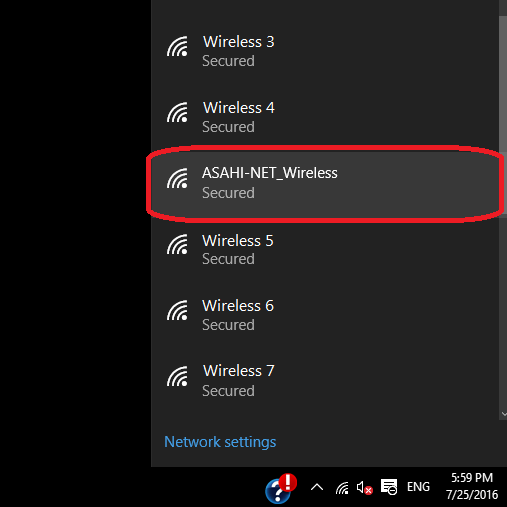
Every time you set up a router, it creates an SSID that gets broadcast within its range. This broadcast signal lets nearby devices discover the network and display it in their available connections list. Without SSIDs, you’d have no way to distinguish between different wireless networks in your area.
Your router continuously announces its SSID to the surrounding area, which is why you can see multiple network names when you open your device’s WiFi settings. This broadcasting happens automatically and is essential for the basic functioning of wireless networks.
How SSIDs Work in Your Daily Life
Think about your typical day using WiFi. When you arrive at work, your phone might automatically connect to “Office_WiFi.” Later, at your favorite coffee shop, you select “CafeGuest” from the available networks. Each of these names is an SSID that helps you identify the correct network.
The SSID works alongside your network’s security settings. While the SSID identifies the network, you still need the correct password (if the network is secured) to actually connect and access the internet. This two-step process – finding the network by its SSID and then authenticating with a password – keeps your connection both accessible and secure.
Most modern devices remember SSIDs you’ve connected to before, along with their passwords. This is why your phone automatically connects to your home WiFi when you return from work, without you having to manually select the network each time.
Finding Your Network’s SSID
If you need to find your network’s SSID, you have several options. The easiest method is checking the sticker on your router, usually located on the bottom or back. This sticker typically shows both the default network name and password that came with your router.
However, many people change their SSID from the default name to something more personalized. If this is your case, you can find your current SSID by checking your connected devices. On Windows, Mac, Android, or iOS devices, go to your WiFi settings and look for the network you’re currently connected to – that’s your SSID.
You can also find this information by accessing your router’s admin panel. Open a web browser, type your router’s IP address (commonly 192.168.1.1 or 192.168.0.1 or 10.0.0.1 xfinity gateway login), and log in with your admin and password if you forgot your admin and password, you can see them on the router’s box or router’s bottom.
Why Your SSID Matters for Security
Your SSID choice can impact your network security in ways you might not expect. Using the default SSID that includes your router’s brand name (like “Keyanalyzer_Wifi“) can actually make you more vulnerable to attacks. Cybercriminals can use this information to research known vulnerabilities specific to your router model.
A generic SSID also makes it easier for attackers to create fake networks with similar names. For example, if your coffee shop uses “CoffeeShop_WiFi,” a malicious actor might create “CoffeeShop_WiFi_2” to trick unsuspecting users into connecting to their network instead.
Creating a unique, non-descriptive SSID helps protect your privacy. Avoid using your name, address, or other personal information in your network name. Instead, choose something memorable but generic, like “HomeNetwork2024” or “BlueHouse_WiFi.”
Remember that changing your SSID alone isn’t enough for security. You should also ensure you’re using strong WiFi security protocols and keeping your router’s firmware updated.
Customizing Your SSID: Best Practices
Changing your SSID from the default name offers several benefits. A unique name makes your network easier to identify, especially in areas with many WiFi networks. It also adds a layer of security by not revealing your router’s make and model to potential attackers.
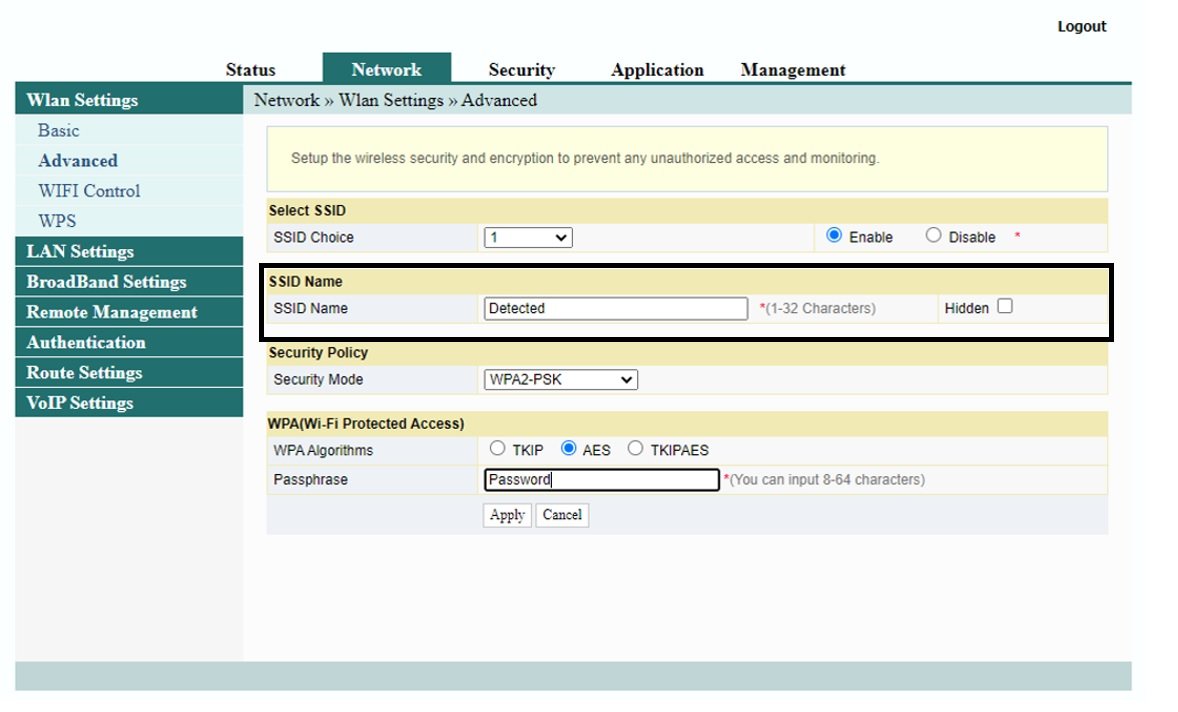
To change your SSID, you’ll need to access your router’s configuration interface. Connect to your network, open a web browser, and navigate to your router’s IP address. Log in with your admin credentials (often found on the router’s sticker if you haven’t changed them).
Look for wireless settings or WiFi settings in the menu. Find the SSID or Network Name field and enter your preferred name. Choose something between 2-32 characters that’s easy for you to remember but doesn’t reveal personal information.
After saving your changes, your router will restart with the new SSID. You’ll need to reconnect all your devices using the new network name, as they won’t automatically recognize the renamed network.
Common SSID Problems and Solutions
Sometimes your SSID might not appear in available networks, which can be frustrating when you’re trying to connect. This usually happens for a few reasons: the network might be hidden, you could be out of range, or there might be interference from other devices.
If you can’t see your SSID, first check that you’re within range of your router. WiFi signals weaken with distance and can be blocked by walls and other obstacles. Try moving closer to the router or consider using a wireless networking tool to analyze your connection strength.
Sometimes SSIDs become hidden intentionally for security reasons. While this doesn’t provide real security benefits (hidden networks can still be detected by determined attackers), some people prefer this setup. If you’re trying to connect to a hidden network, you’ll need to manually add it by entering both the SSID and password.
Network interference can also cause SSIDs to disappear from your available networks list. This is particularly common in apartment buildings or office complexes where many networks operate close together. Changing your router’s channel settings can help resolve interference issues.
Multiple Networks with the Same SSID
You might encounter situations where multiple networks share the same SSID name. This commonly happens in large buildings, hotels, or businesses that use multiple access points to provide coverage across a wide area. These networks work together to create seamless connectivity as you move around.
However, identical SSIDs can also indicate a security threat. Cybercriminals sometimes create fake networks with popular SSID names to trick users into connecting. For example, at an airport, you might see several networks named “Airport_WiFi,” but only one might be legitimate.
When you see duplicate SSIDs, pay attention to signal strength and security settings. Legitimate networks from the same organization typically have consistent security configurations. Be especially cautious of unsecured networks with common names in public places.
If you’re managing multiple access points for your home or business, using the same SSID across all devices can provide a better user experience. Devices will automatically connect to the strongest signal as you move around, creating seamless connectivity.
SSID and Network Performance
Your SSID choice doesn’t directly affect your internet speed, but related network settings can impact performance. If you live in an area with many WiFi networks, choosing the right wireless channel becomes crucial for optimal performance.
Modern routers often broadcast on both 2.4GHz and 5GHz bands, sometimes with separate SSIDs for each band (like “HomeNetwork” and “HomeNetwork_5G”). The 5GHz band typically offers faster speeds but shorter range, while 2.4GHz provides better coverage but potentially slower speeds.
Some routers combine both bands under a single SSID and automatically direct devices to the best connection. This setup, called band steering, can improve overall network performance by distributing devices across both frequency bands.
If you’re experiencing slow internet speeds, the issue likely isn’t your SSID but rather factors like network congestion, outdated router firmware, or interference from other devices.
Public WiFi and SSID Safety
When connecting to public WiFi networks, the SSID can provide important clues about legitimacy and safety. Legitimate businesses typically use professional-looking SSIDs that include their brand name, like “Starbucks_WiFi” or “Hotel_Guest_Network.”
Be suspicious of generic SSIDs like “Free_WiFi,” “Public_Internet,” or misspelled versions of known networks. These could be fake networks set up to steal your personal information. Always verify the correct SSID with staff at hotels, restaurants, or other public venues.
Even when connecting to legitimate public networks, your data transmission can be vulnerable. Consider using a VPN for additional security when accessing sensitive information on public WiFi.
Public networks often require you to accept terms of service or provide an email address before granting internet access. This process happens after you connect to the SSID but before you can browse the web.
Advanced SSID Features
Modern routers offer advanced SSID features that can enhance your network management. Guest networks create a separate SSID for visitors, keeping your main network secure while providing internet access to guests.
Some routers support multiple SSIDs on the same hardware, allowing you to create different networks for various purposes. For example, you might have one SSID for family devices, another for smart home gadgets, and a third for work devices.
SSID scheduling is another useful feature that allows you to turn specific networks on and off at predetermined times. This can be helpful for managing children’s internet access or reducing network congestion during certain hours.
Quality of Service (QoS) settings can be applied to specific SSIDs, giving priority to certain types of traffic. While this doesn’t change the SSID itself, it affects how devices connected to that network experience internet performance.
Troubleshooting SSID Issues
If you’re having trouble with your SSID, start with basic troubleshooting steps. Restart your router by unplugging it for 30 seconds, then plugging it back in. This resolves many temporary connectivity issues and refreshes the SSID broadcast.
Check for interference from other electronic devices. Microwaves, baby monitors, and cordless phones can interfere with WiFi signals on the 2.4GHz band. Moving these devices away from your router or switching to the 5GHz band can help.
If your SSID stopped appearing entirely, your router might have experienced a firmware corruption or hardware failure. Try resetting the router to factory defaults, which will restore the original SSID and password printed on the device.
For persistent problems, consider updating your router’s firmware or contacting your internet service provider. They can help diagnose whether the issue is with your router, your internet connection, or interference in your area.
The Future of SSIDs
As WiFi technology evolves, SSID functionality continues to improve. WiFi 6 and newer standards support more efficient SSID management and better performance in dense network environments.
Mesh network systems are becoming increasingly popular, offering seamless connectivity across large areas while maintaining a single SSID. These systems automatically manage connections between multiple access points without requiring users to switch networks manually.
Smart network management features are also advancing, with some routers automatically optimizing SSID settings based on usage patterns and environmental factors. This includes automatic channel selection and band steering to provide the best possible experience.
The fundamental concept of SSIDs as network identifiers will remain important, but the user experience will likely become more seamless and automated over time.
Understanding SSIDs helps you make better decisions about network security, troubleshoot connection problems, and optimize your WiFi experience. Whether you’re setting up a home network, connecting to public WiFi, or managing multiple networks, knowing how SSIDs work puts you in control of your wireless connectivity.
Remember that your SSID is just one part of a comprehensive network security strategy. Combine a unique SSID with strong passwords, updated firmware, and good security practices to keep your network safe and performing well.
You May Also Like
 VPN
VPNCloudflare WARP as a Free VPN Alternative: Review After Months of Daily Use
 Proxies
10 Best Public DNS Servers for Faster Browsing and Lower Gaming Latency in 2026
 VPN
VPNHow to Block Ads on FirstRowSports: A Step-by-Step Guide
 VPN
VPNCan You Use a VPN on a School Chromebook? (What Works + What’s Allowed)
 Tiktok
Does TikTok Detect VPN Usage? Everything You Need to Know
 VPN
VPNWhat Is an Obfuscated VPN? Your Complete Guide to Bypassing Blocks and Staying Private Online
 Cyber Security
What Is the Dark Web and How Can You Access It? Beware!
 VPN
VPNCan Someone Find Me With My IP Address? Guide to IP Privacy and Security
 Online Services