Hard Drive Data Recovery Software is the best way to recover lost or deleted data from your hard drive. With this powerful software, you can easily and quickly recover lost or deleted files, folders, documents, photos, videos, and more. Hard Drive Data Recovery Software is easy to use and comes with a user-friendly interface. It supports all types of hard drives and file formats, so you can be sure that you can recover your data no matter what.
It’s a good thing that there are several software that you can use to recover the damaged or lost data. All electronic devices are sensitive to damage because of the tear and wear of the mechanical sections. Not to mention that there is also the problem of mishandling the devices or device’s loss. Recovering the data means that you try to recover the formatted, corrupted, lost, and inaccessible data from mobile phones, external HD (Hard Drives), USB drives, SSD, HDD, Laptop, PC. So, what are they?
12Best Hard Drive Data Recovery Software for Windows
1. iBeesoft Data Recovery

iBeesoft Data Recovery is a comprehensive hard drive data recovery software for Windows. This tool designed to help users restore lost, deleted, or formatted files from various storage devices. Developed by iBeesoft, the tool supports recovery from hard drives, SSDs, USB drives, memory cards, and external storage devices. It is widely used by home users, IT technicians, and small businesses to recover documents, photos, videos, audio files, emails, and more. iBeesoft Data Recovery emphasizes ease of use, safety, and compatibility, making it accessible even to users without technical expertise.
Key Features:
- Recovers deleted, formatted, or lost files from multiple devices
- Supports Windows and macOS operating systems
- Restores a wide variety of file types including photos, videos, documents, audio, and emails
- Quick Scan for fast recovery and Deep Scan for thorough searches
- Supports external storage devices, including SD cards, USB drives, and SSDs
- Preview files before recovery to ensure accuracy
- User-friendly interface designed for non-technical users
- Safe and read-only recovery process to avoid further data loss
How It Works: iBeesoft Data Recovery operates by scanning the selected storage device to locate deleted or lost files. Users can choose between a Quick Scan, which searches recently deleted files, or a Deep Scan, which thoroughly examines the storage device for recoverable data. Once the scan is complete, the software displays recoverable files in categories, allowing users to preview files before selecting them for recovery. The recovery process is read-only, ensuring that no existing data is overwritten.
Pros:
- Supports a wide range of storage devices and file types
- Easy-to-use interface for beginners
- Provides Quick Scan and Deep Scan options for flexibility
- Safe and read-only recovery process
- Compatible with both Windows and macOS
Cons:
- Deep Scan can take a long time on large drives
- Some advanced recovery features require a paid version
- Limited support for professional-level forensic analysis
Best For: Recovering lost or deleted files quickly and safely for home users, small businesses, and IT support.
2. WinHex

WinHex Computer Forensics & Data Recovery Software
WinHex is a professional hex editor, disk editor, and forensic analysis tool developed by X-Ways Software Technology AG. It is designed for data recovery, digital forensics, low-level disk editing, and memory analysis on Windows systems. WinHex allows users to view and edit raw binary data on storage devices, including hard drives, SSDs, USB drives, memory cards, and RAM. The software is widely used by forensic investigators, IT professionals, cybersecurity specialists, and data recovery experts.
Key Features:
- Advanced hex editor for inspecting and editing raw data
- Disk editor to analyze and modify disk sectors
- Memory editor for RAM and live process analysis
- Tools for data recovery and file reconstruction
- Compatible with multiple file systems: NTFS, FAT, exFAT, EXT
- Digital forensics capabilities for forensic investigations
- Disk cloning, secure wiping, and checksum verification
- Direct access to storage media, bypassing the OS caching
How It Works: WinHex operates by providing byte-level access to files, disks, and memory. Users can view and edit hexadecimal representations of data, navigate disk sectors, and inspect file system metadata. For digital forensics, it allows the recovery of deleted files and analysis of disk structures, RAM dumps, and other storage media. Its low-level editing capabilities make it an essential tool for IT specialists and forensic investigators who need to manipulate and examine data precisely.
Pros:
- Professional-grade hex and disk editing capabilities
- Supports digital forensics and data recovery
- Works on multiple storage devices and file systems
- Trusted by cybersecurity professionals and IT experts
- Portable and highly customizable
Cons:
- Steeper learning curve for beginners
- Advanced features require technical knowledge
- Primarily Windows-focused (limited Mac/Linux support)
Best For: Digital forensics, data recovery, and low-level disk analysis for IT professionals and forensic investigators.
3. ManageEngine OS Deployer

ManageEngine OS Deployer is a professional operating system deployment and imaging tool developed by ManageEngine, a division of Zoho Corporation. It is designed to help IT administrators and enterprise IT teams automate the deployment of Windows operating systems across multiple computers in a network. OS Deployer simplifies tasks such as OS installation, cloning, patching, and system imaging, reducing manual effort and ensuring consistent configurations across workstations. The software is widely used in corporate IT environments, educational institutions, and government offices for efficient OS management.
Key Features:
- Automated Windows OS deployment for multiple computers simultaneously
- Supports disk cloning and imaging for faster deployment
- Patches and updates systems during deployment
- Supports PXE boot and USB-based deployment
- Centralized control from a single console for enterprise networks
- Backup and restore functionality for system images
- User-friendly interface with drag-and-drop task configuration
- Compatible with Windows 7, 8, 10, and Windows Server editions
How It Works: ManageEngine OS Deployer works by creating a master image of a configured Windows system. IT administrators can then deploy this image to multiple computers using network boot (PXE) or external media like USB drives. During deployment, the tool can automatically apply patches, updates, and configuration scripts, ensuring all systems are identical and up-to-date. This process significantly reduces deployment time and avoids manual configuration errors.
Pros:
- Automates OS deployment and system imaging across multiple machines
- Reduces IT workload and manual errors
- Supports centralized management for enterprise networks
- Compatible with PXE and USB deployment methods
- Allows integration of patches and updates during deployment
Cons:
- Primarily Windows-focused, limited support for Linux or macOS
- Advanced features may require training to configure efficiently
- Enterprise license cost may be high for small organizations
Best For: Automating Windows OS deployment, system imaging, and updates for enterprise IT teams.
4. Recovery Toolbox for CD Free

CD Recovery Toolbox
Recovery Toolbox for CD Free is a specialized data recovery tool designed to restore files from damaged, scratched, or corrupted optical media, including CDs, DVDs, and Blu-ray discs. Developed by Recovery Toolbox, the software is widely used by home users, IT technicians, and data recovery professionals. It allows users to recover documents, photos, videos, audio files, and other data from optical discs that are unreadable due to physical damage, software errors, or operating system failures. The program is completely free and compatible with most modern Windows operating systems, including Windows 11.
Key Features:
- Recover files from damaged or corrupted CDs, DVDs, and Blu-ray discs
- Supports a wide variety of file types: documents, images, videos, audio, and more
- Works with physically damaged media (scratches, liquid exposure) and software-corrupted discs
- Simple step-by-step recovery wizard for guided restoration
- Preview files before recovery to ensure accuracy
- Allows users to select specific files or folders for recovery
- Provides detailed recovery reports
- Compatible with external USB optical drives
- Lightweight, safe, and read-only process to avoid further damage
- Fully functional on Windows 98/Me/2000/XP/Vista/7/8/10/11 and Windows Server editions
How It Works:
- Insert the damaged optical disc into the drive.
- Download, install, and run Recovery Toolbox for CD Free.
- Select the drive containing the corrupted disc and the folder on your PC to save recovered data.
- Choose the files or folders you want to recover from the disc.
- Start the recovery process, which scans the media sector by sector and extracts recoverable data.
- Once recovery is complete, view the files in the designated folder along with a detailed recovery log.
Pros:
- Free and accessible for all users
- Intuitive step-by-step wizard for beginners
- Can handle scratched, unreadable, or corrupted discs
- Safe read-only recovery ensures discs are not damaged further
- Supports previewing recovered files before saving
Cons:
- Limited to optical media (CD/DVD/Blu-ray)
- Recovery speed depends on the severity of damage and disc size
- Cannot recover previously deleted files from overwritten discs
- Not compatible with macOS or Linux
Best For: Recovering data from damaged or unreadable optical discs quickly and safely for home users, IT professionals, and small businesses.
5. AnyRecover

AnyRecover is a professional data recovery software developed by iMyFone. It is designed to help users recover lost, deleted, or inaccessible files from a wide range of storage devices, including hard drives, SSDs, USB drives, memory cards, and external storage. AnyRecover is widely used by home users, IT technicians, and small businesses to restore files lost due to accidental deletion, formatting, virus attacks, system crashes, or software errors. The software emphasizes ease of use, high recovery rates, and compatibility across multiple platforms.
Key Features:
- Recovers deleted or lost files from PC, Mac, external drives, and removable media
- Supports Windows (11/10/8/7/XP/Vista) and macOS (10.9 and above)
- Restores a wide range of file types: documents, photos, videos, emails, and audio
- Offers Quick Scan for recently deleted files and Deep Scan for thorough recovery
- Provides preview function before recovery to select specific files
- Supports recovery from formatted drives, virus-infected storage, and crashed partitions
- User-friendly interface designed for beginners and professionals
- Read-only recovery process ensures no further damage to original files
How It Works:
- Download, install, and run AnyRecover on your computer.
- Select the drive, device, or folder where data was lost.
- Choose a Quick Scan for fast recovery or Deep Scan for comprehensive search.
- Preview recoverable files before selecting which files to restore.
- Recover the selected files to a safe location on your device or external storage.
Pros:
- Supports multiple file types and storage devices
- Quick and Deep Scan options for flexibility
- Preview function ensures only needed files are recovered
- Simple, user-friendly interface for non-technical users
- High recovery rate for accidental deletion, formatting, or virus attack
Cons:
- Deep Scan can take significant time for large drives
- Advanced features require paid license
- Limited enterprise-grade forensic tools compared to professional suites
Best For: Recovering lost or deleted files from PCs, Macs, and external drives safely and efficiently.
6. UnDeleteMyFiles Pro
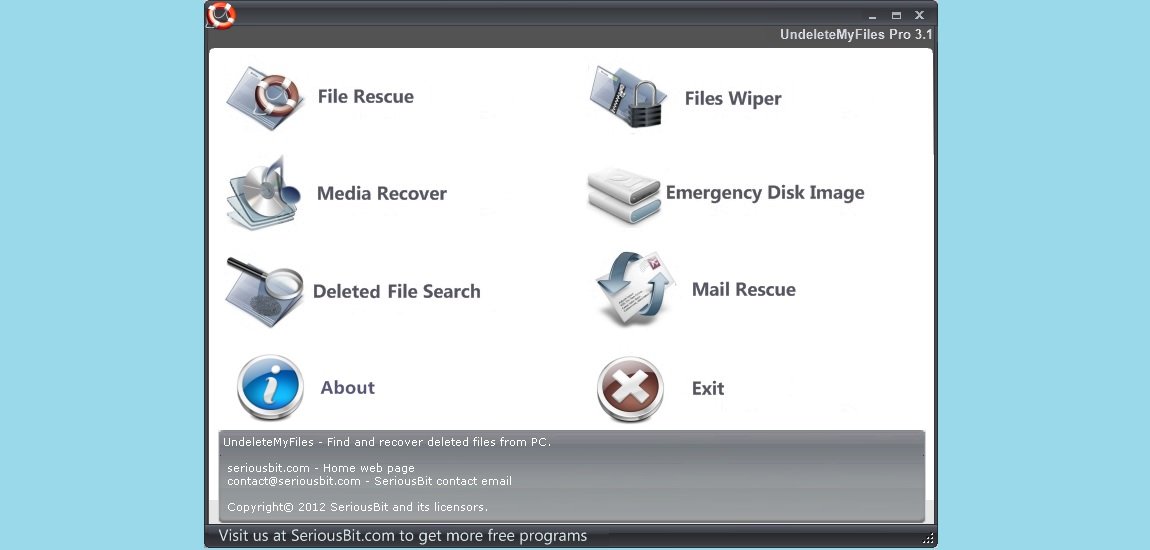
UndeleteMyFiles Pro is a data recovery software developed by SeriousBit that helps users recover deleted files, formatted data, and lost information from various storage devices. It is designed for both home users and IT professionals who need a reliable way to restore files from hard drives, SSDs, USB flash drives, memory cards, and other removable storage. The software supports recovery of many file types such as documents, photos, videos, audio files, and emails, making it a useful tool when files are accidentally deleted or lost due to system errors.
Key Features:
- Recovers deleted files from Windows computers and external storage
- Supports recovery from hard drives, SSDs, USB drives, and memory cards
- File Rescue Wizard for guided recovery
- Deleted File Search to locate lost files quickly
- Disk Image support for analyzing storage media safely
- Ability to preview recoverable files before restoring
- Supports multiple file types including documents, photos, and videos
How It Works: UndeleteMyFiles Pro scans the selected storage device to detect files that were deleted or lost. When files are removed from a system, the data often remains on the storage device until it is overwritten. The software analyzes the disk structure and file records to locate these recoverable files. After the scan completes, users can preview and select specific files to restore to a safe location.
Pros:
- Simple interface with a step-by-step recovery wizard
- Supports many storage devices and file formats
- File preview helps verify recoverable data
- Useful for recovering files deleted from the Recycle Bin
Cons:
- Deep scanning may take longer on large drives
- Some advanced recovery features are limited compared to enterprise tools
- Primarily designed for Windows systems
Best For: Recovering accidentally deleted files from Windows computers and removable storage devices.
7. TestDisk
TestDisk is a powerful open-source data recovery and partition repair tool developed by Christophe Grenier and distributed through CGSecurity. It is designed to recover lost partitions, repair damaged partition tables, and restore boot sectors on various storage devices such as hard drives, SSDs, USB drives, and memory cards. TestDisk supports multiple file systems including NTFS, FAT, exFAT, and ext, making it a widely trusted tool among IT professionals, system administrators, and digital forensics specialists who need to recover disk structures and restore access to data.
Key Features:
- Recovers lost or deleted disk partitions
- Repairs damaged partition tables and boot sectors
- Supports file systems such as NTFS, FAT, exFAT, and ext
- Works with multiple operating systems including Windows, Linux, and macOS
- Can rebuild the NTFS boot sector and recover FAT tables
- Open-source and completely free to use
How It Works: TestDisk scans the storage device to detect existing or lost partition structures. It analyzes disk geometry and partition tables to identify recoverable partitions. Once found, users can restore the partition table or rebuild the boot sector, allowing the operating system to access the data again without needing to copy or recover individual files.
Pros:
- Powerful partition recovery and repair capabilities
- Supports many operating systems and file systems
- Free and open-source software
- Trusted by data recovery and forensic professionals
Cons:
- Command-line interface can be challenging for beginners
- Requires technical knowledge for advanced recovery operations
- Focused mainly on partition recovery rather than individual files
Best For: Recovering lost partitions and repairing damaged disk structures.
8. Recuva

Recuva recovers
Recuva is free file recovery software developed by Piriform, a company now part of Gen Digital (formerly Avast). It helps users recover deleted or lost files from Windows computers and various storage devices, including hard drives, SSDs, USB flash drives, and memory cards. Recuva can restore files removed from the Recycle Bin, lost due to accidental deletion, formatting, system crashes, or malware attacks. Because it combines powerful recovery features with a simple interface, Recuva is often recommended as a reliable free file recovery software for both beginners and IT professionals.
Key Features:
- Recover deleted files such as documents, photos, videos, music, and emails
- Works with hard drives, SSDs, USB drives, memory cards, and other storage devices
- Deep Scan mode for more thorough file recovery
- File preview before restoring supported formats
- Ability to restore files from formatted or damaged drives
- Secure overwrite feature to permanently erase sensitive files
- Step-by-step recovery wizard for easy operation
- Available as free file recovery software with optional Professional upgrade
How It Works: Recuva scans the selected storage device to identify files that were deleted but not yet overwritten by new data. The software analyzes the file system structure, including file tables and metadata, to locate recoverable files. After the scan is complete, users can review the results, preview supported file types, and restore selected files to another location. The Deep Scan option performs a more detailed analysis to find files that may not appear in the standard scan.
Pros:
- Easy-to-use interface suitable for beginners
- Reliable free file recovery software for Windows systems
- Supports many file formats and storage devices
- Deep Scan improves recovery chances for older deleted files
- Free version available with useful recovery features
Cons:
- Deep scans may take longer on large drives
- Some advanced features require the Professional version
- Recovery success depends on whether the deleted data has been overwritten
Best For: Recovering accidentally deleted files from Windows PCs, USB drives, and memory cards using a free file recovery software.
9. Active@ UNDELETE

Active Undelete
Active@ UNDELETE is a professional data recovery tool developed by LSoft Technologies that helps restore deleted files and lost partitions from Windows-based storage systems. This free file recovery software can recover files that were accidentally deleted, removed from the Recycle Bin, or lost due to disk formatting, virus attacks, or system errors. Active@ UNDELETE supports a wide range of storage devices, including hard drives, SSDs, USB flash drives, memory cards, and RAID arrays, making it a useful solution for both home users and IT professionals.
Key Features:
- Recover deleted files from NTFS, FAT, exFAT, and other file systems
- Restore files removed from the Recycle Bin
- Recover lost or deleted partitions
- Support for HDD, SSD, USB drives, SD cards, and RAID storage
- Disk scanning with QuickScan and SuperScan recovery modes
- File preview before restoring selected data
- Bootable recovery environment for damaged systems
- Compatible with modern Windows operating systems
How It Works: Active@ UNDELETE scans the selected storage device to locate deleted files and lost partitions. When files are deleted, their entries remain in the file system until overwritten by new data. The software analyzes disk structures and file system metadata to identify recoverable files. Users can then preview the scan results and restore selected files to another safe location on the system or an external drive.
Pros:
- Reliable free file recovery software for Windows systems
- Supports multiple file systems and storage devices
- Includes advanced scanning modes for deeper recovery
- Ability to recover lost partitions and volumes
Cons:
- Advanced recovery features are available mainly in paid editions
- Deep scans may take longer on large disks
- Interface may require some technical knowledge for advanced tools
Best For: Recovering deleted files and lost partitions from Windows computers and storage devices using free file recovery software.
10. Wise Data Recovery

Wise Data Recovery
Wise Data Recovery is a free file recovery software developed by WiseCleaner that helps users recover deleted or lost files from Windows computers and removable storage devices. It is designed to restore data such as photos, documents, videos, emails, and audio files that were accidentally deleted, permanently removed, or lost due to formatting, system crashes, or virus attacks. In practical use, many users find Wise Data Recovery helpful for quickly retrieving recently deleted files from the Recycle Bin, USB drives, or memory cards without complicated setup. The program is lightweight, easy to use, and suitable for both beginners and IT technicians who need a reliable free file recovery software solution.
Key Features:
- Recover deleted files including photos, documents, videos, audio files, and emails
- Supports recovery from HDD, SSD, external drives, USB flash drives, SD cards, digital cameras, and other removable storage
- Quick Scan technology that can locate deleted files within seconds
- Advanced search filters to find files by name, type, or keyword
- Displays recovery status such as Good, Poor, or Lost to estimate recovery chances
- Portable version available to avoid overwriting lost data
- Compatible with both 32-bit and 64-bit Windows systems
- Clean interface suitable for beginners and professionals
How It Works: Wise Data Recovery scans the selected storage device to locate file entries that were marked as deleted but not yet overwritten. The software analyzes file system metadata and storage sectors to identify recoverable files. After scanning, users can filter results by file type, name, or size, preview file details, and restore selected files to another safe location. In many everyday cases—such as accidentally deleting photos from a memory card or documents from a USB drive—the quick scan feature can recover files within seconds.
Supported File Types: Wise Data Recovery can recover more than 1,000 file types, including:
- Documents: DOC, DOCX, XLS, XLSX, PPT, PPTX, PDF, HTML, INDD, EPS
- Images: JPG, PNG, BMP, GIF, TIFF, PSD, RAW camera formats
- Videos: MP4, AVI, MOV, MKV, FLV, WMV, MPEG
- Audio: MP3, WAV, AAC, OGG, WMA, AIFF
- Emails: PST, DBX, EMLX
- Archives and others: ZIP, RAR, ISO, EXE, and more
Supported Devices and File Systems:
- Storage devices: HDD, SSD, external hard drives, USB flash drives, SD cards, floppy disks, digital cameras
- File systems: NTFS, FAT, HFS, HFS+, HFSX, Ext2, and Ext3
Pros:
- Lightweight and fast scanning performance
- Beginner-friendly interface with simple recovery steps
- Portable version helps prevent data overwriting
- Reliable free file recovery software for basic recovery tasks
- Supports many devices and file formats
Cons:
- Free version can recover up to 2 GB of data
- Advanced recovery features require the Pro version
- Less suitable for complex disk damage compared to professional forensic tools
Best For: Recovering recently deleted files from Windows computers, USB drives, memory cards, and external storage using a fast and easy free file recovery software.
11. Disk Drill

DiskDrill
Disk Drill is a professional data recovery software developed by CleverFiles, renowned for its powerful recovery algorithms, ease of use, and wide compatibility. It helps users recover lost, deleted, or inaccessible files from multiple storage devices, including hard drives, SSDs, USB drives, memory cards, and external drives. Beyond basic file recovery, Disk Drill offers tools for partition restoration, data protection, and disk health monitoring, making it a versatile solution for both personal and professional use.
Disk Drill stands out for its dual approach: it combines Quick Scan for recently deleted files and Deep Scan for thoroughly scanning corrupted or formatted drives. The software is particularly appreciated by users who have experienced accidental deletion, formatting errors, virus attacks, system crashes, or power failures. Many users highlight how Disk Drill made recovering critical documents and precious photos surprisingly simple—even from drives that other software could not read.
Key Features:
- Recover over 400+ file types including documents, photos, videos, audio files, emails, and archives
- Supports Windows (11/10/8/7) and macOS (10.9 and above)
- Recover data from HDDs, SSDs, USB drives, memory cards, iPods, and external storage
- Quick Scan for fast recovery of recently deleted files
- Deep Scan uses signature-based recovery for formatted, corrupted, or inaccessible storage
- Partition recovery for lost, deleted, or damaged partitions
- Recovery Vault: protects important files by creating invisible copies that make future recovery easier
- File preview allows selective recovery to prevent unnecessary data overwrite
- Disk health monitoring tools help identify failing drives before total data loss occurs
- Portable version available to perform recovery without installation on the affected drive
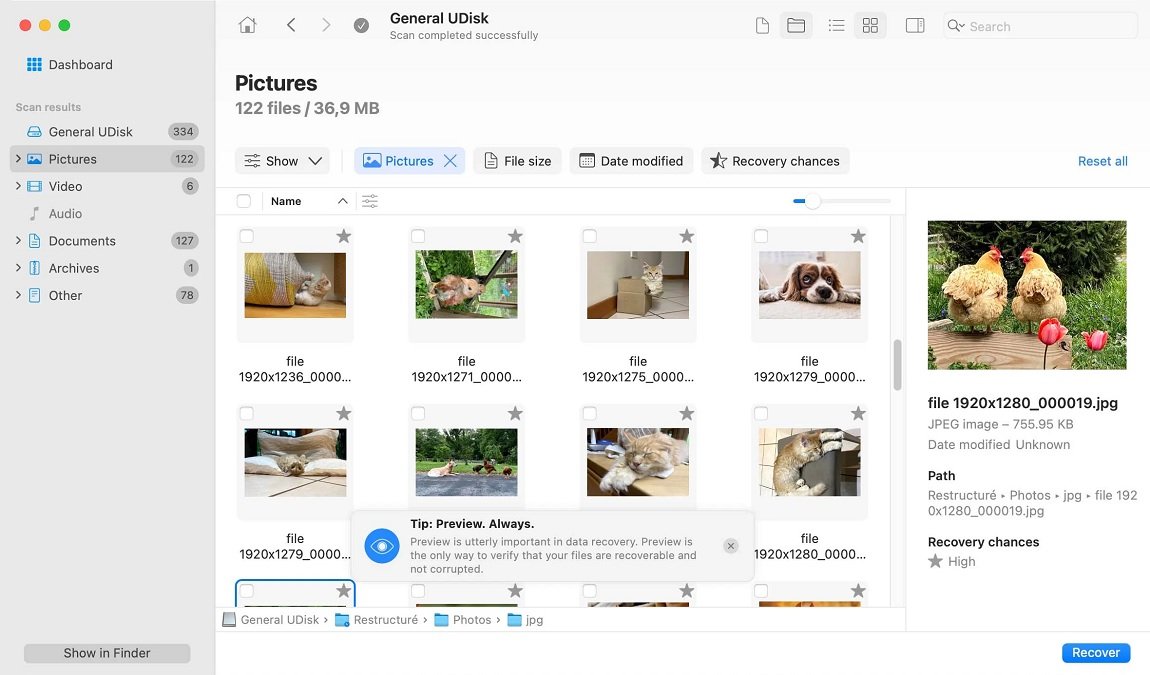
How Disk Drill Works:
Disk Drill operates in three main phases:
- Device Scanning: Choose the storage device or partition to scan. Disk Drill reads the file system metadata and performs a sector-by-sector scan to detect recoverable files. Quick Scan detects recently deleted files, while Deep Scan searches the raw disk for recognizable file signatures.
- File Identification: The software analyzes each detected file and categorizes it by type (documents, images, videos, audio, archives, etc.). Users can preview these files to confirm which are worth restoring. This step minimizes the risk of overwriting existing files and helps prioritize recovery.
- File Recovery: Selected files can be restored to a safe destination, ideally a separate drive to prevent overwriting lost data. Disk Drill’s Recovery Vault also ensures that files protected beforehand can be restored even after accidental deletion.
Supported File Systems & Devices:
- File systems: NTFS, FAT, exFAT, HFS+, APFS, EXT2/3/4
- Devices: HDD, SSD, USB drives, SD cards, external drives, iPods, and even some RAID arrays
- Over 400 file formats supported, including DOCX, XLSX, PPTX, PDF, JPG, PNG, MP4, AVI, WAV, MP3, PST, and ZIP
Practical Experience Tips:
- For best results, never install Disk Drill on the drive containing lost files—use the portable version or another drive.
- Deep Scan is ideal for older, formatted, or partially corrupted drives, though it may take hours for large drives.
- Recovery Vault is a game-changer for business users: pre-protect critical files to avoid future permanent loss.
- Always restore files to a different storage location to prevent overwriting the original data.
- Disk Drill is particularly useful for recovering accidentally deleted photos from memory cards or documents lost during system crashes, based on user reviews.
Pros:
- High recovery success rate even on damaged or formatted drives
- User-friendly interface suitable for beginners and professionals
- Supports multiple file types and storage devices
- Advanced features like Recovery Vault and disk health monitoring
- Portable version avoids additional risk to lost data
- Works seamlessly on Windows and Mac
Cons:
- Deep Scan can be time-consuming for large drives
- Some advanced features require Disk Drill Pro
- Recovery from severely physically damaged drives may still be limited
Best For: Disk Drill is ideal for anyone needing reliable recovery of deleted, lost, or inaccessible files—whether recovering personal photos, business documents, or data from corrupted partitions. Its advanced tools also make it suitable for IT professionals and digital forensics enthusiasts.
12. Ontrack EasyRecovery
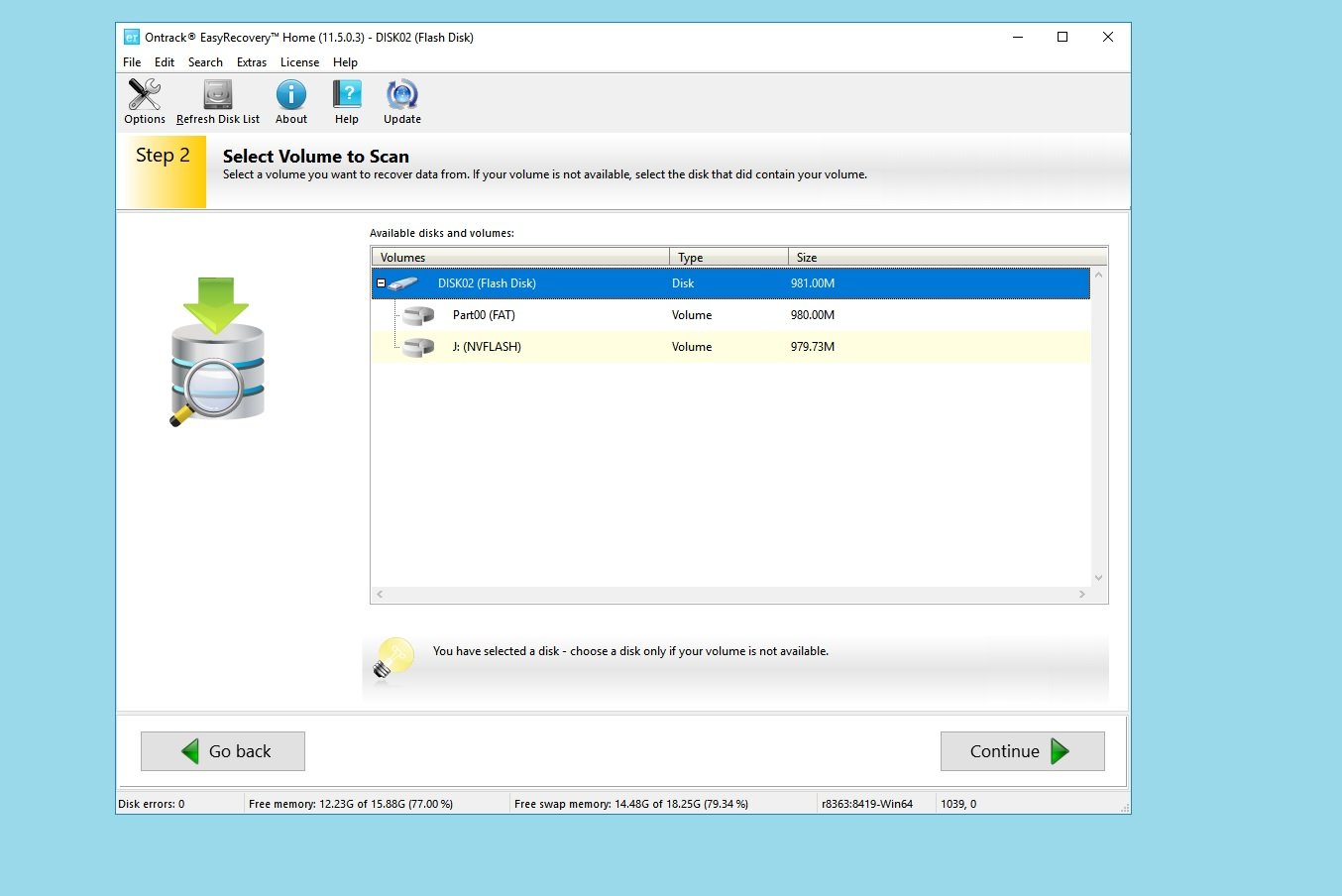
Ontrack EasyRecovery is a professional data recovery software developed by Ontrack, a trusted name in data recovery and information management. It is designed to help users recover lost, deleted, or corrupted files from a wide range of storage devices, including hard drives, SSDs, USB drives, memory cards, optical media, and RAID arrays. EasyRecovery is suitable for both home users and IT professionals, offering tools for file recovery, partition recovery, and disk repair, as well as features for protecting sensitive data.
Ontrack EasyRecovery is known for its intuitive interface, powerful recovery engine, and compatibility with multiple file systems and operating systems, making it a reliable choice for recovering important data after accidental deletion, formatting, virus attacks, system crashes, or software errors. Many users note its effectiveness in restoring critical business files, personal documents, and multimedia files even from severely damaged or corrupted drives.
Key Features:
- Recover deleted, lost, or corrupted files from HDDs, SSDs, USB drives, memory cards, CDs/DVDs, and RAID arrays
- Supports Windows and macOS operating systems
- Restore files from NTFS, FAT, exFAT, HFS/HFS+, APFS, Ext2/3/4 file systems
- Recover over 1,000 file types including documents, images, videos, audio files, emails, and archives
- Partition recovery for lost or deleted volumes
- Disk diagnostics and repair tools to detect and fix logical errors
- Preview files before restoring them
- Bootable media support to recover files from crashed or unbootable systems
- Offers both Home and Professional editions with advanced recovery features
How It Works: Ontrack EasyRecovery operates by scanning the selected storage device to locate recoverable files. It uses Quick Scan for recently deleted files and Deep Scan for formatted, corrupted, or otherwise inaccessible drives. The software analyzes the file system and disk sectors, reconstructs file structures, and identifies files for recovery. Users can preview the files before restoring them to a safe location, ensuring important data is not overwritten during the recovery process.
Supported Devices & File Systems:
- Devices: Hard drives, SSDs, USB drives, memory cards, optical media, RAID arrays
- File systems: NTFS, FAT, exFAT, HFS/HFS+, APFS, Ext2/3/4
- File types: Documents (DOC/DOCX, XLS/XLSX, PDF), Images (JPG, PNG, TIFF, RAW), Videos (MP4, AVI, MOV), Audio (MP3, WAV, AAC), Emails (PST, DBX, EMLX), Archives (ZIP, RAR, ISO)
Pros:
- Reliable recovery from damaged or formatted drives
- Supports a wide range of storage devices and file types
- User-friendly interface with guided recovery steps
- Bootable media support for crashed or unbootable systems
- Offers file preview and selective recovery
Cons:
- Advanced recovery features require Professional edition
- Deep Scan can take hours on large or heavily damaged drives
- Premium versions can be costly compared to simpler tools
Best For: Recovering important files, lost partitions, or corrupted data from Windows and Mac systems, especially when dealing with critical business or personal data.
Conclusion
Hard drive data recovery software is the most reliable solution to recover lost or deleted files from your computer, external drives, SSDs, USBs, and memory cards. From free file recovery software like Recuva and Wise Data Recovery to professional tools such as Disk Drill and Ontrack EasyRecovery, these programs help restore documents, photos, videos, and more with minimal risk. They support multiple file types and storage devices, offer Quick and Deep Scan options, and provide features like file preview, bootable recovery, and read-only operations for safe data retrieval.
Whether you are a home user recovering accidentally deleted files, a small business protecting critical documents, or an IT professional handling complex disk damage, there is a data recovery solution suited to your needs. By choosing the right tool, you can effectively recover lost data, avoid further file corruption, and safeguard your digital assets against unexpected data loss.
FAQ: Best Hard Drive Data Recovery Software
What is the best free hard drive recovery software?
If you are looking for the best free hard drive recovery software we strongly recommend you: WinHex, Data Recovery Wizard, Recuva, Disk Drill.
How can I recover files from my hard drive for free?
The data recovery software won't be able to retrieve the deleted file if it is partially overwritten by another file. The Best Data Recovery Software should support all file formats and storage media. It should also be capable of recovering files from any type of storage media. Data recovery software generally has access to the hard drive's core architecture. This software accesses and refers to the file structure entries in order to extract data from corrupt storage devices.
How much does it cost to recover data from a hard drive?
Based on these factors, basic hard drive data recovery costs can range from $100 to $1000. The cost of data recovery depends on how severe the damage is and what it takes to extract the data. If the hard drive fails mechanically, then the cost of recovering data from it might rise to an advanced level.
How do I recover photos from my hard drive?
If you delete photos from your Recycle Bin and don't have backups, you may need data recovery software. Data recovery software scans your hard drive to recover files that seem lost forever. Disk Drill for Windows 10 is a great choice for data recovery software. Disk Drill for Windows 10 is an excellent data recovery software that can recover up to 500MB data.
Are data recovery services safe
Yes, if you use data recovery services it is the best choice. Because your data is handled by professionals and they can help you to recover files, videos, photos on your hard drive
Can i ssd data recovery?
Can I SSD data recovery? Yes. We know that SSD TRIM technology makes it virtually impossible for data recovery software not to recover data from SSD drives. An SSD data recovery program can be used to recover files from deleted or formatted partitions
You May Also Like
 Best Software
10 Best Inventory Control Software for Small Business in 2026
 Best Software
Top 10 Free & Open Source Inventory Management Software in 2026
 Best Software
12 Best AI Chatbot Software To Increase Your Conversions In 2026
 Best Software
23 Best Free Avatar Creator Sites Online To Create Your Own Avatars
 SaaS
SaaS11 Best VoIP Call Center Solutions for Small Business 2026 (Comparison Guide)
 Best Software
6 Best Software to Record Mouse and Keyboard Actions and Automate Repetitive Tasks
 Best Software
Jira vs Hive: Which Project Management Tool is Right for Your Team?
 Best Software
8 Best Free Registry Cleaners Tools to Clean Junk and Registry on Windows PC
 Best Software